This button is initially intended for booking meetings with a redirect to a shared calendar.
How to set up a native Sigilium appointment button
Learn how to redirect your contacts to your shared calendar with a detailed step-by-step video on how to set up your native Sigilium appointment button.

We will take the example of a portfolio.
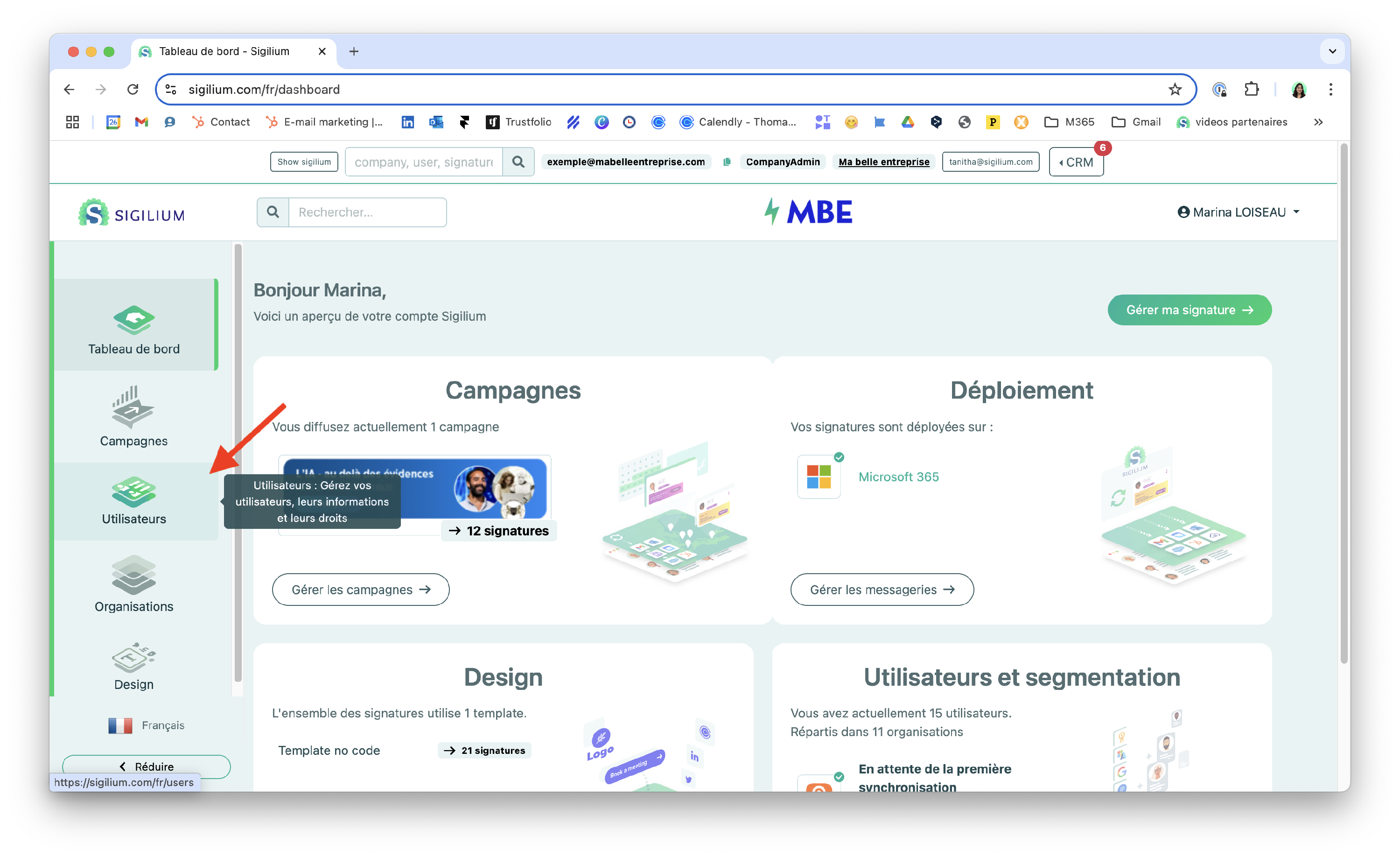
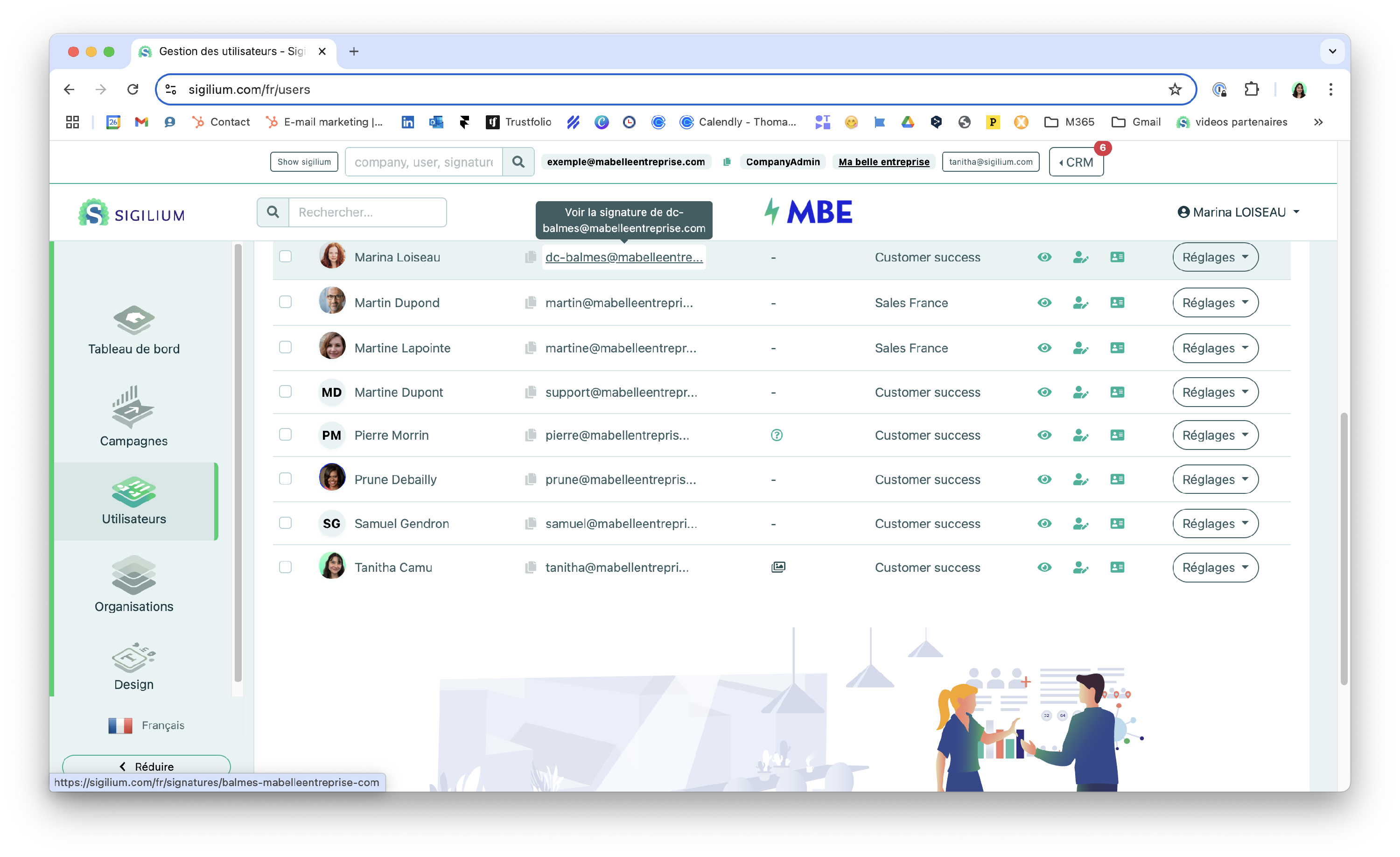
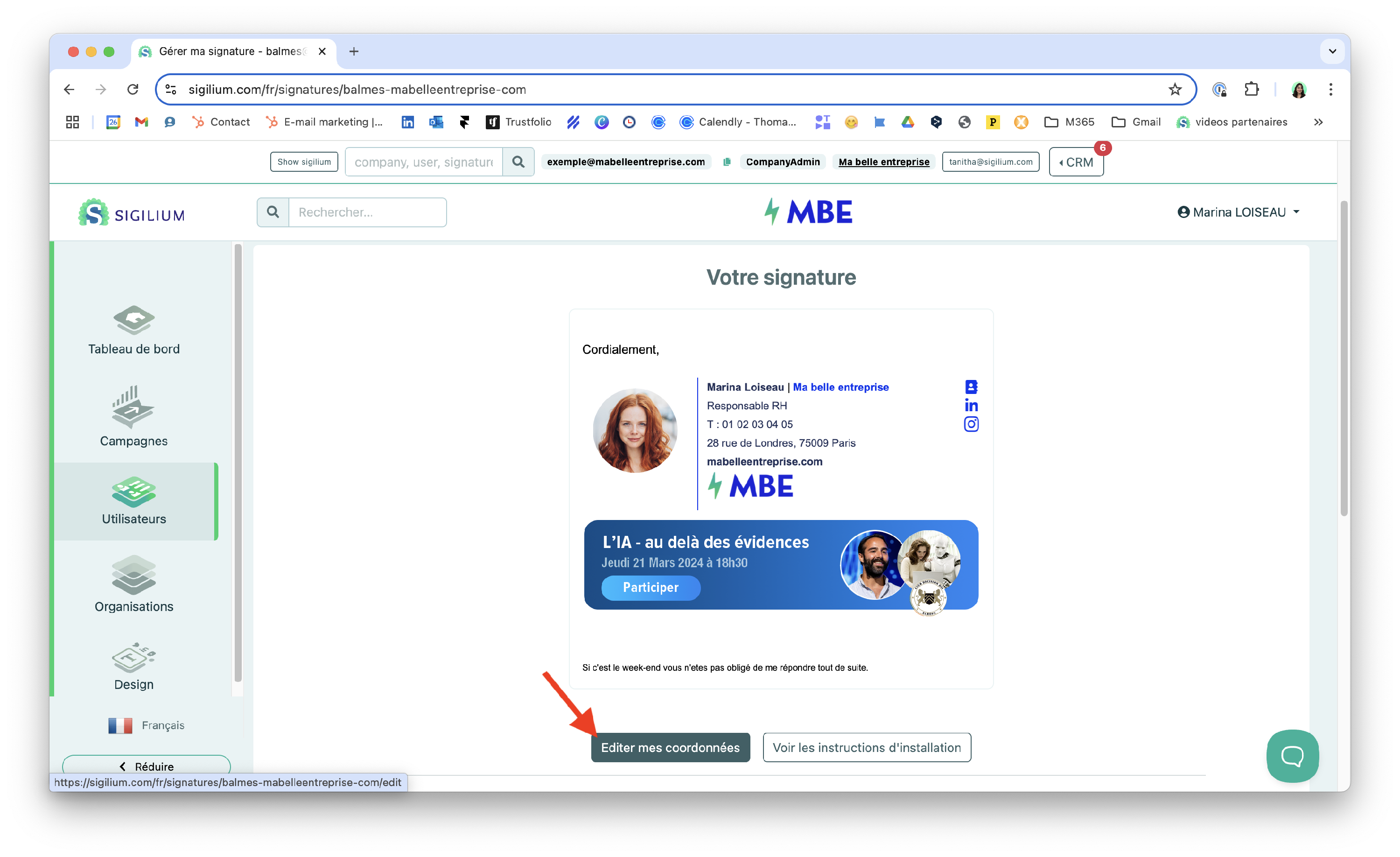
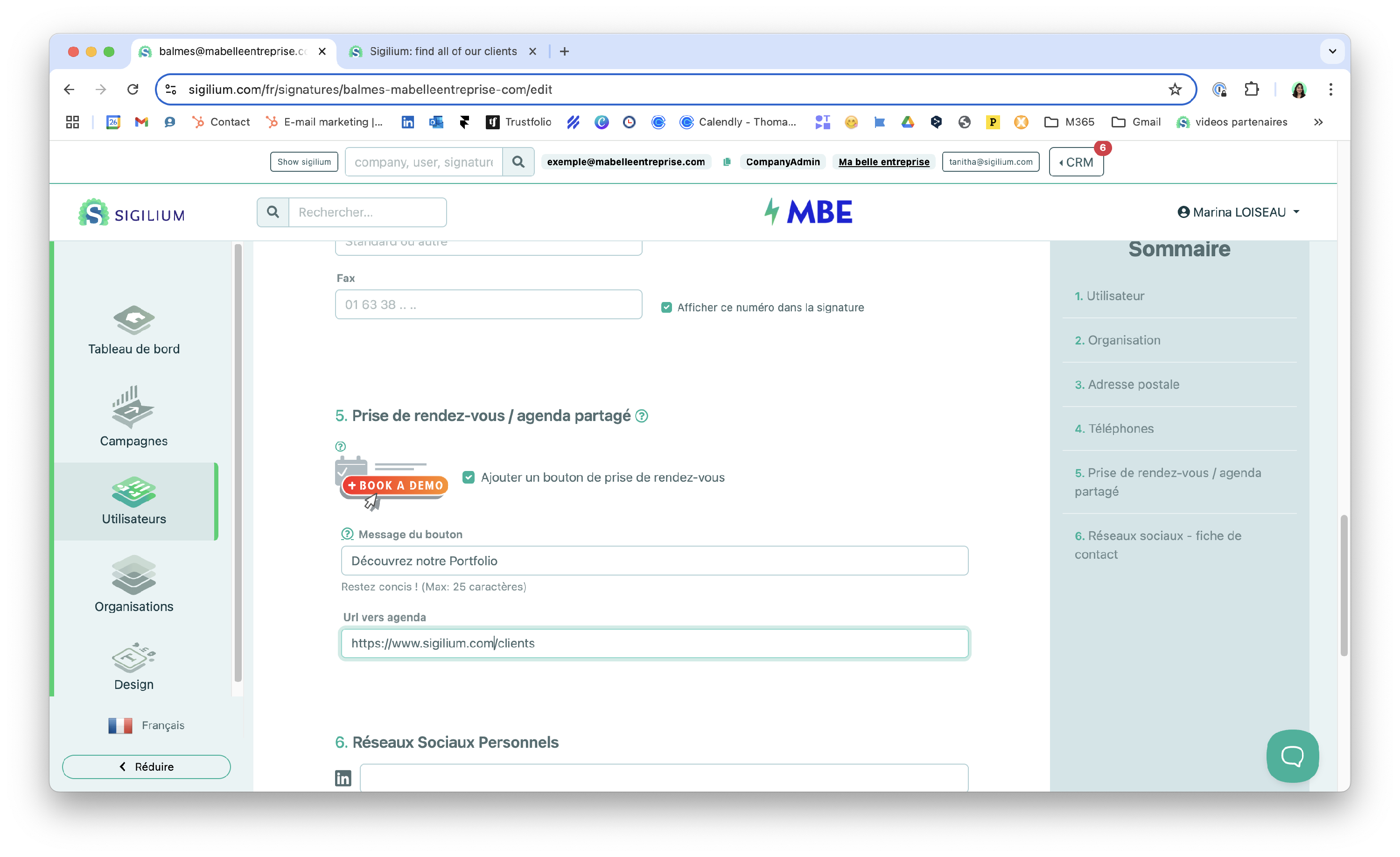
1/ From the Dashboard, find the relevant user and their form.
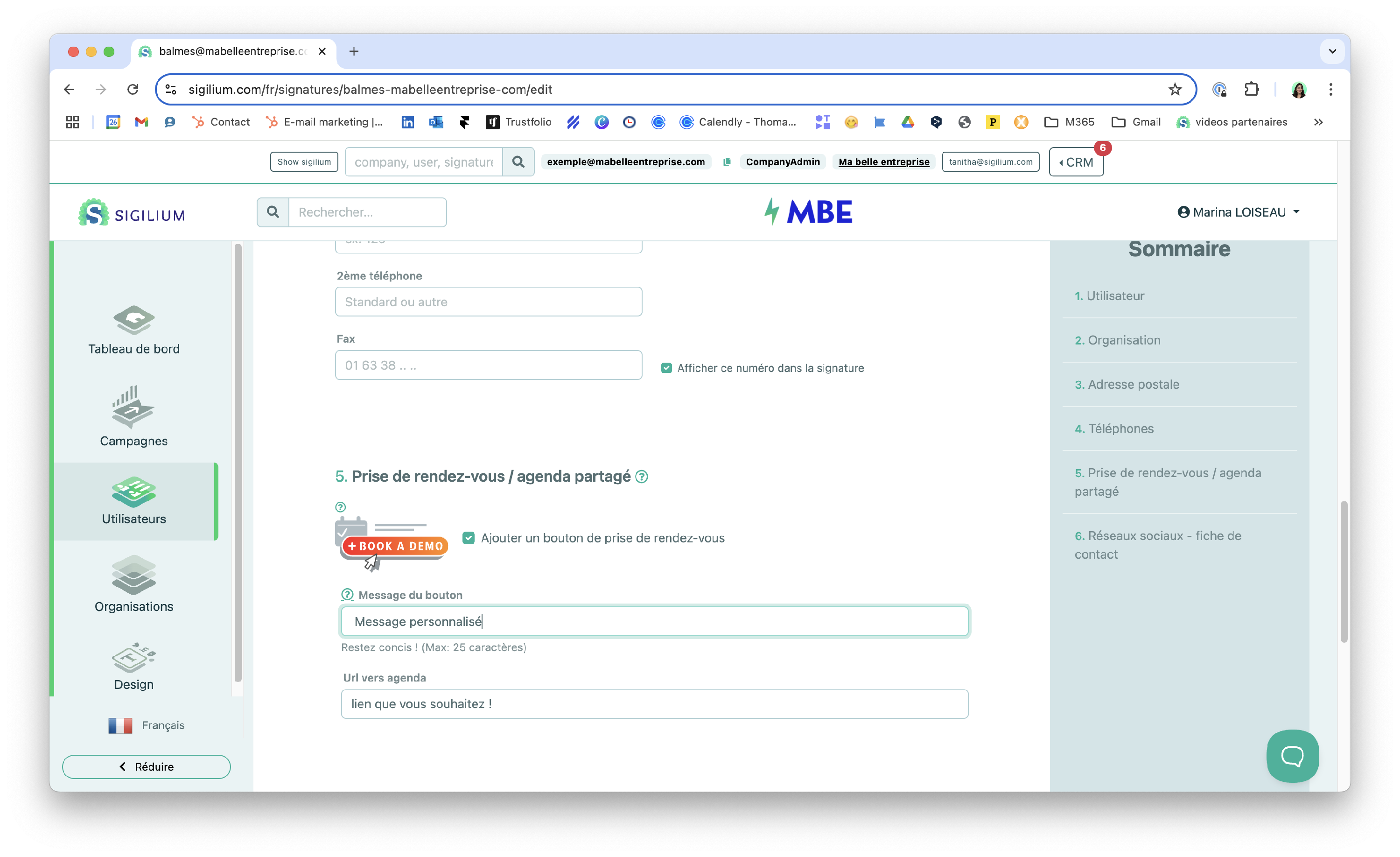
2/ Scroll down the form to find section 5. Appointment button.
We will take the example of a portfolio as seen below :
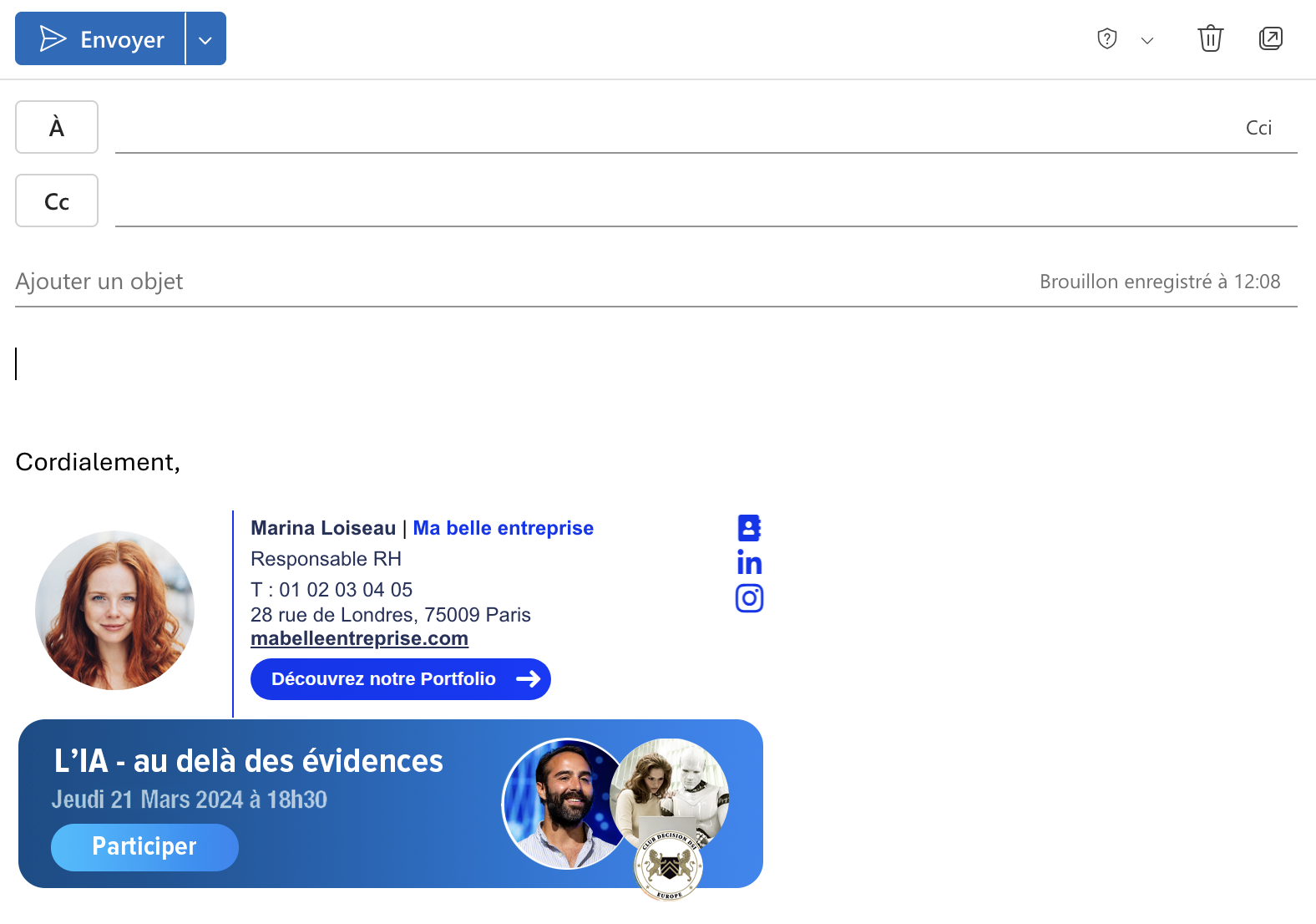
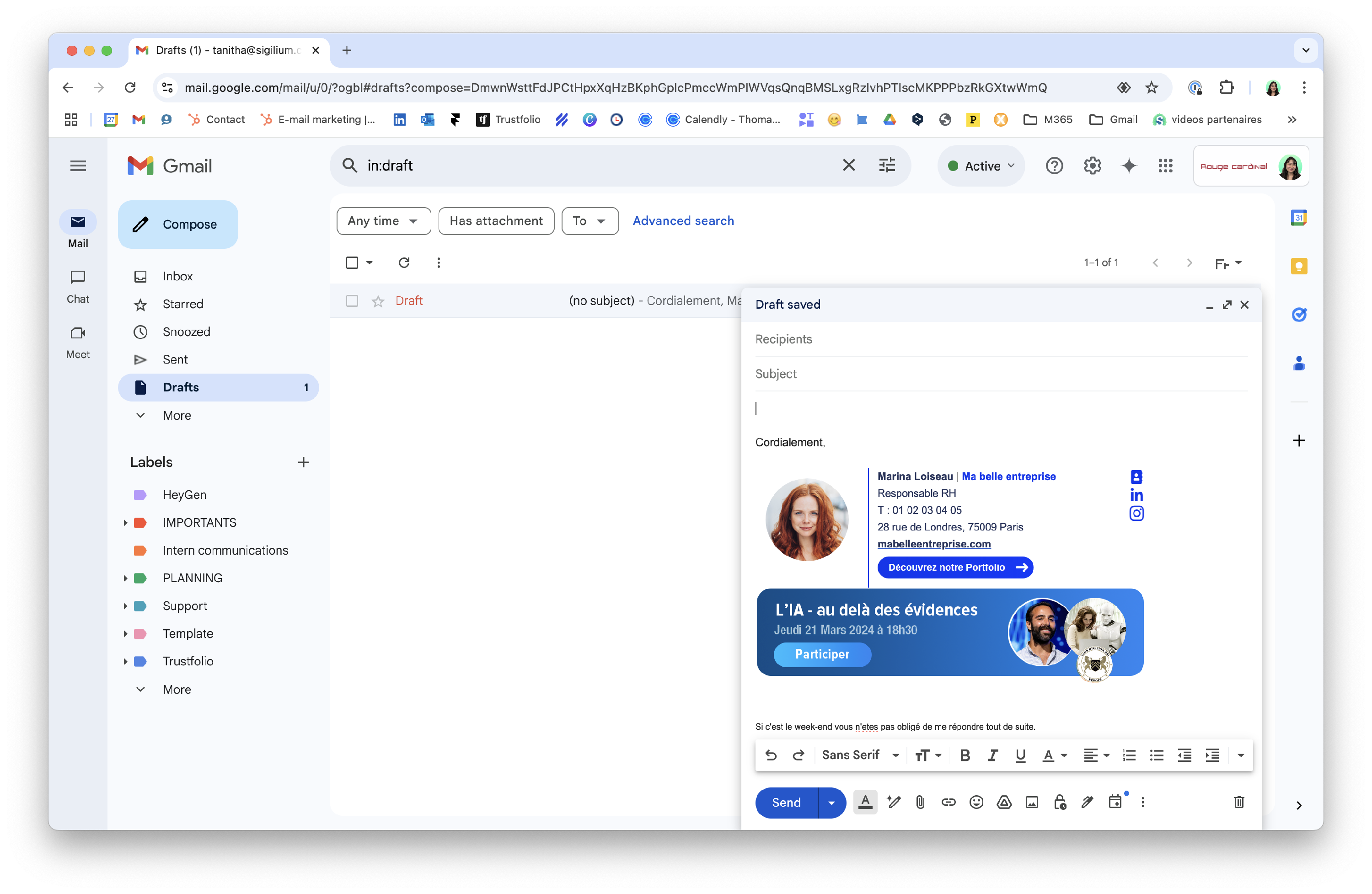
It will be the subject of another video you can find here :
No Code - How to set up a custom CTA button with an image
Discover how to set up a custom button with a visual to communicate effectively on two levels with a detailed step-by-step tutorial video.
HTML - How to set up a personnalized button with a visual
Your technical teams can easily set up a custom button with a visual using the HTML editor.
Any questions ?
You can describe your problem orally in a few seconds leaving a message on the
+33 1 83 64 02 13
You would rather write it down? We are happy to help in response to your email at