Here's how to switch from the Sigilium add-in to the new Signitic add-in, in a few simple steps.
You must be a Microsoft 365 account administrator to perform this step.
This connector allows you to link your users on the Microsoft 365 directory to Signitic.
You can also decide to automatically sync the new users created.
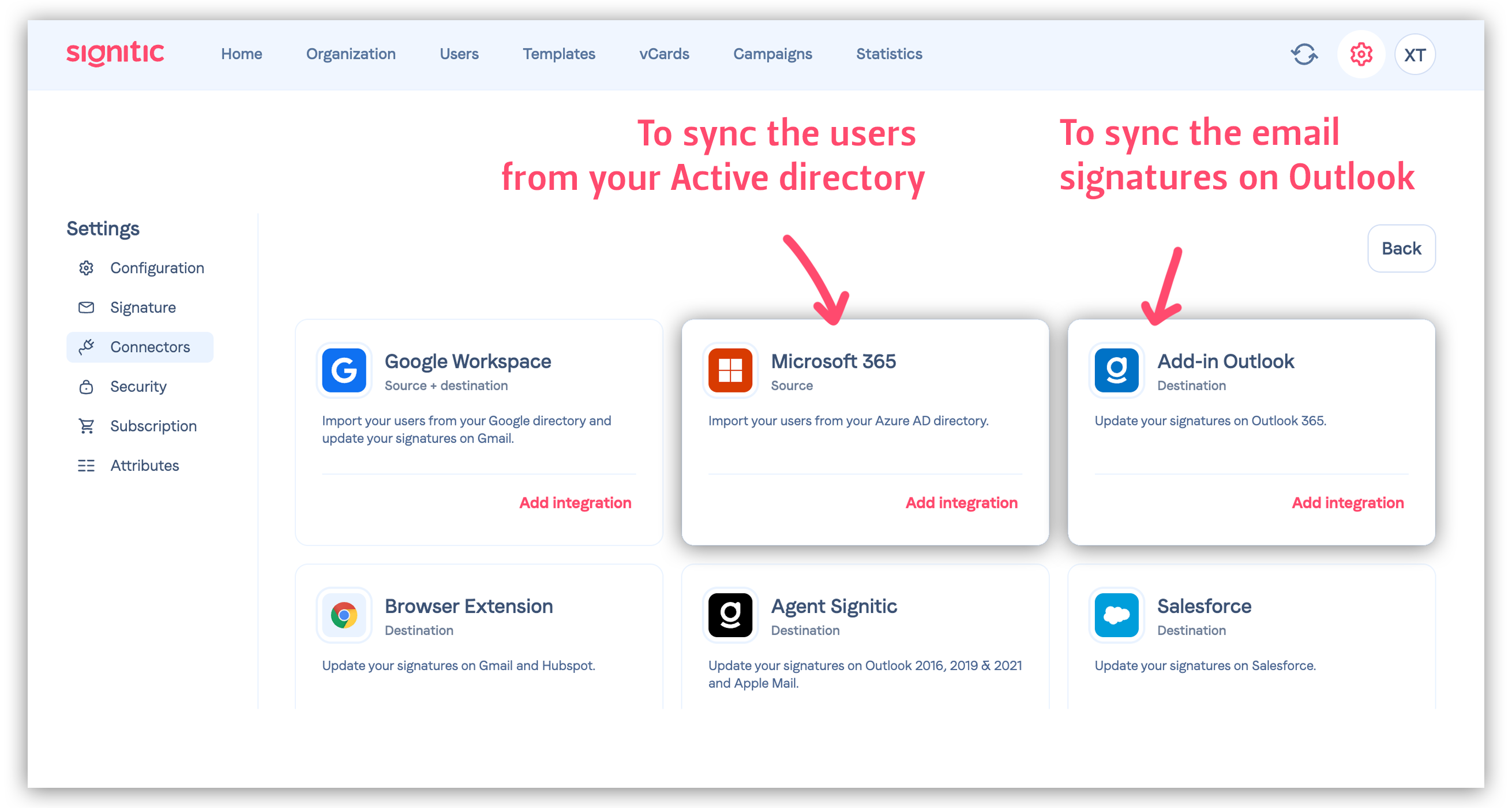

From your Signitic interface, go to Settings > Connectors.
direct link: https://app.signitic.com/settings/connectors/available
You will find all the necessary documentation here:
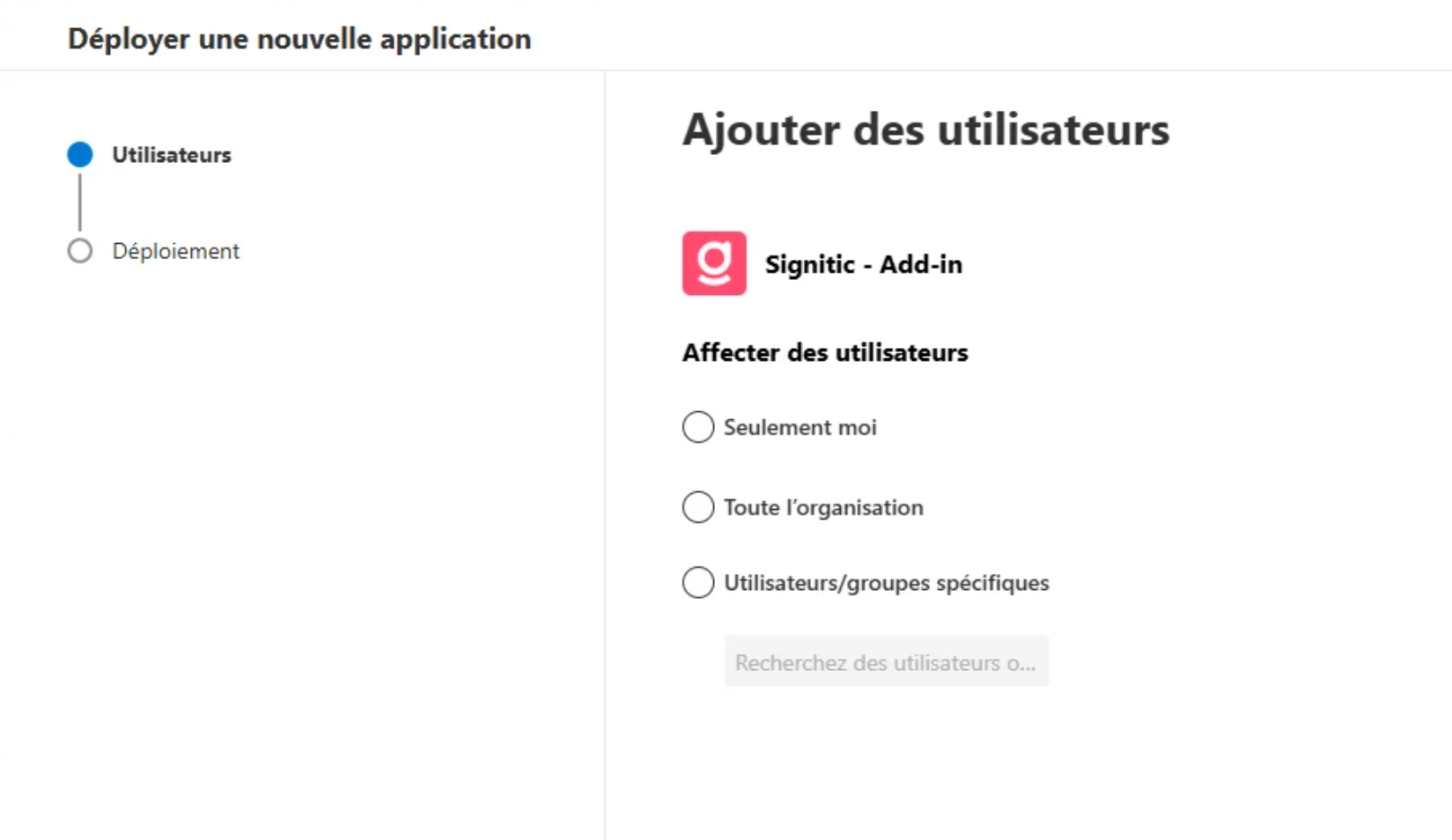
Activate the Outlook add-in.
Choose your user scope and validate
The deployment will happen automatically.

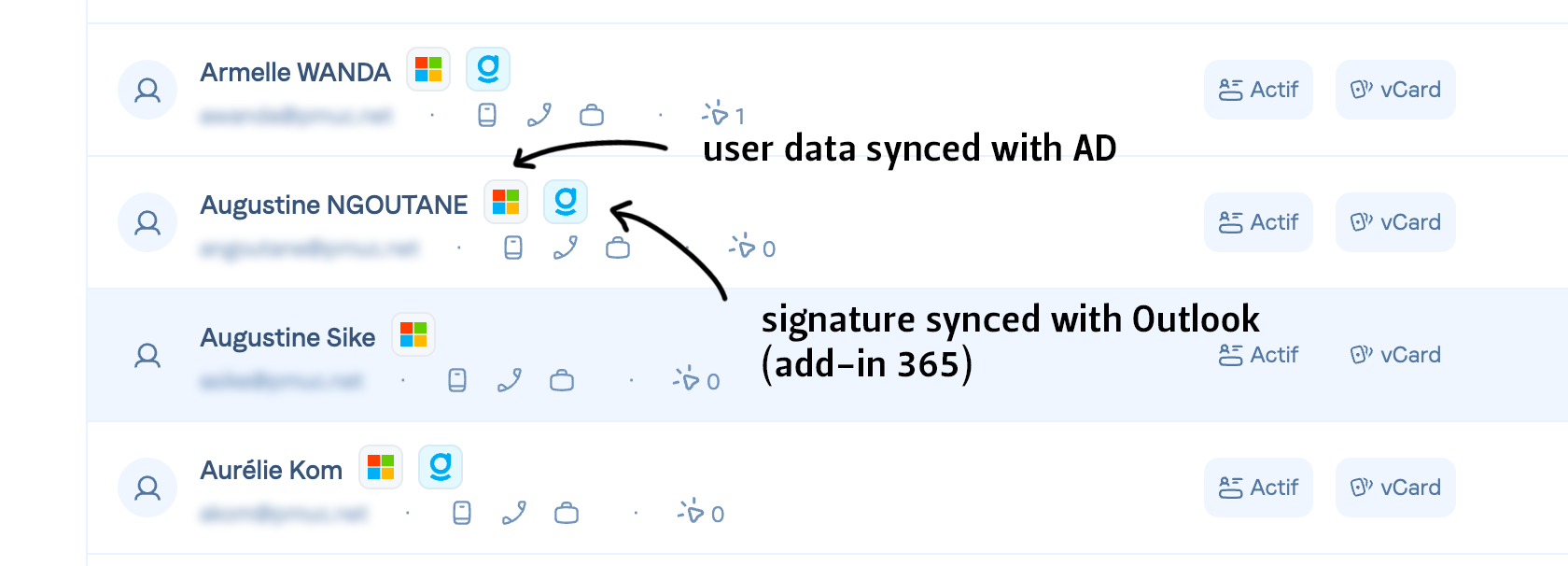
Once the Signitic add-in is deployed, you will see blue icons appear in the user list. Example below:
The procedure is explained in our dedicated article here:
https://support.sigilium.com/fr/articles/497-desinstaller-sigilium-dans-un-environnemnet-microsoft
It's not mandatory: the only thing that will change for users is the add-in icon in Outlook. It changes from green to pink.
That said, we have prepared resources.
They are available to you:
you can share internally this user presentation.
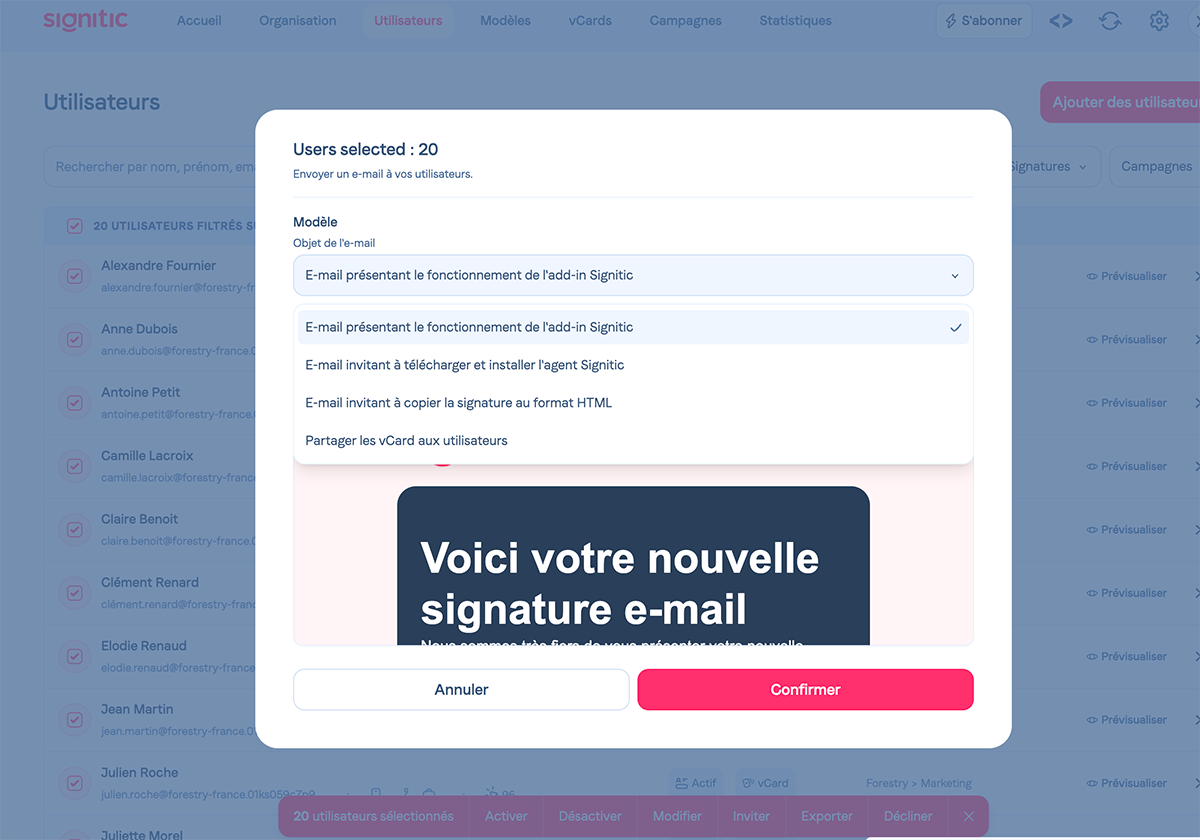
you can send a message to users in a centralized way.
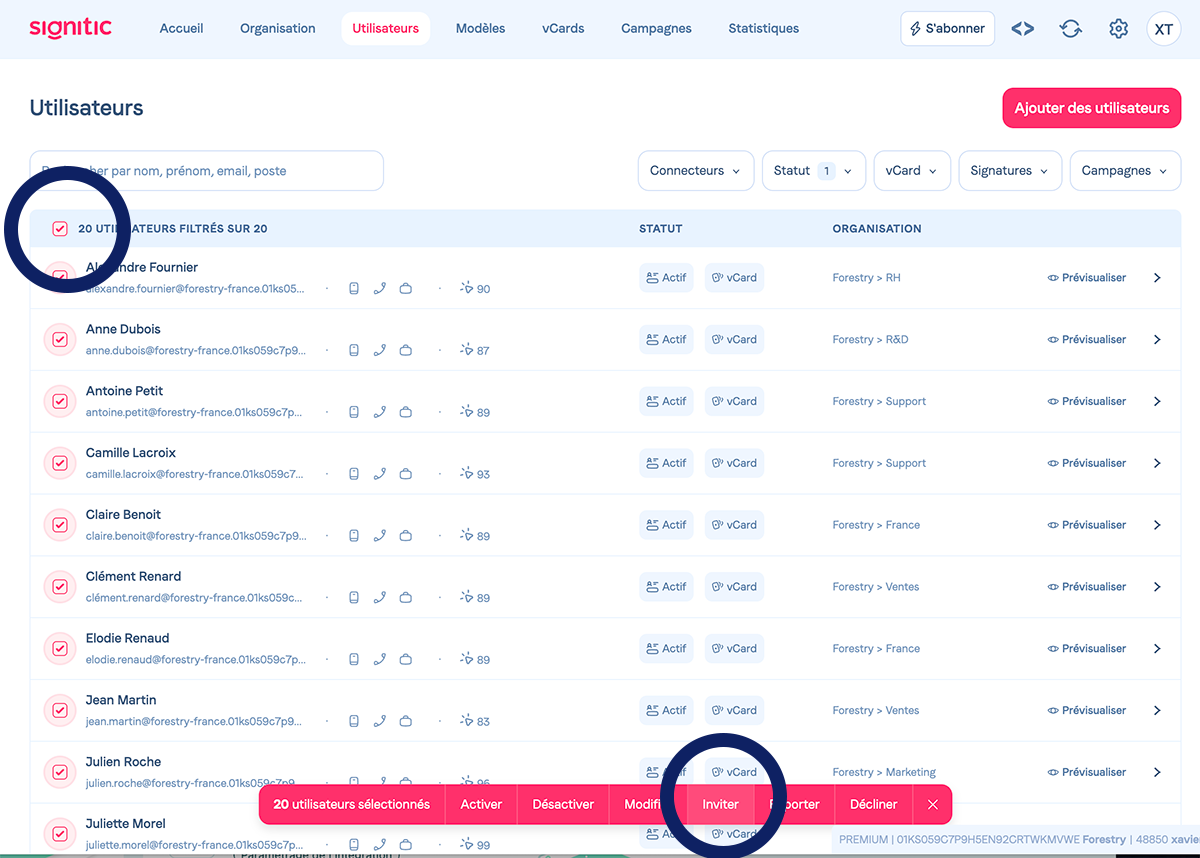
From the Users page > check the entire list > click on Invite in the bottom bar > choose the message and language.