The Signitic extension lets you set up signatures automatically on Gmail and various platforms. This article will explain how to install the Signitic extension individually and in bulk across all your workstations.
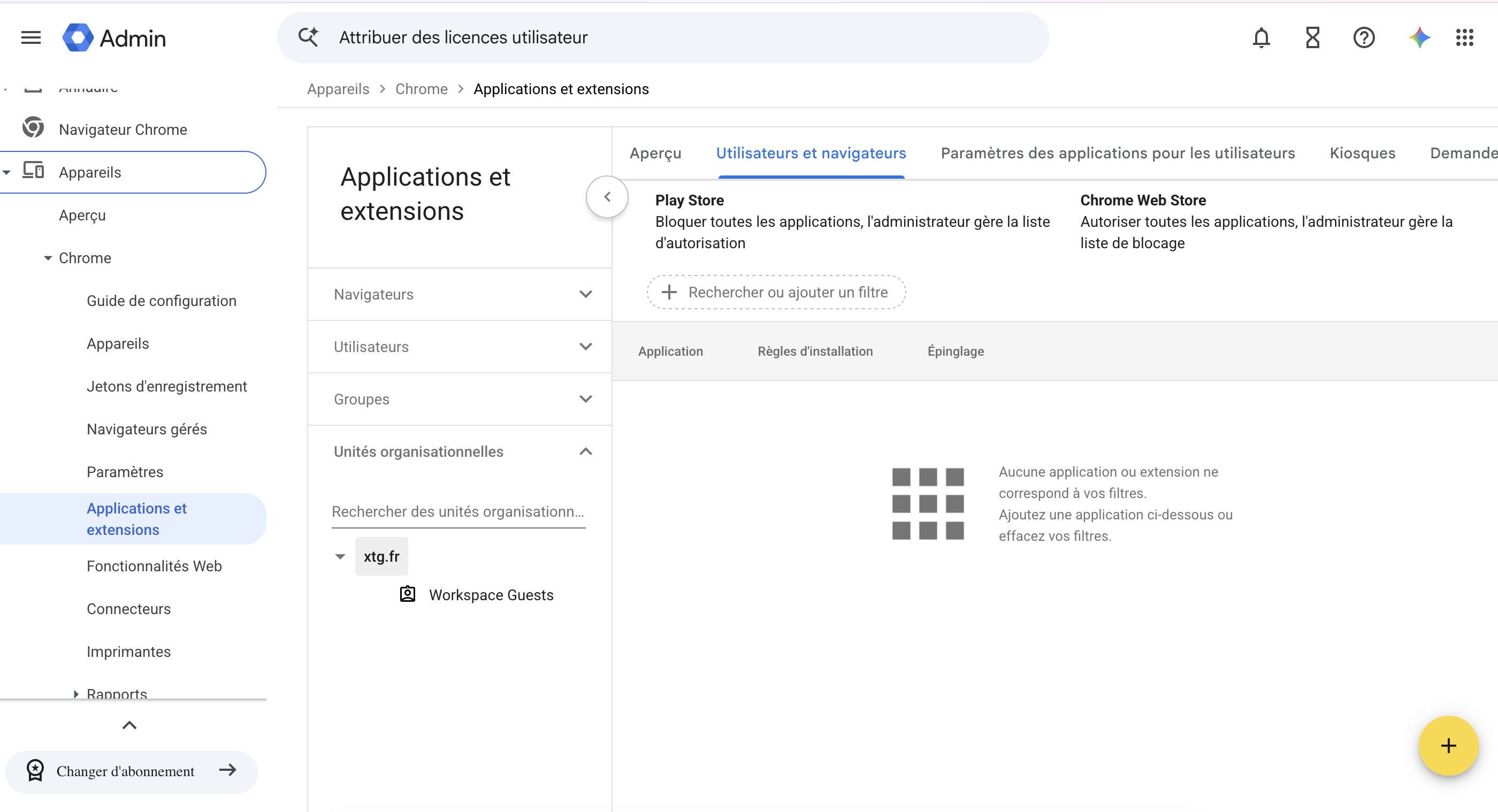
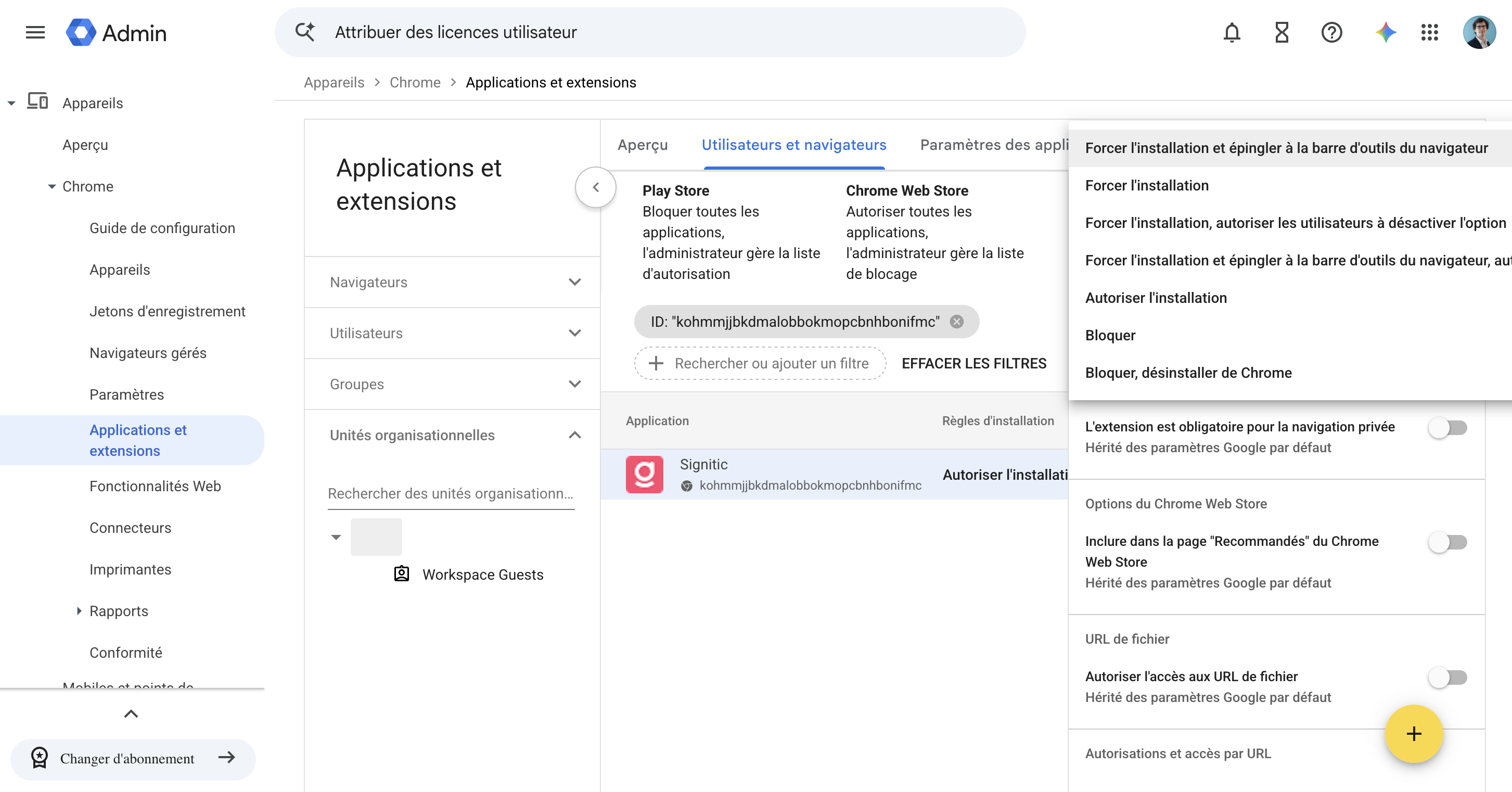
Go to the administration console Google Admin and sign in with an Admin account. Go to Devices > Chrome > Apps and extensions > Users and browsers.
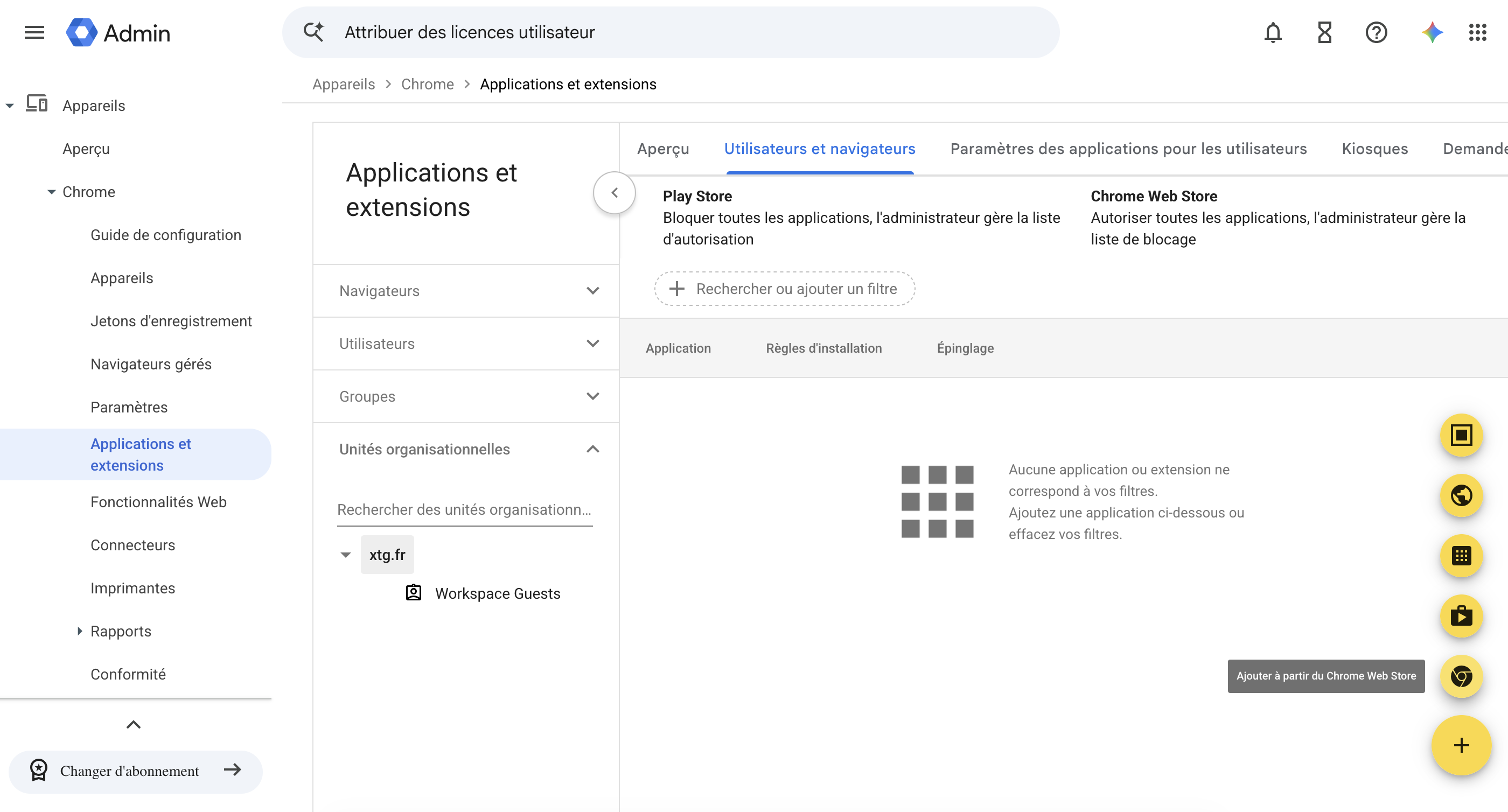
A yellow + icon appears at the bottom right of the screen. Click it, then click the Chrome icon Add from Chrome Web Store
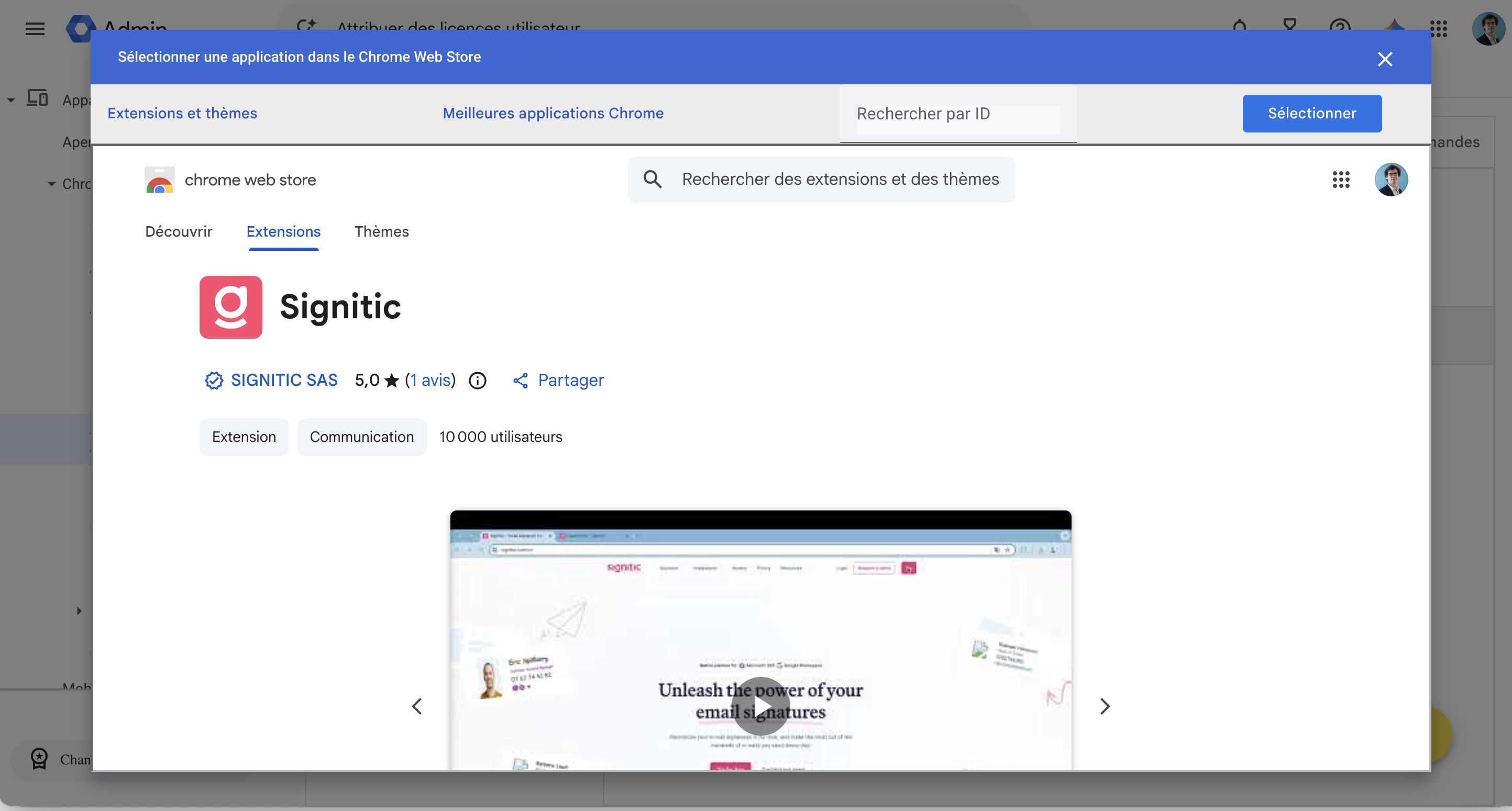
In the store, search for Signitic and click the blue Select button.
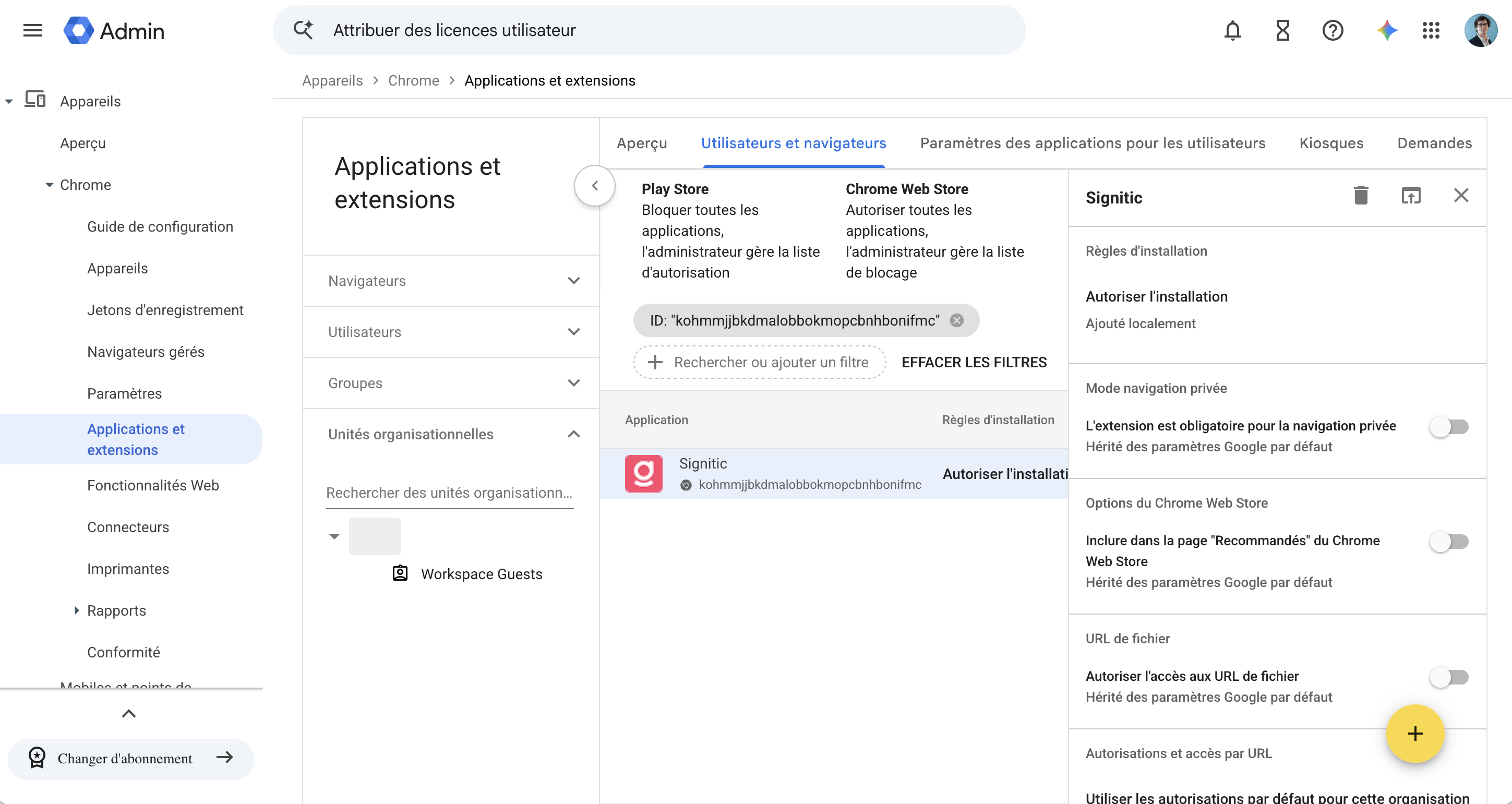
Finally, click Allow installation and, in the panel that appears on the right, click: Force install and pin to the browser toolbar.
The extension will be deployed to users the next time they sign in.
🔹 Note: Make sure Chrome sync is enabled on users' accounts to apply the configuration.