
This tutorial is only in case you are using a personal gmail account with a gmail domain
Go to the Signitic Hub
The Signitic Hub is an access to your email signature, where you can manage it :
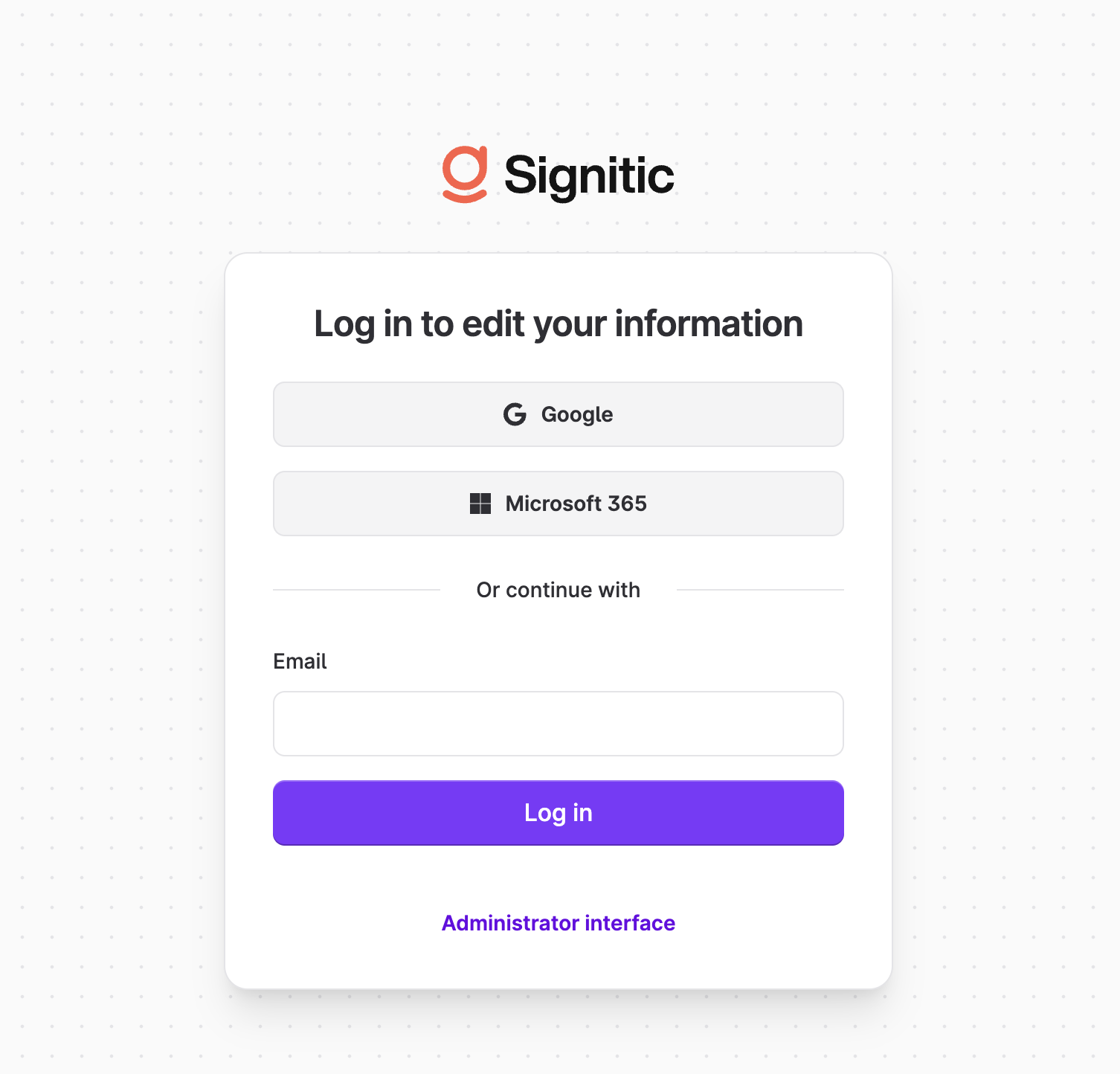
Enter your professional email address to receive a login link.
Edit and copy your Dynasign
You can edit your information and save if necessary.
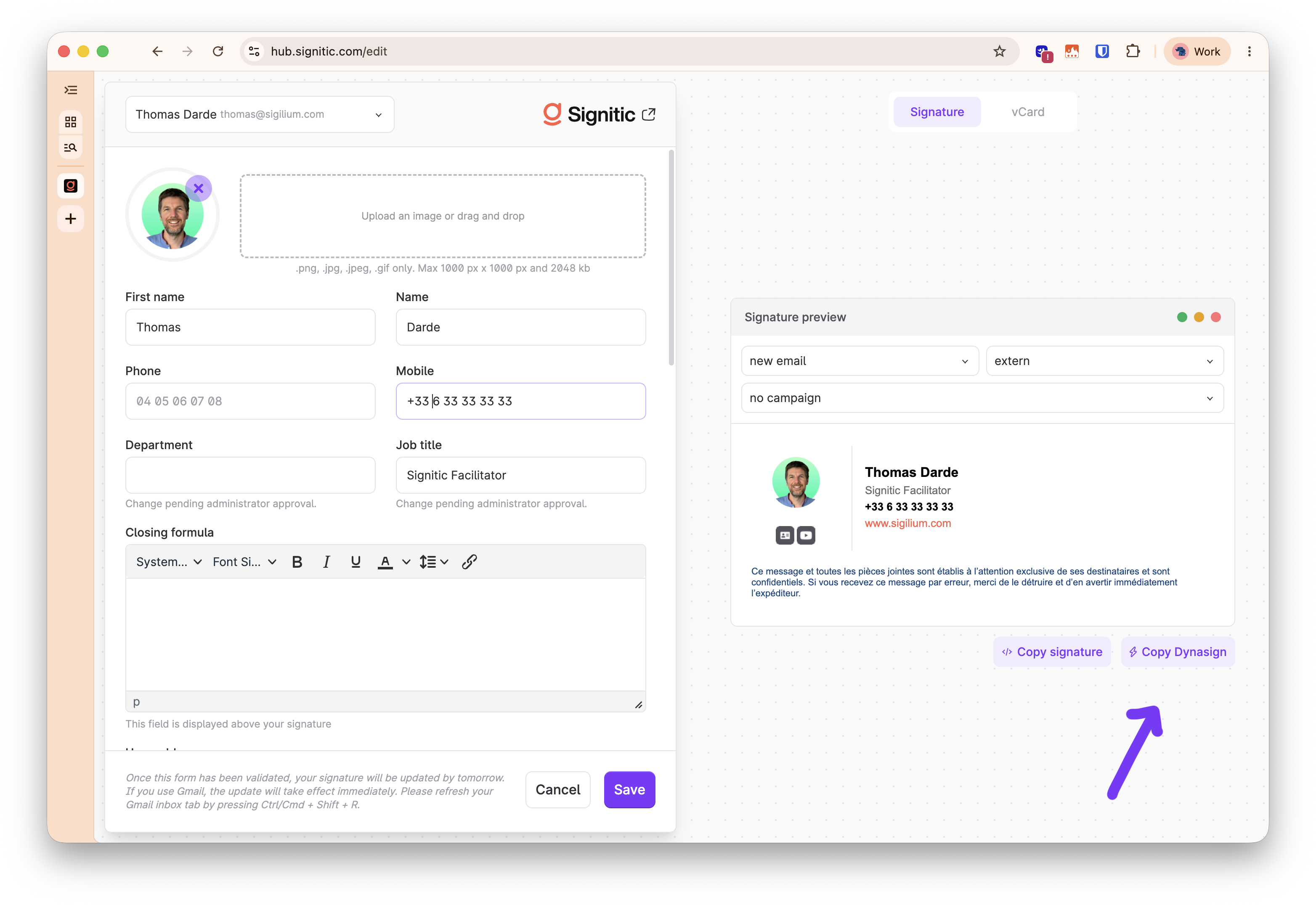
Click on the “Copy Dynasign” button at the bottom right of your signature
Paste the signature into Gmail
In Gmail, compose a new email.
Click on the pen and “Manage Signatures”
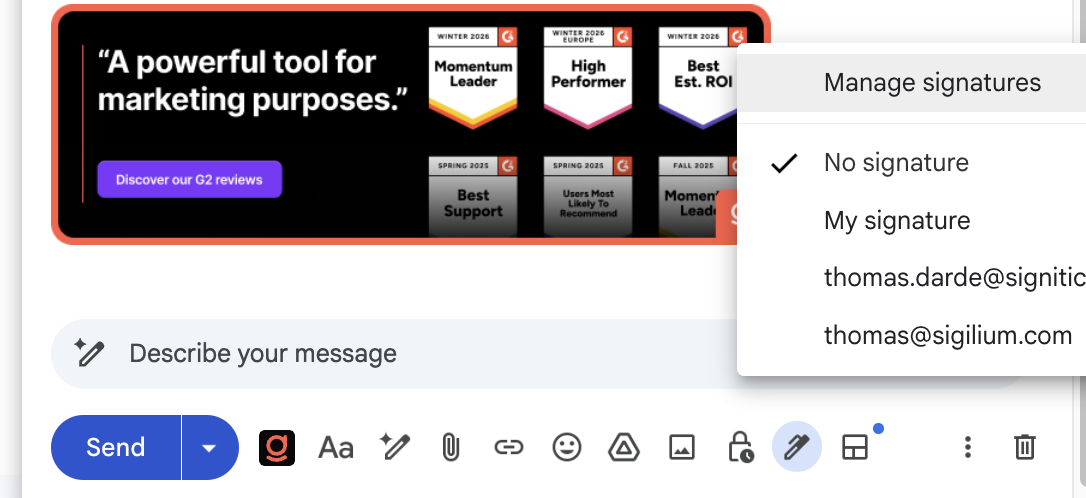
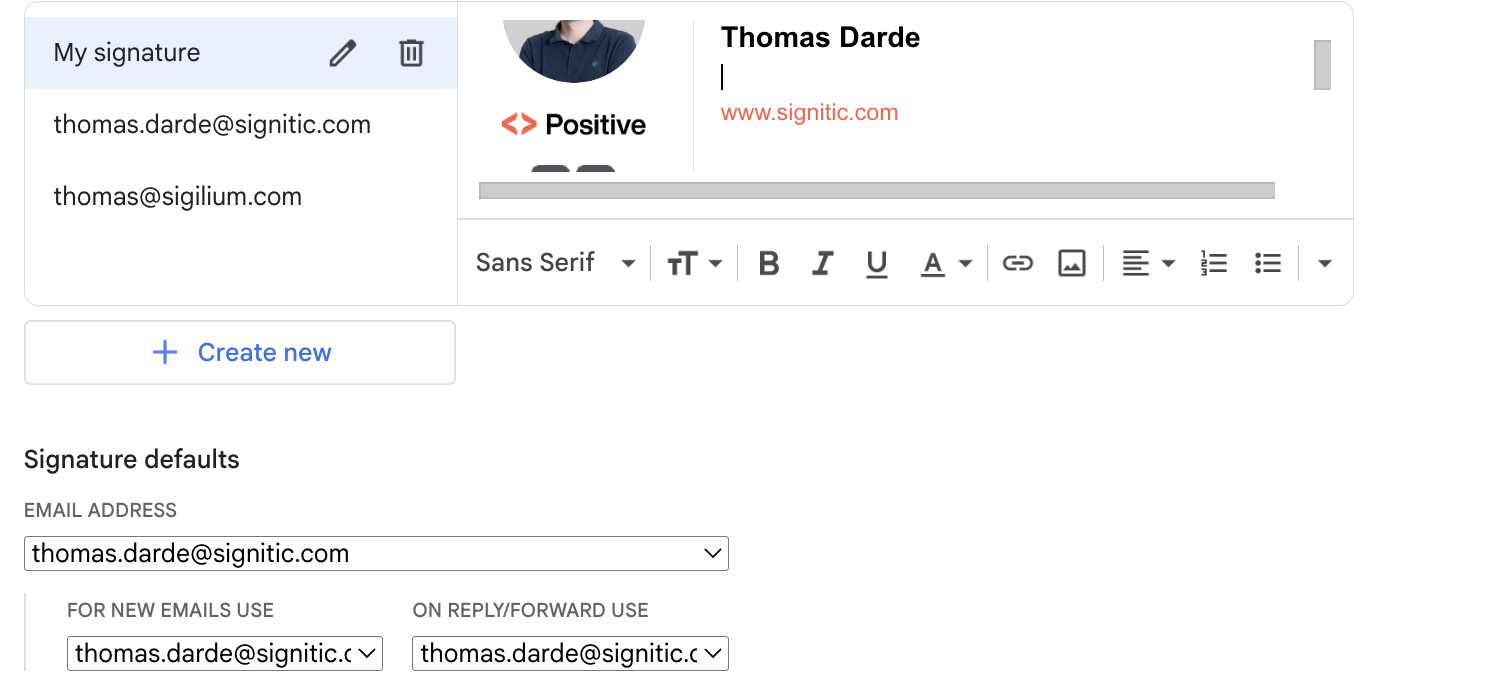
Once in the signature settings,
carefully follow the steps
edit the first signature in the list
paste your signature
at the bottom check that this signature is the default one for new emails use and for replies
go to the bottom of the page, and click on save!
Close the window,
Compose a new email. The signature will appear with the images!