
To install the Signitic signature in Mail for macOS, follow these steps:
Go to the Signitic Hub
The Signitic Hub is an access to your email signature, where you can manage it :
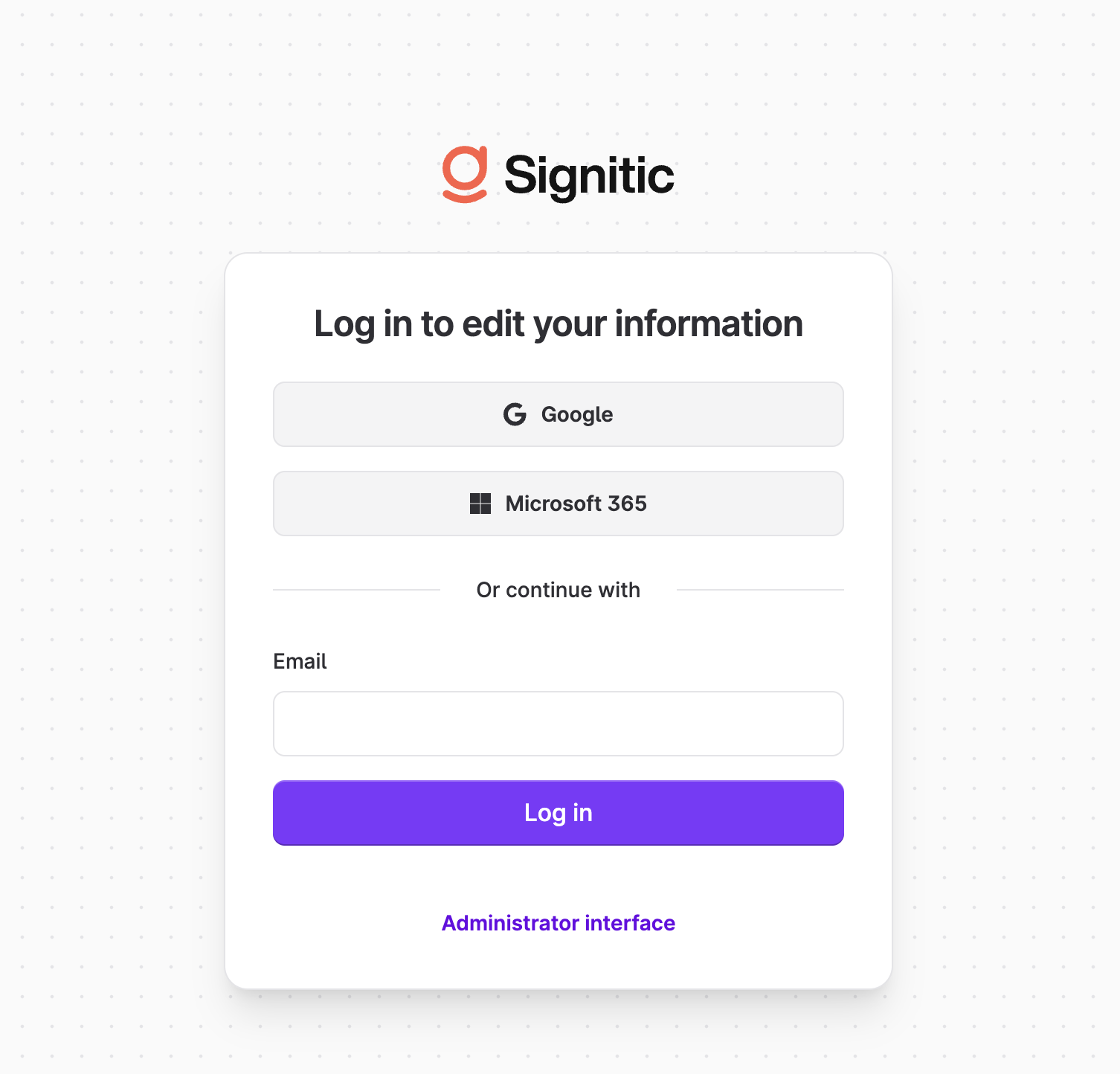
Enter your email address to receive a login link.
Edit and copy your Dynasign
You can edit your information and save if necessary.
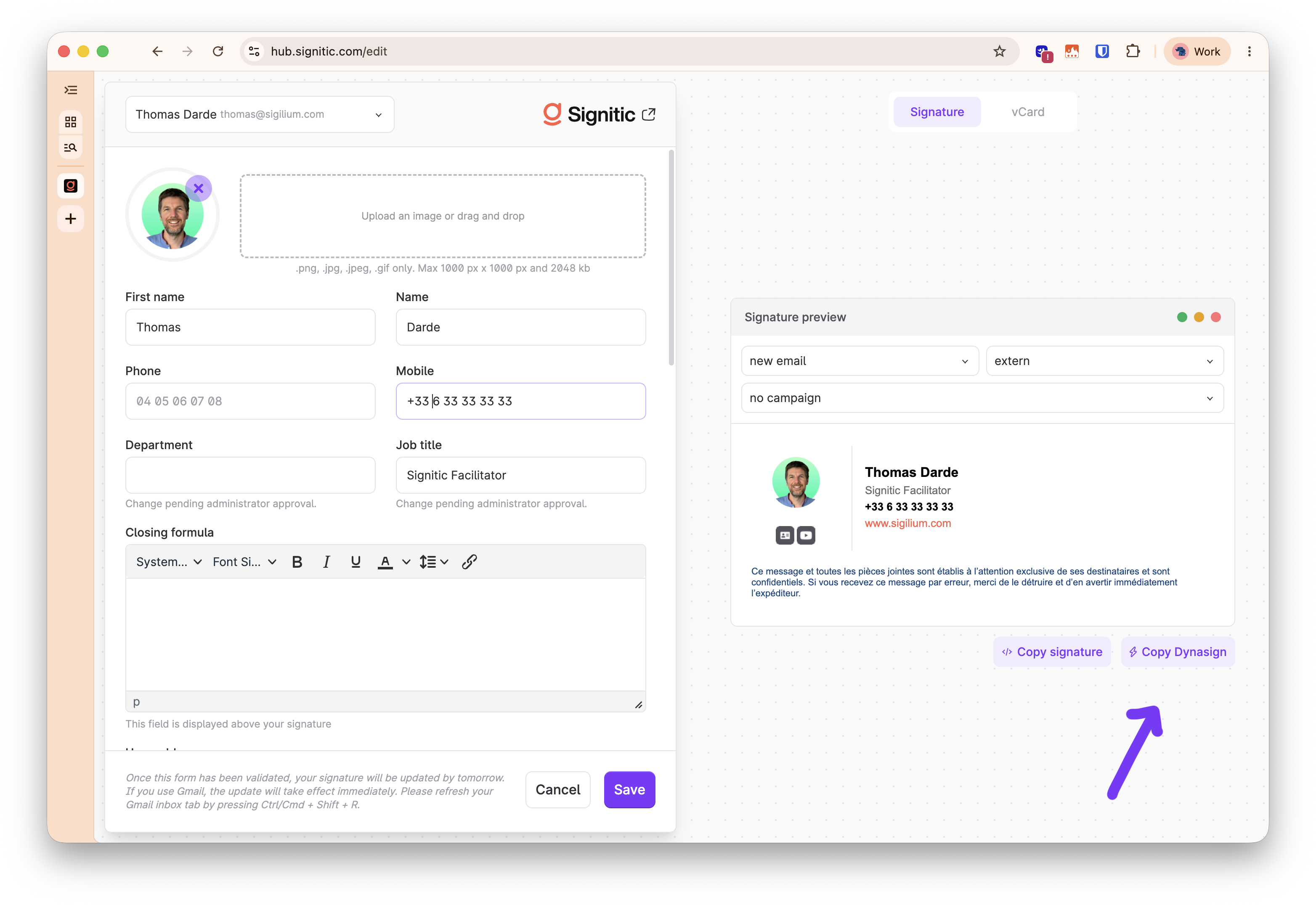
Click on the “Copy Dynasign” button at the bottom right of your signature

Paste the signature into Mail on Mac
In Mac Mail, go to Settings, then Signatures
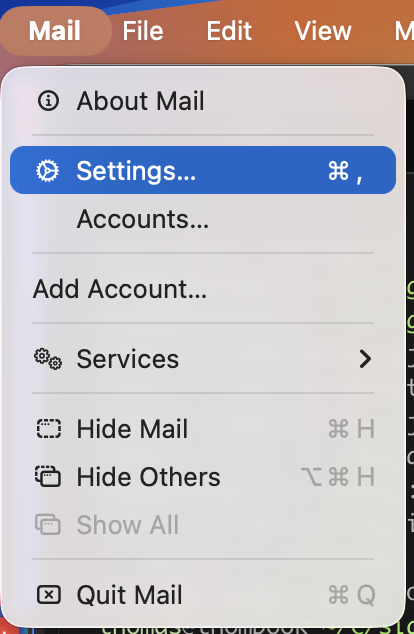
Once in the signature settings,
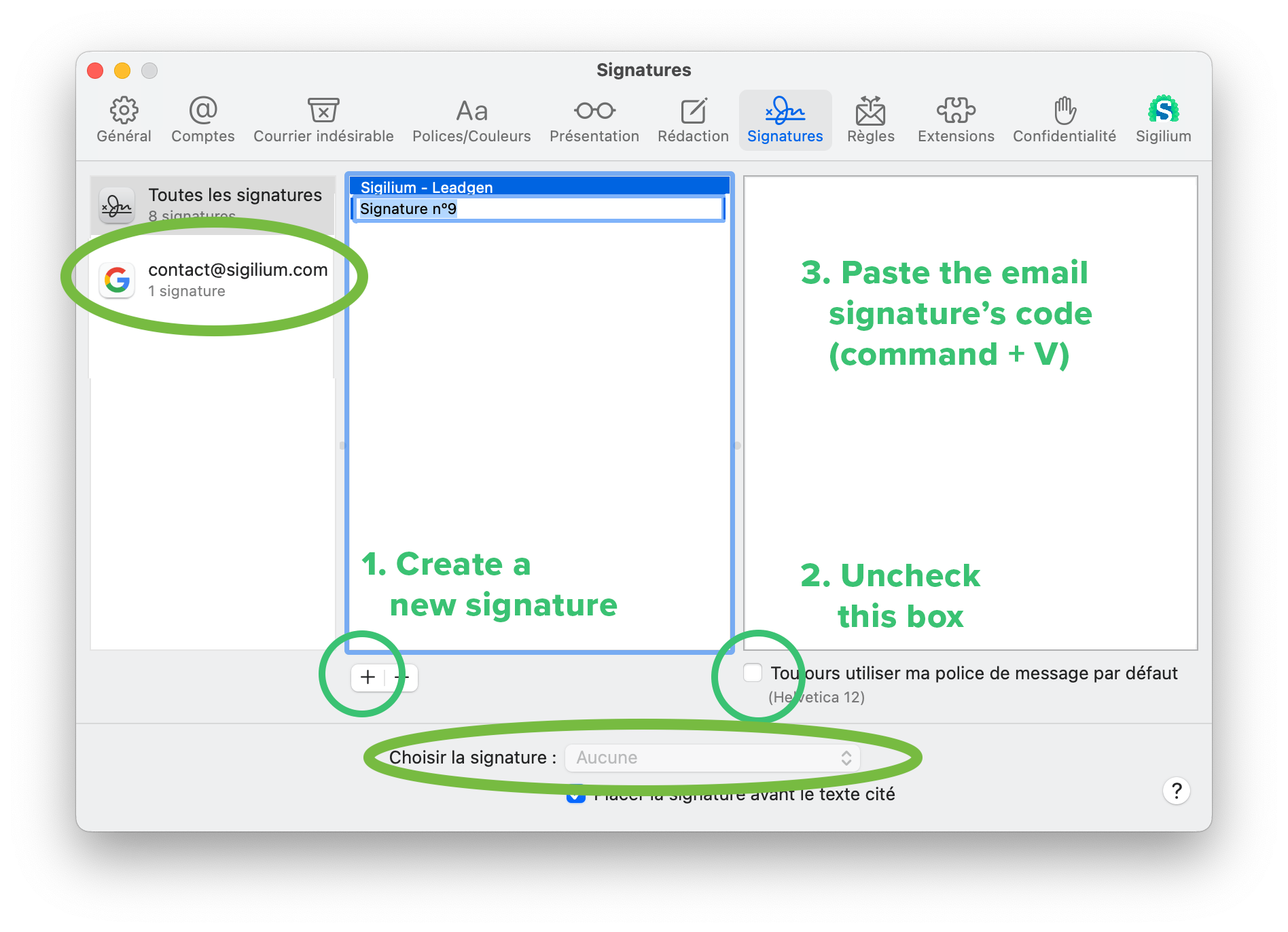
carefully follow the steps shown in the screenshot below
Select the appropriate email account in the left column (not All signatures)
Create a new signature, using the “+” button
Uncheck the “always match my default font” option
Paste the signature into the corresponding area (the images won't appear at this stage; that's not a problem)
If it hasn't been done automatically, choose this signature as the default (Choose Signature option at the bottom of the page)
Close the window,
Compose a new email. The signature will appear with the images!