
If you’re not using Microsoft 365 nor Gmail with a Google Workspace account, here is how to keep your signatures synchronized when switching to the new Signitic interface.
If you are using the Sigilium application for Outlook
If you use the Sigilium PC or Mac application (also known as the "agent") to synchronize your teams' signatures in Outlook, there are two scenarios:
Existing users do not need to reinstall the Signitic application; the current Sigilium application will continue to synchronize email signatures from the new Signitic interface. Therefore, the teams do not need to take any action.
For new (future) users, you must have them install the Signitic application on their workstations. Here are the steps:
Create the user in Signitic.
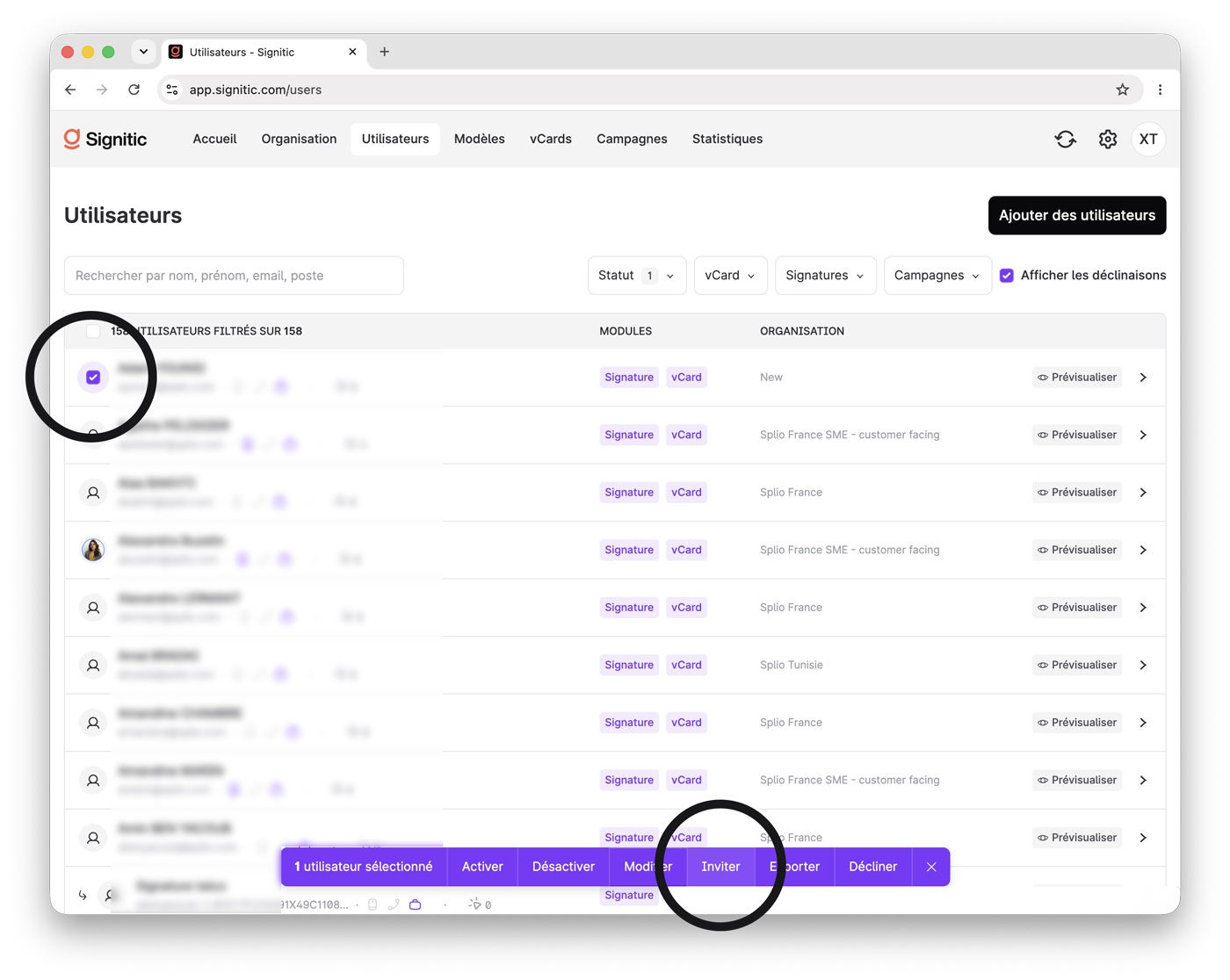
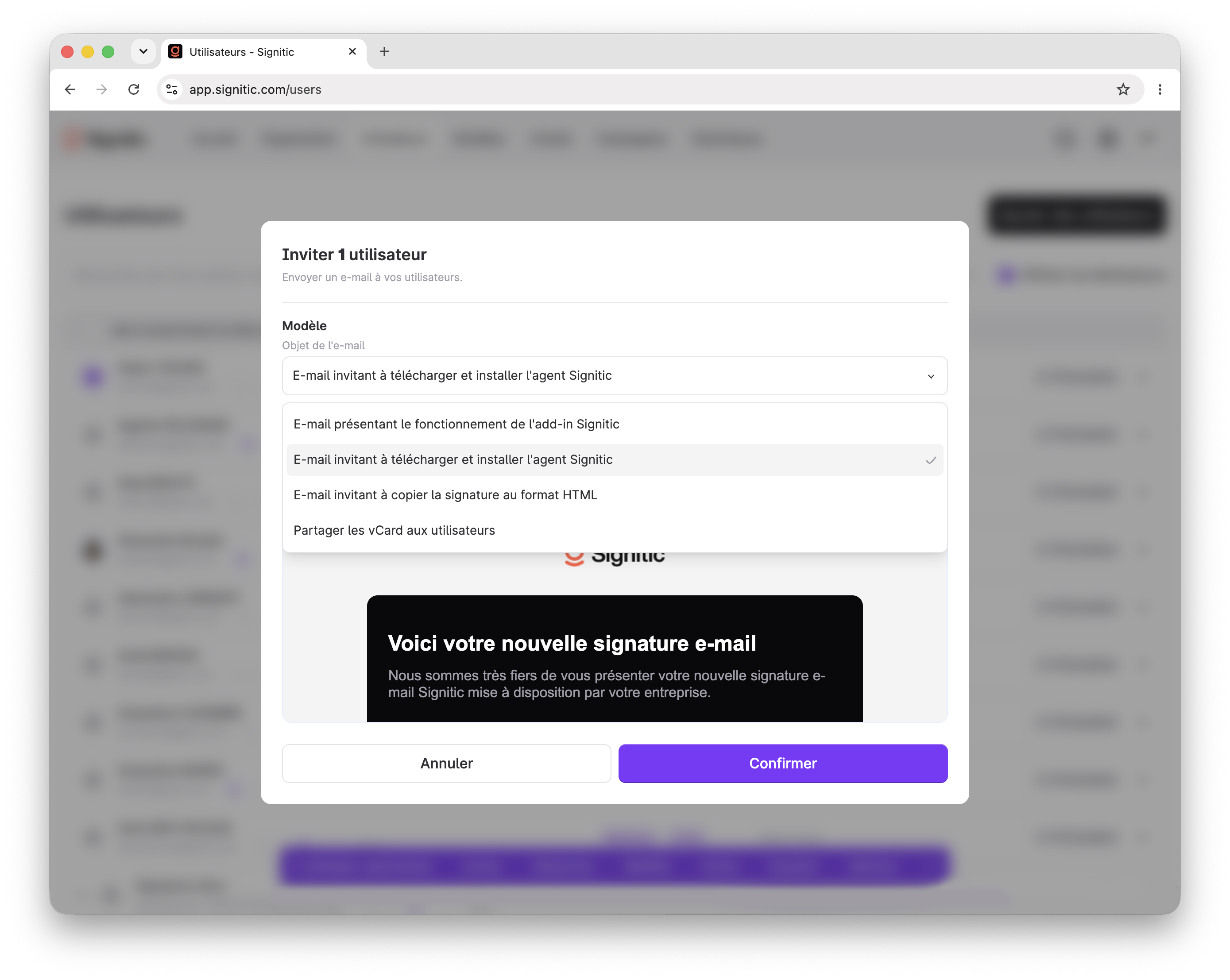
In the Users list, select the profile; a menu will appear at the bottom of the page. Click "Invite" and select the email address.
Feel free to contact us if you wish to automate this process via GPO.
When the user opens the application, they will be asked for a login key. This key can be found in the email they received, and administrators can locate it in each user's profile.
If you are using the Sigilium application for Thunderbird
If you use Thunderbird, the Sigilium application is no longer needed; you should now use the Dynasign version of your email signature. You can find and copy it from your Signitic workspace, known as the "Hub."
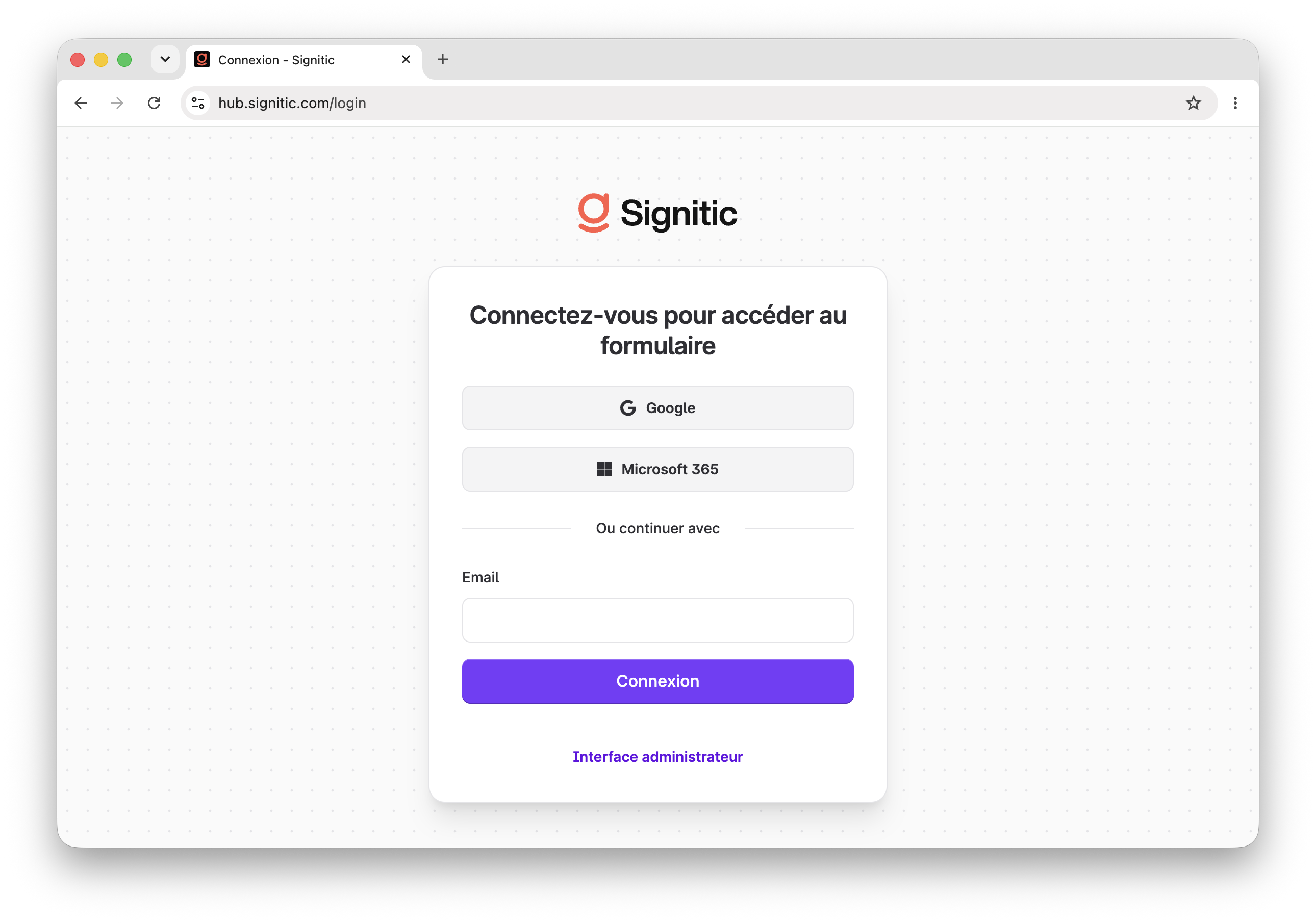
To log in to your workspace, go to: hub.signitic.com
Then log in or use the "forgot password" option.
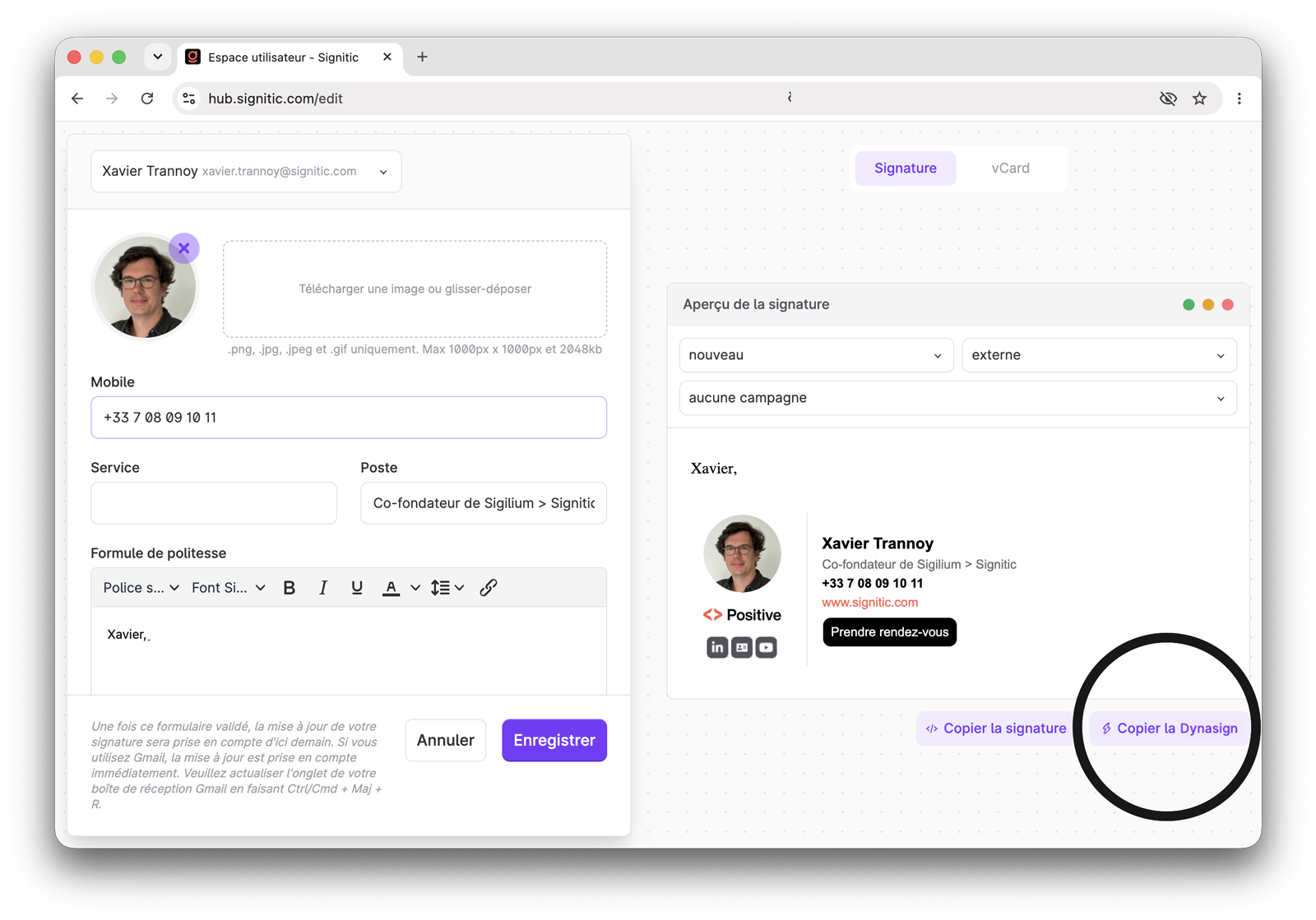
Copy the Dynasign version of your signature (located at the bottom right of the page) and paste it into your Thunderbird signature settings.
Other cases, when using the Dynasign® email signature
Log in to your Signitic account by visiting hub.signitic.com.
Authenticate yourself or use the "forgot password" option.
Copy the Dynasign version of your signature (found at the bottom right of the page), then paste it into your tool's signature settings.