
If you updated your MacOS to Sonoma, you can remove the Sigilium application.
It now works another way:
Get my email signature synced on Sonoma
Sigilium developped a new dynamic HTML email signature version : DynaSign. It is available for Mail Mac on Sonoma. Please remove Sigilium's application, it is no longer needed!
How to proceed:
Re-connect to your account on Sigilium.com, using this direct link, and authenticate yourself with M.365 or Google Workspace's access. Or with your email.
Once you're connected, below the email signature, choose Mail :
Mail > MacOS Sonoma > Copy the signature (your new signature is now copied on the clipboard)
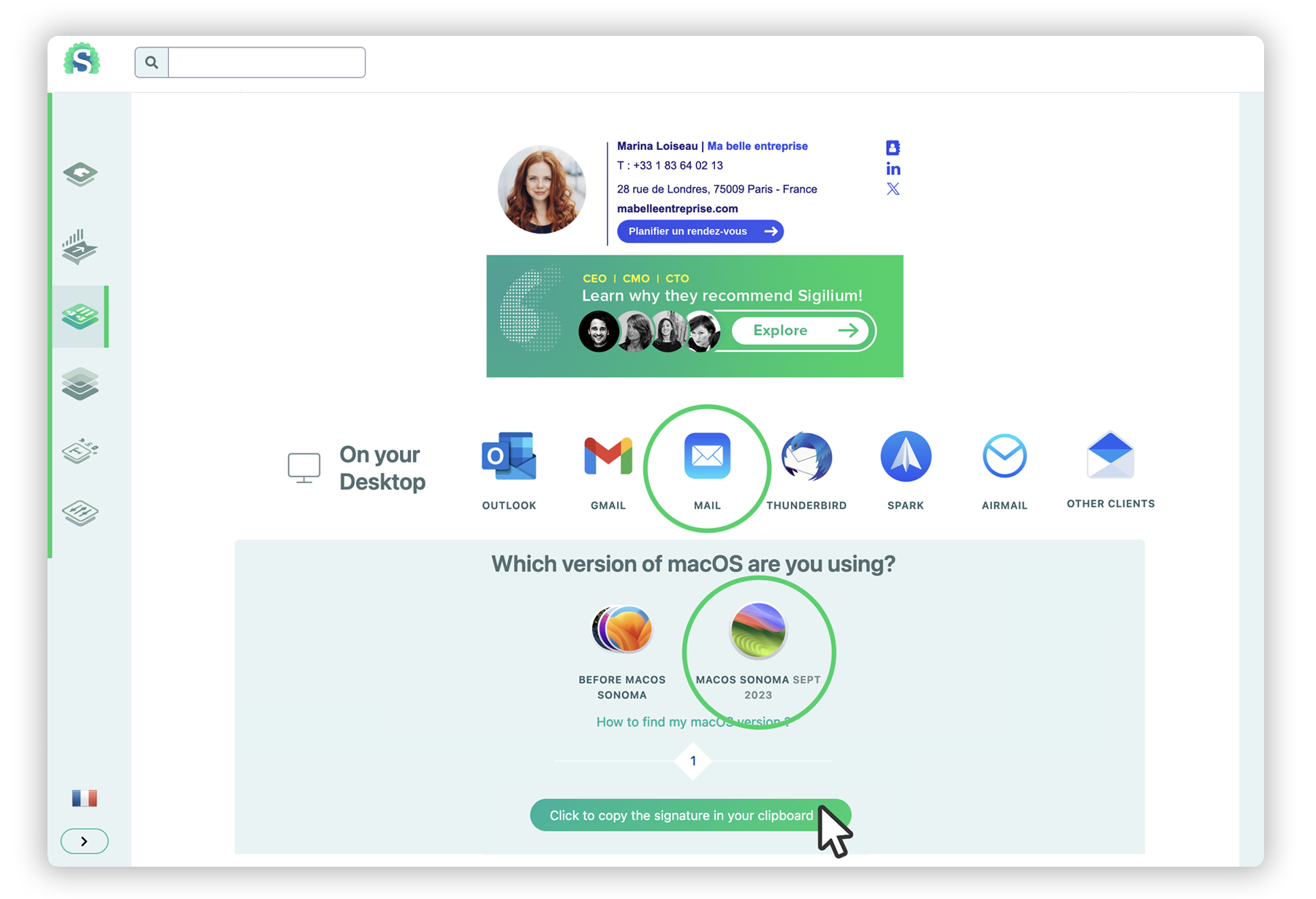
Open the Mail application on your Mac.
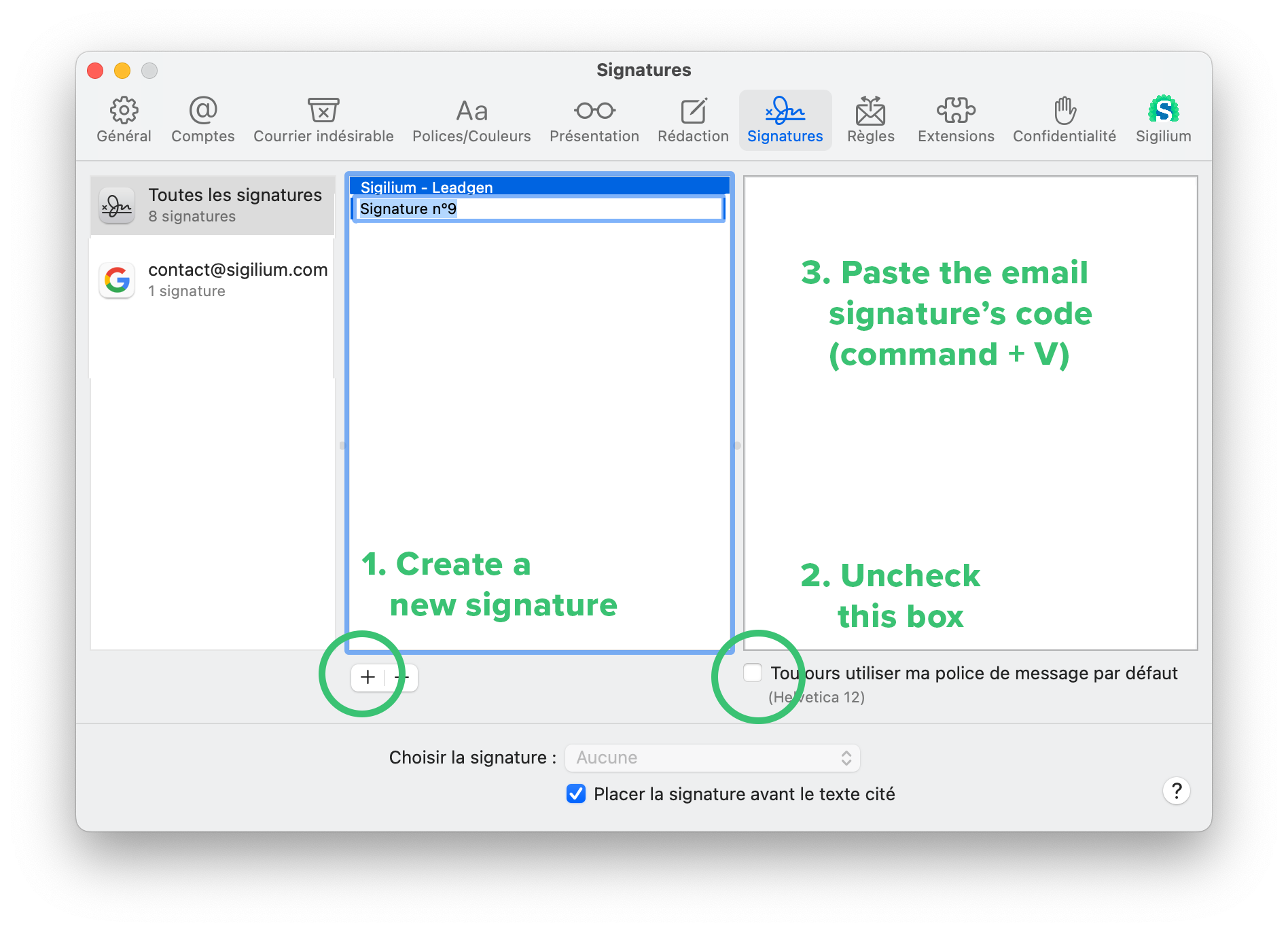
Go to : Settings > Signatures
Remove your old Sigilium email signature from the list.
On the left block select the email account concerned, and create a new email signature (+).
(see example below)
Under the right block, untick "Always use the message font by default..."
And Paste on the right block (Command+V).
The signatures details appears.
notice : Make sure it is defined as default signature at the bottom of this menu.
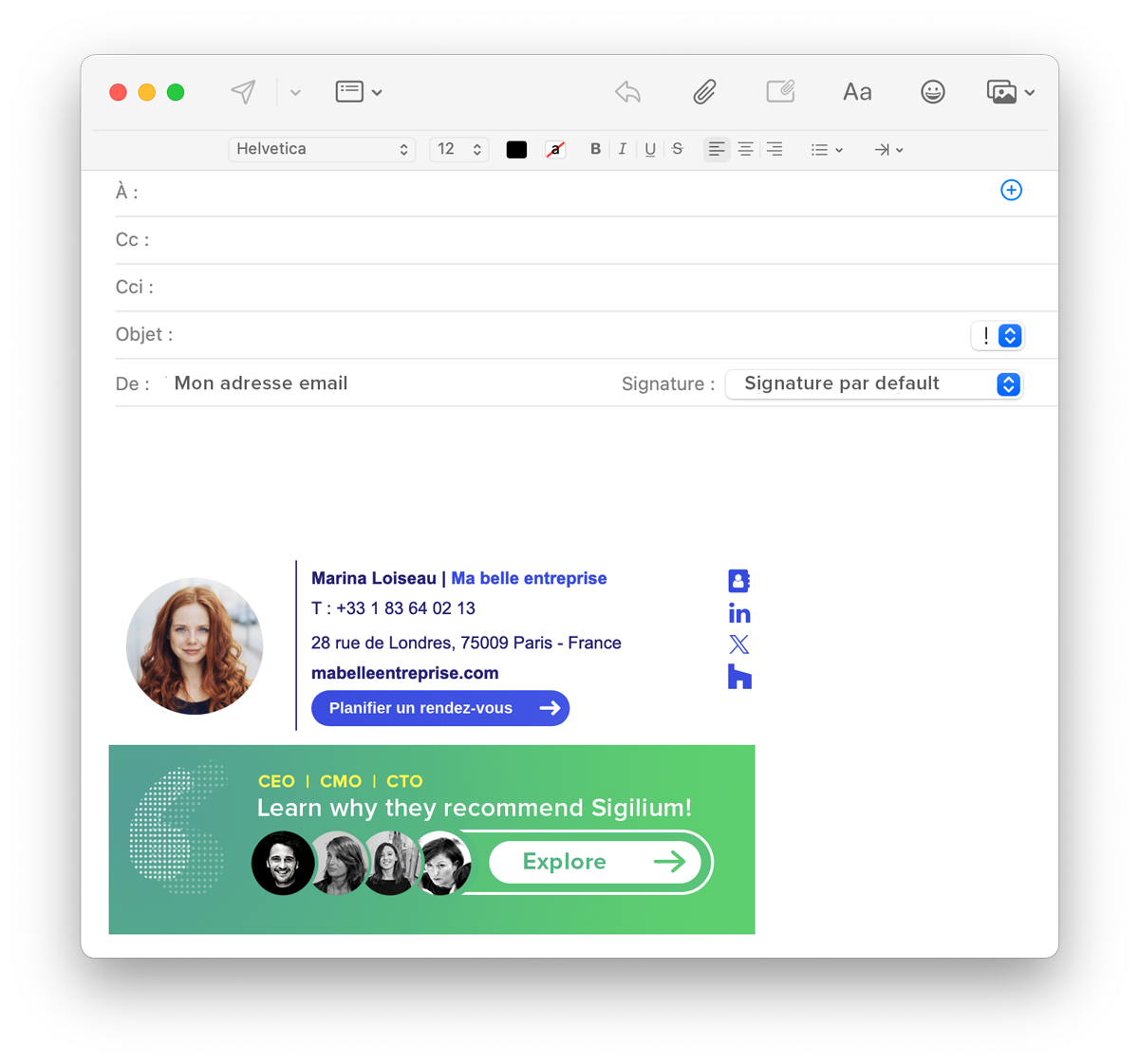
Close this signature menu, and Create a new message
The email signature appears and will now sync automatically. Banners may not appear directly when composing the message, but it is always displayed for your interlocutor.
Any questions ?
You can describe your problem orally in a few seconds leaving a message on the
+33 1 83 64 02 13
You would rather write it down? We are happy to help in response to your email at