Each user will need to finish the setup of their signature after installation (described here: https://sigilium.com/en/public-notices)
The old application provided by Sigilium will be automatically deactivated by our new application.
Once installed the .msi will automatically be updated when a newer version is released
First download the .msi from here
https://sigilium.com/apps/sigilium.msi
Place it on a shared folder of your server
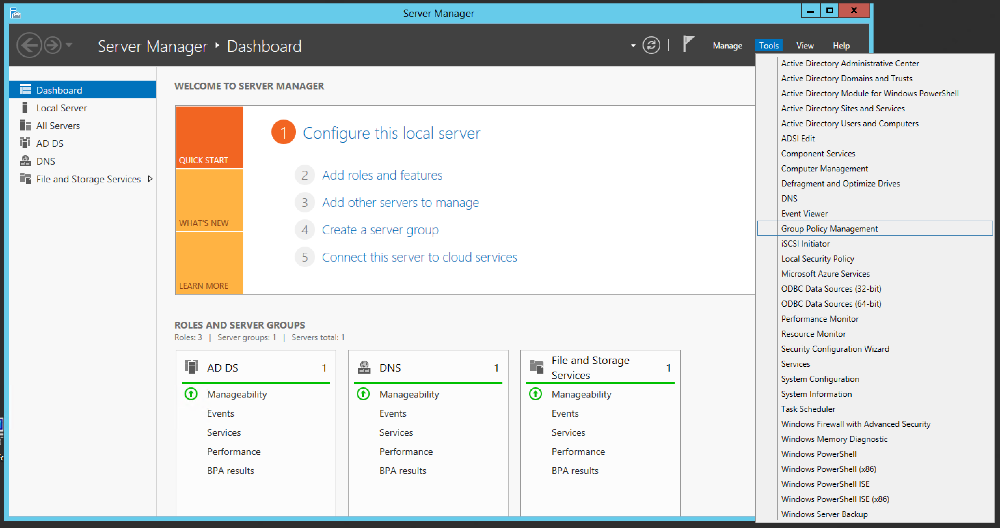
1/ Launch the Group Policy Management editor
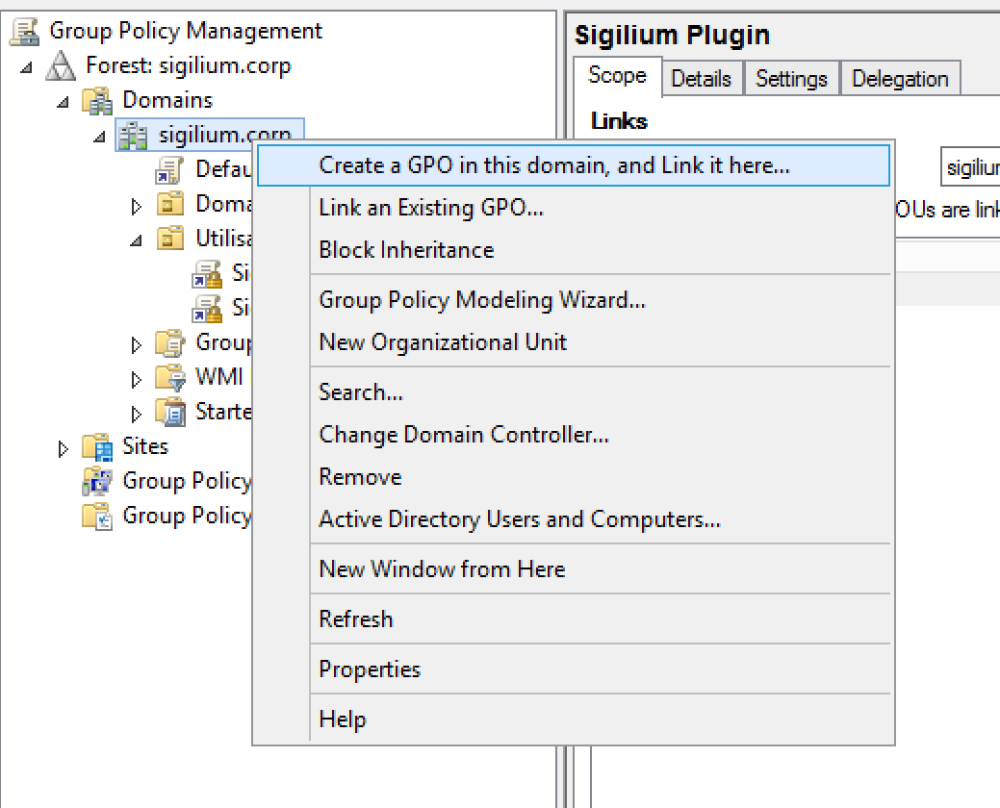
2/ Create a GPO on the domain concerned
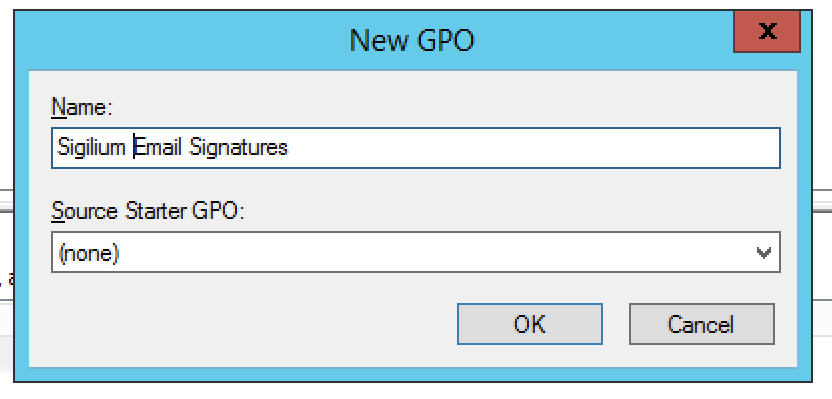
3/ Give a name to your GPO, leave Source Starter empty.
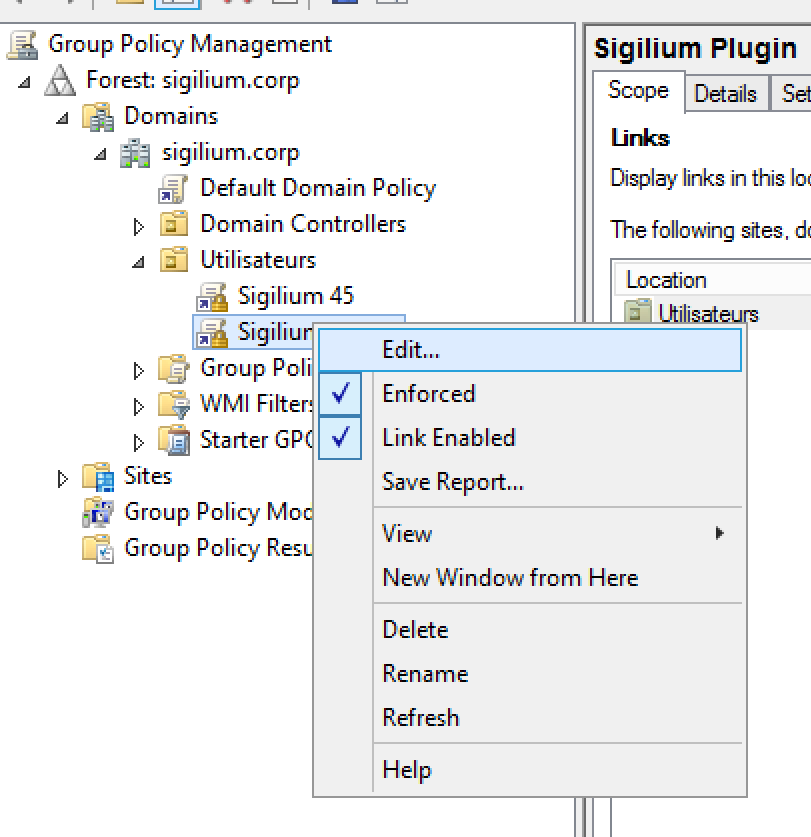
4/ Edit the GPO you've created.
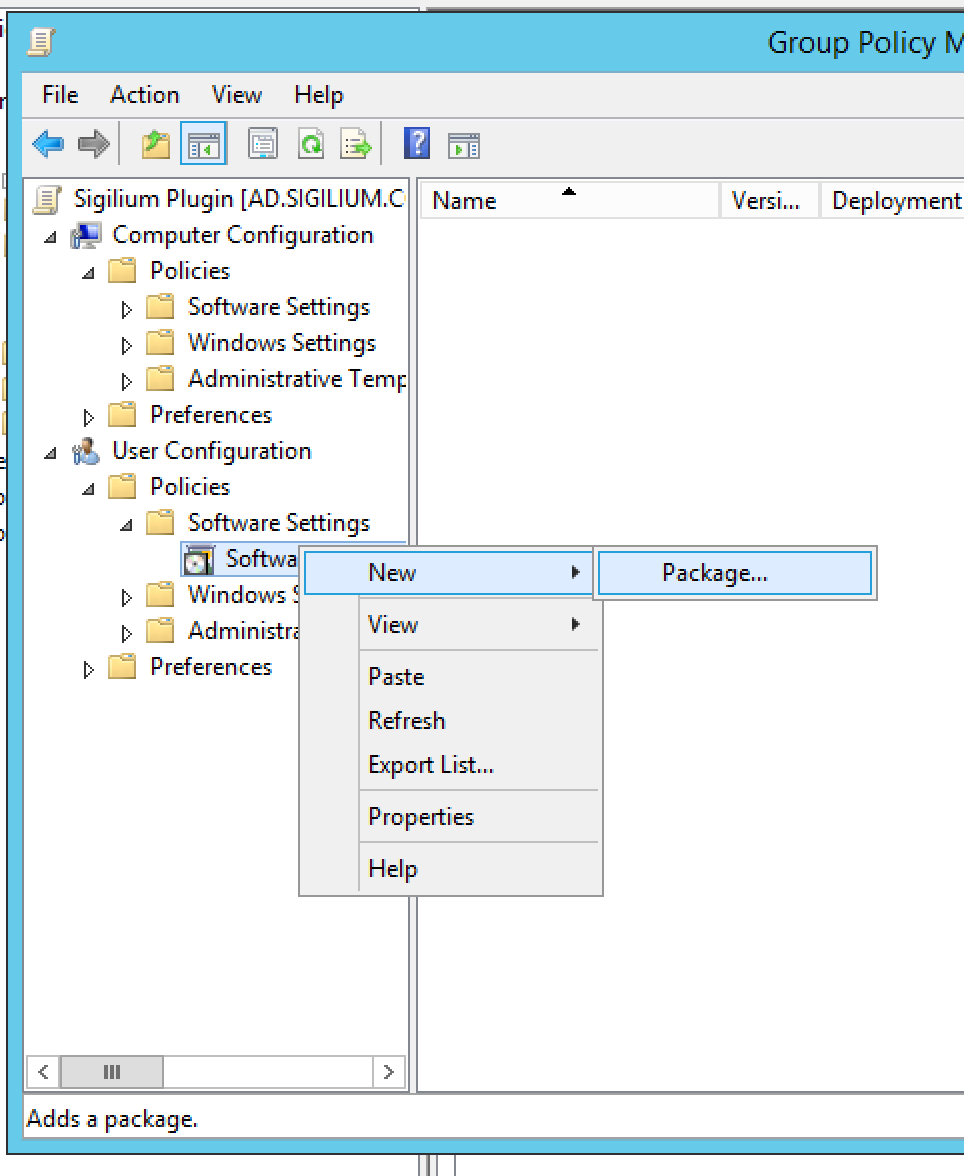
5/ In the GPO editor, go to User configuration > Policies > Software settings, right click on Software installation and select New > Package.
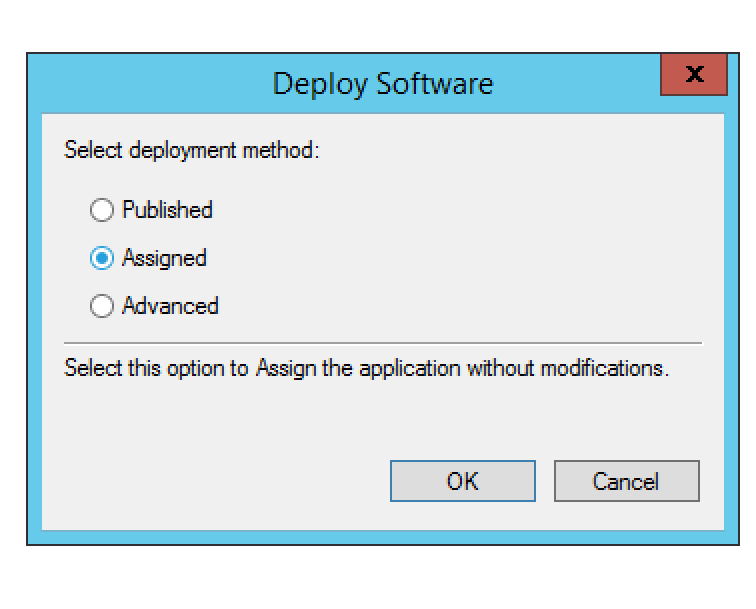
6/ Select the MSI and then choose Assigned in the dialog box Deploy Software.
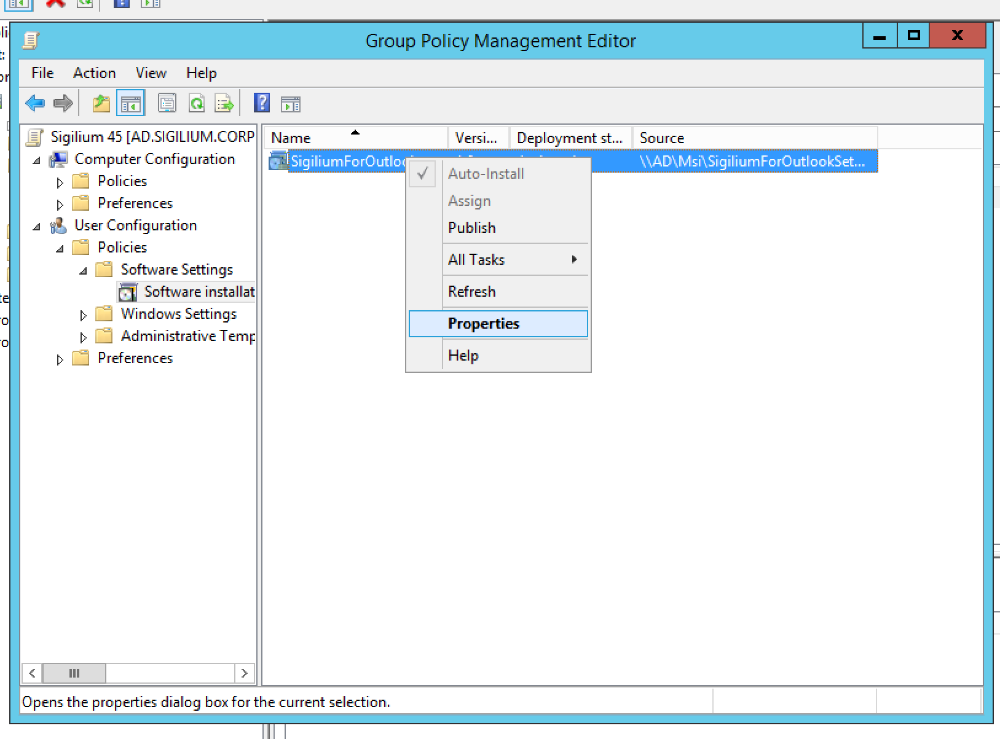
7/ Right-click on the package that you've just created and select Properties.
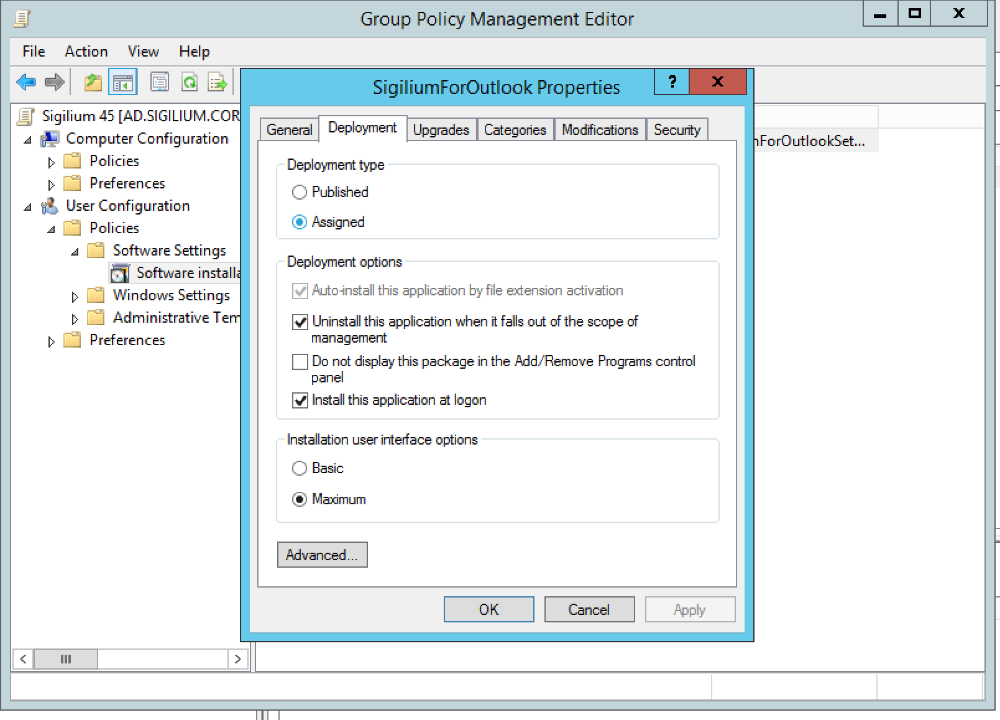
8/ Select the tab Deployment and check the following options:
1/ Go to Group Policy Management, at the Group Policy Objects level, edit the GPO recently created.
2/ In the Group Policy Management Editor, open User Configuration > Policies > Sofwtare Settings
3/ Right-click on the package and select All Tasks > Remove
4/ In the dialog Remove Software, select the option Immediately uninstall the software from users and computers.
Create a new package to install the update. Their will be no interruption of service for users
Any questions ?
You can describe your problem orally in a few seconds leaving a message on the
+33 1 83 64 02 13
You would rather write it down? We are happy to help in response to your email at