You use Mail on your Mac and you notice your logos and their automatic updates are not made on your email signatures.
This article allows you to resolve this problem in 3 steps to enjoy an automatically up to date signature.
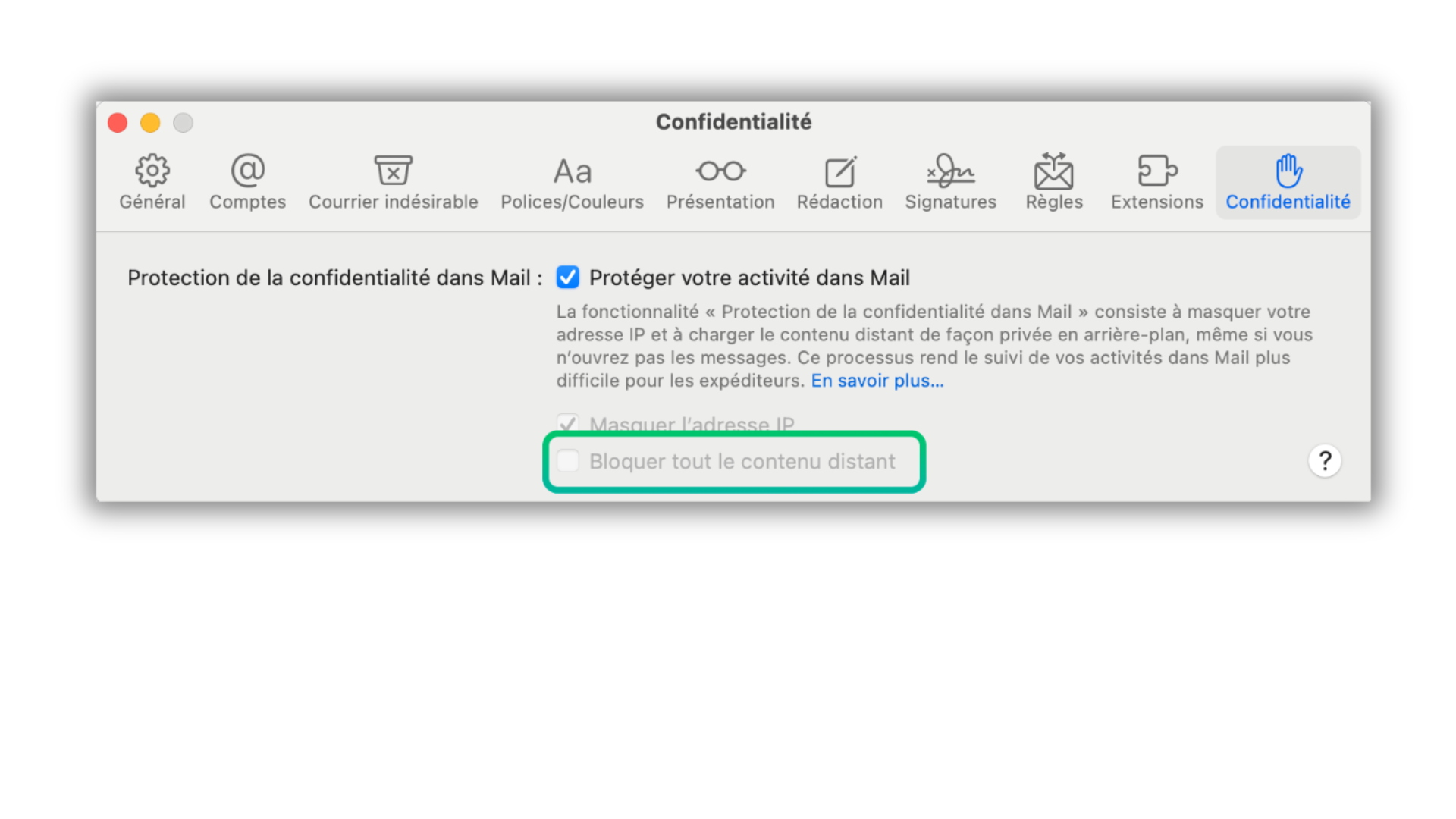
To solve this first pint, you have to :
open your Settings
find the Privacy tab
the square "Block all distant content" is likely ticked
untick this square (cf screenshot)
We can now focus on the logos
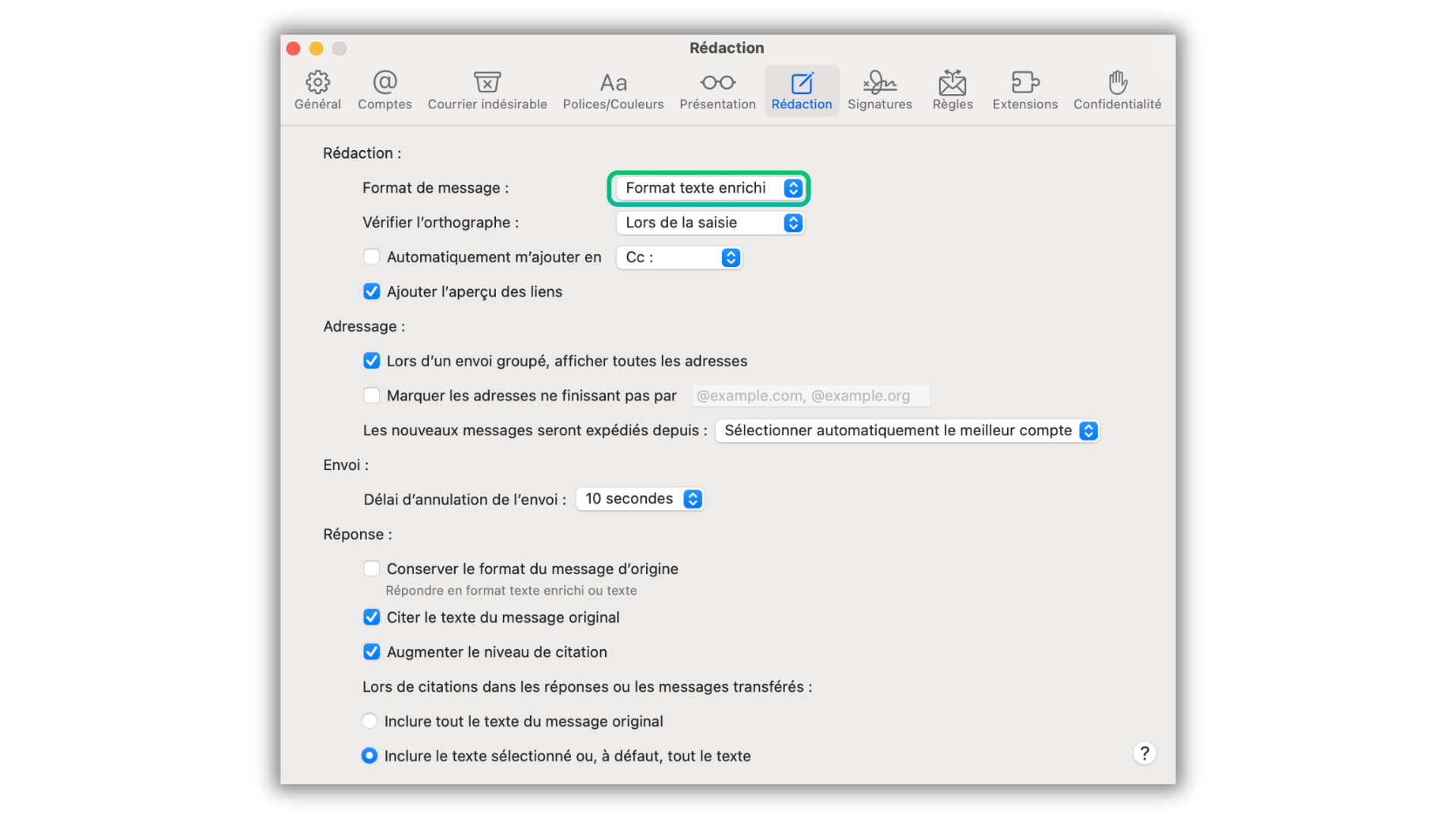
To display them correctly, you have to :
open your Settings
find the Editorial tab
select the option "Rich Formatting" as Messaging Format (cf screenshot)
Download Attached Files
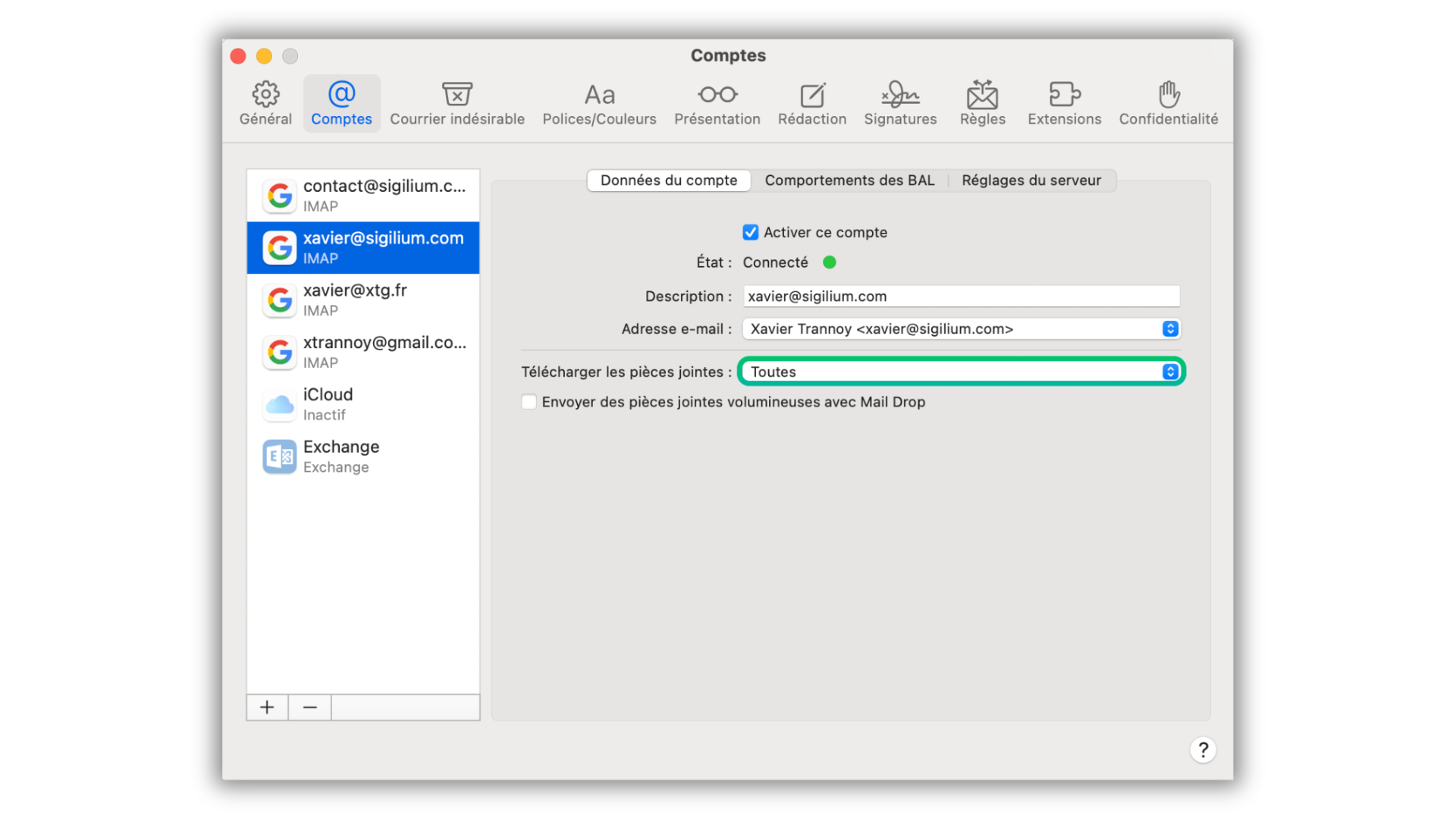
A last step is necessary to the right systematic display of the signatures :
open your Settings
find the Account tab
select the option "All" for the section Download of the Attached Files (cf screenshot)
Ensure to follow these steps for any iOS update since the iOS Mail settings are likely to be reinitialized.
You now know how to display your iOS Mail signature correctly in 3 steps !
Any questions ?
You can describe your problem orally in a few seconds leaving a message on the
+33 1 83 64 02 13
You would rather write it down? We are happy to help in response to your email at