
How to do it on Gmail:
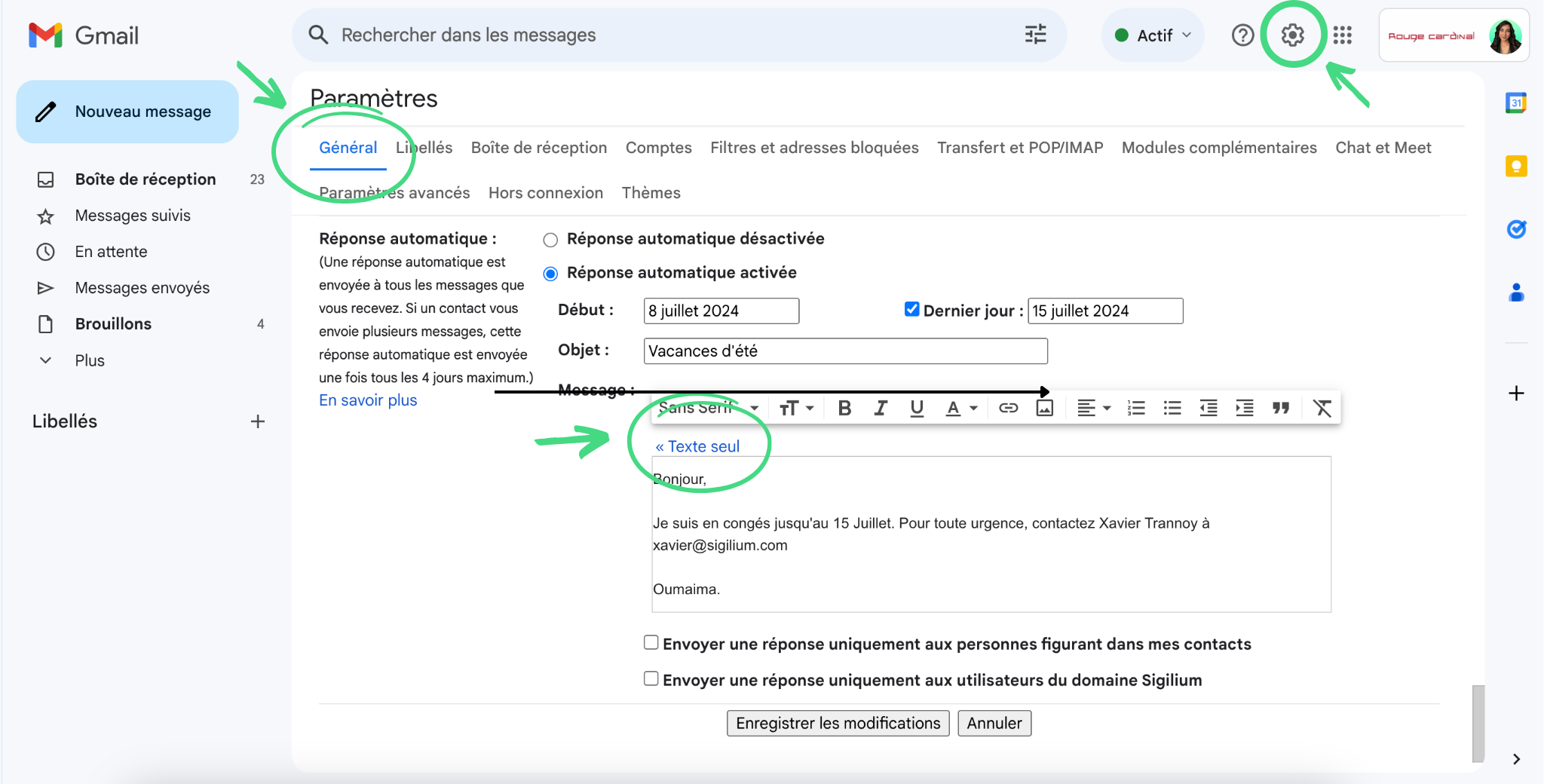
Select Settings (gear icon) > See all settings.
On the General, scroll down to Auto-reply.
Select the Auto-reply checkbox to enable it.
Check that the (blue) Text only link is displayed above the text block.
Note: If you see the (blue) Advanced formatting text, click on it to change it to Text only.Write your message, decide when you want to send it, and choose who you want to send it to.
Click Save changes.
Well done, you're done!
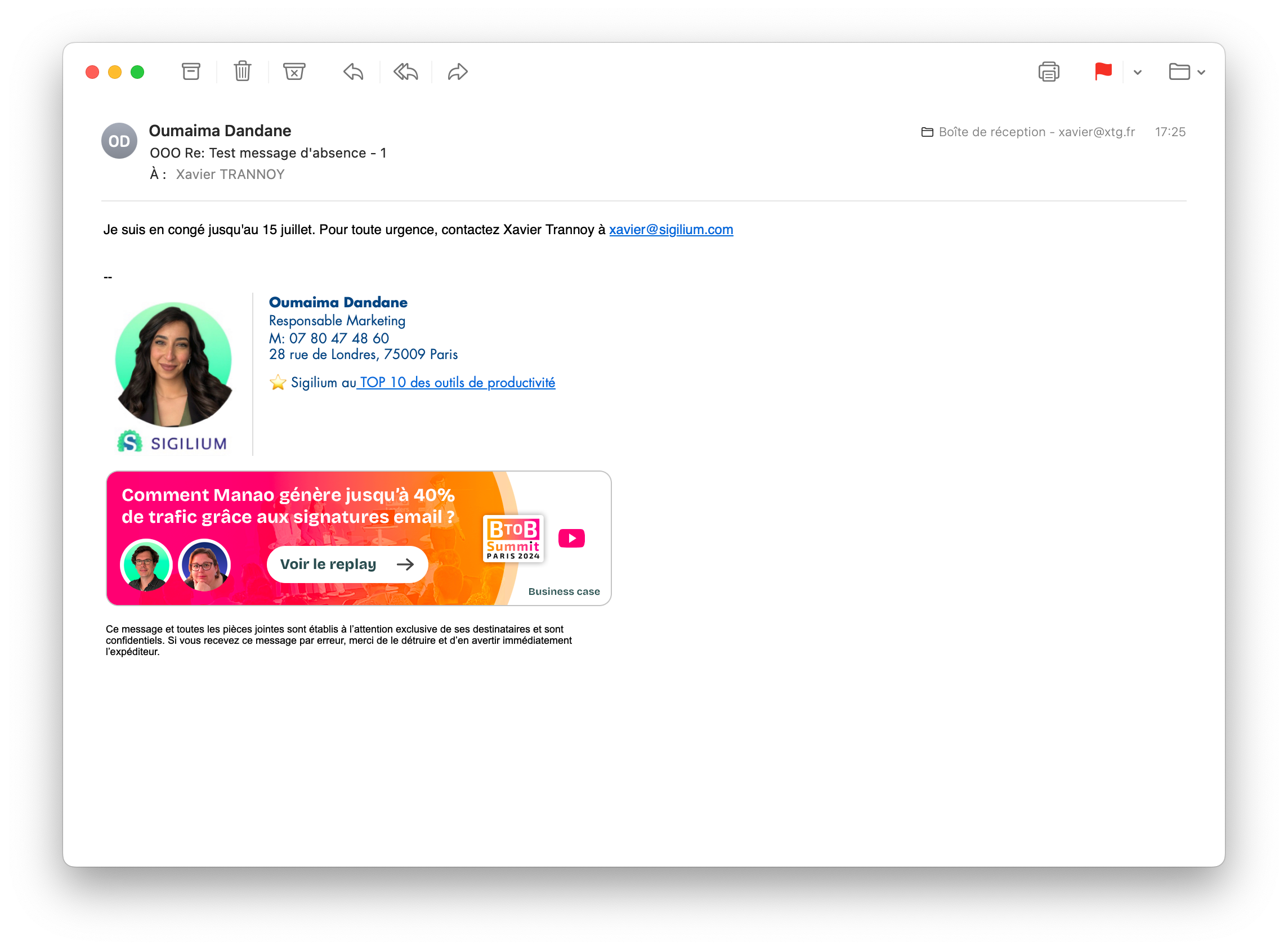
Test to verify the result: Send yourself an email to ensure that your message displays with the expected formatting, and not as plain text.
Below is the message format (counterintuitive) it really needs to be “Text only.”
Below is the result:
By setting up automatic replies in Gmail, you can maintain effective and professional communication, even when you can't respond immediately!
Any doubts or questions?
You can describe your problem verbally in a few seconds by leaving a message at
+33 1 83 64 02 13
Prefer to write? We are happy to help you by responding to your email at