
If you have the Sigilium application installed on your computer but your email signature is no longer synchronizing, here's what to do:
What happened:
A new synchronized email signature had to be added to the one initially synchronized, following a recent Outlook update by the Microsoft teams (Dec. 2022).
1. Update the Sigilium application
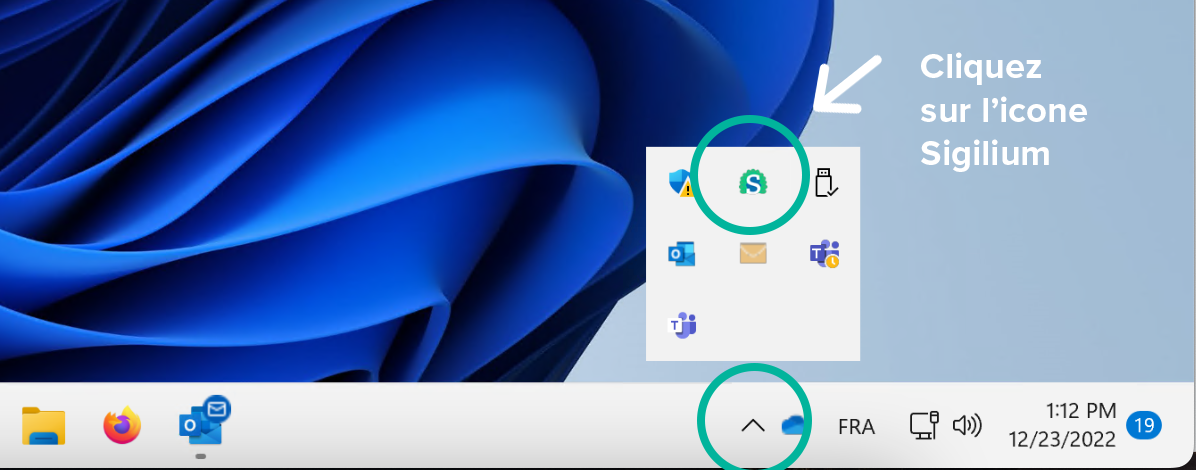
In the menu bar at the bottom right of your screen, an icon shaped like a circumflex accent [ ^ ] allows you to find the Sigilium application. Click on it.
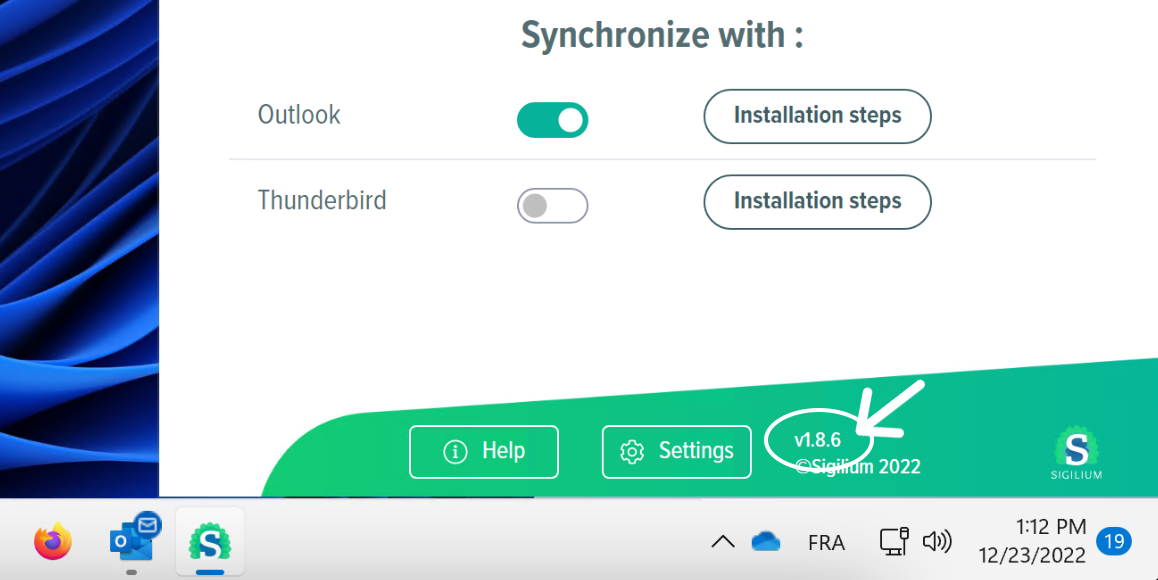
In the green section at the bottom next to the Settings button, click on 1.2.5 or Check for update. The application will download the latest version (1.8.6).
Close Outlook and restart it.
2. Retrieve my synchronized signature in 1 minute:
1. Go to your list of signatures in Outlook: New message > Signature icon > “Signatures...”
And delete the old signature from the list (i.e., the one you have but which is no longer up to date).

2. Set the correct default signature for your New Messages and Replies/Forwarding.
That's it.
Your new signature will appear when you create new messages.
It will update automatically as before.
Any questions ?
You can describe your problem orally in a few seconds leaving a message on the
+33 1 83 64 02 13
You would rather write it down? We are happy to help in response to your email at