
Installation Guide
Your company uses Sigilium to set dynamic email signatures.
Here's how to install your new email signature once, in a few clicks ; it will then get updated automatically.
Steps :
1 - You will receive an email from [email protected] presenting your new email signature.
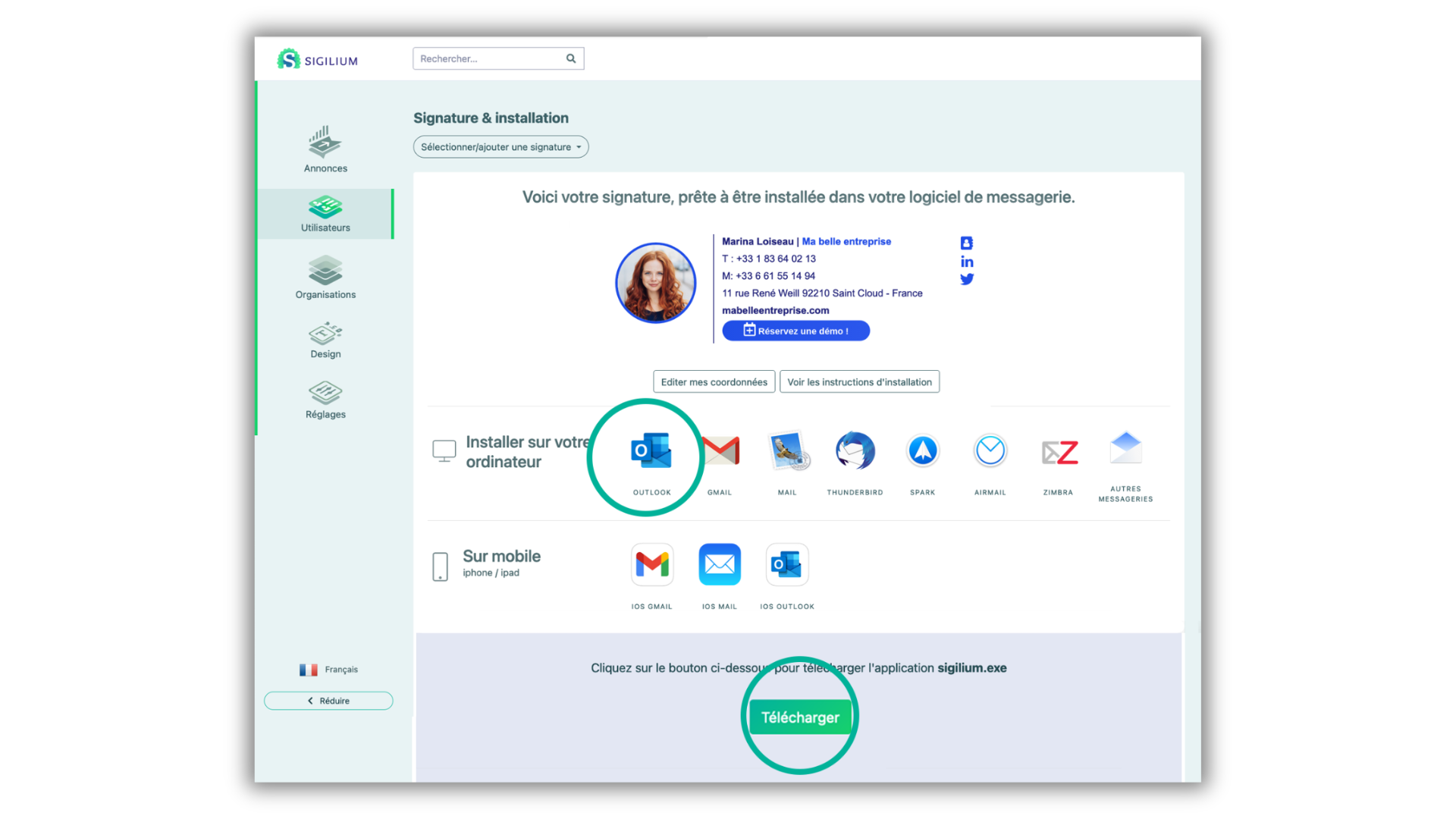
2 - Click on the button Install my signature. It will send you to your Sigilium Space.
You can edit your informations there if needed.
3 - Choose your message app (Outlook) then click on the button Download and follow the steps.
4 - Open the downloaded app.
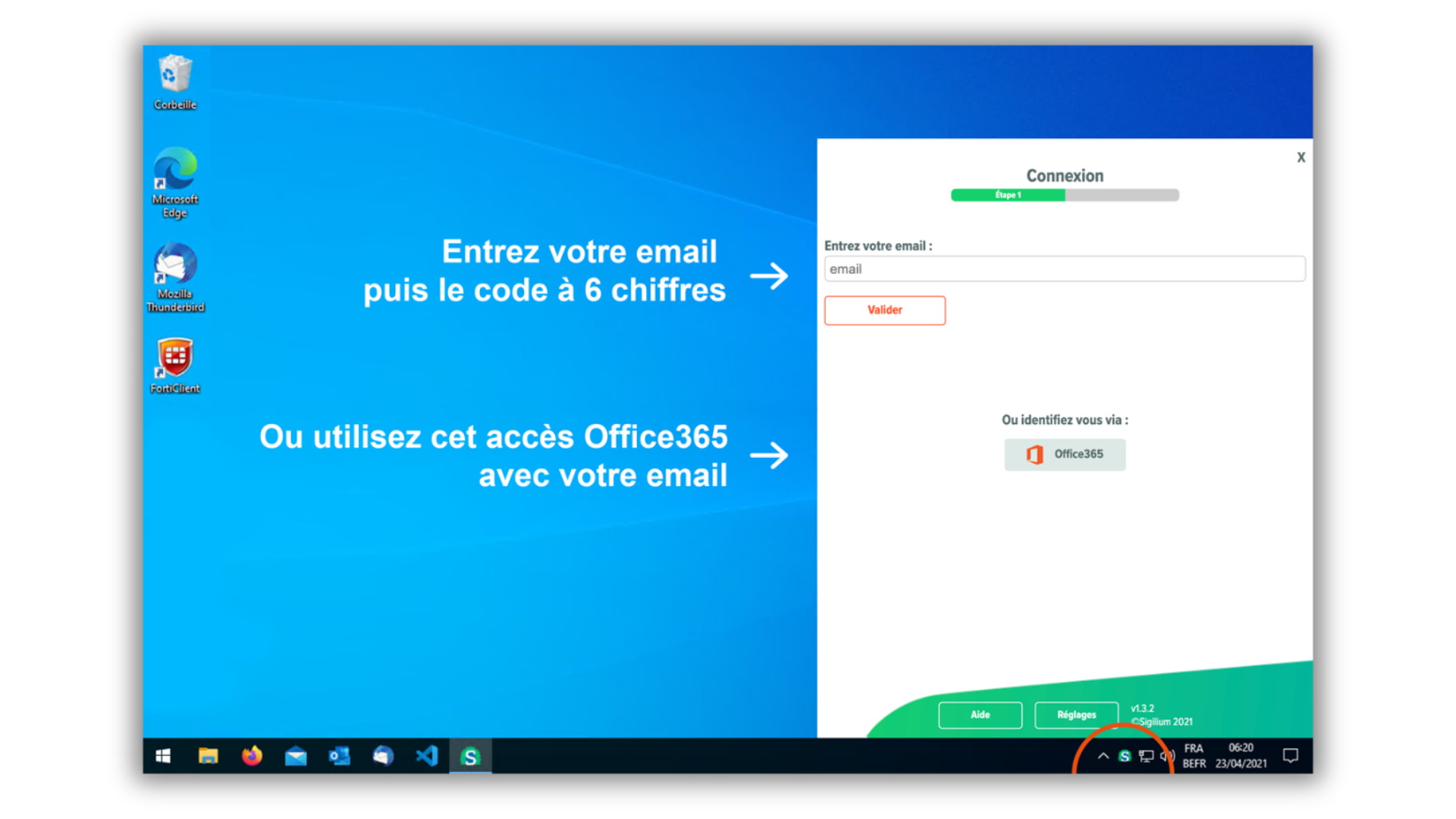
The Sigilium icon will be on the bottom right corner of your screen, in the taskbar.
Use the authentification Office 365 button and enter your email.
Or enter your professional email and confirm.
You can now enter the authentification 6 digit code received by email and confirm.
Outlook shuts down and then reboots.
Create a new email : your new signature is now added as the default email signature on Outlook !
You can now sit back with no worries, the email signature will from now on be updated automatically.
Any questions ?
You can describe your problem orally in a few seconds leaving a message on the
+33 1 83 64 02 13
You would rather write it down? We are happy to help in response to your email at