Connect to your Microsoft 365 Admin Console:
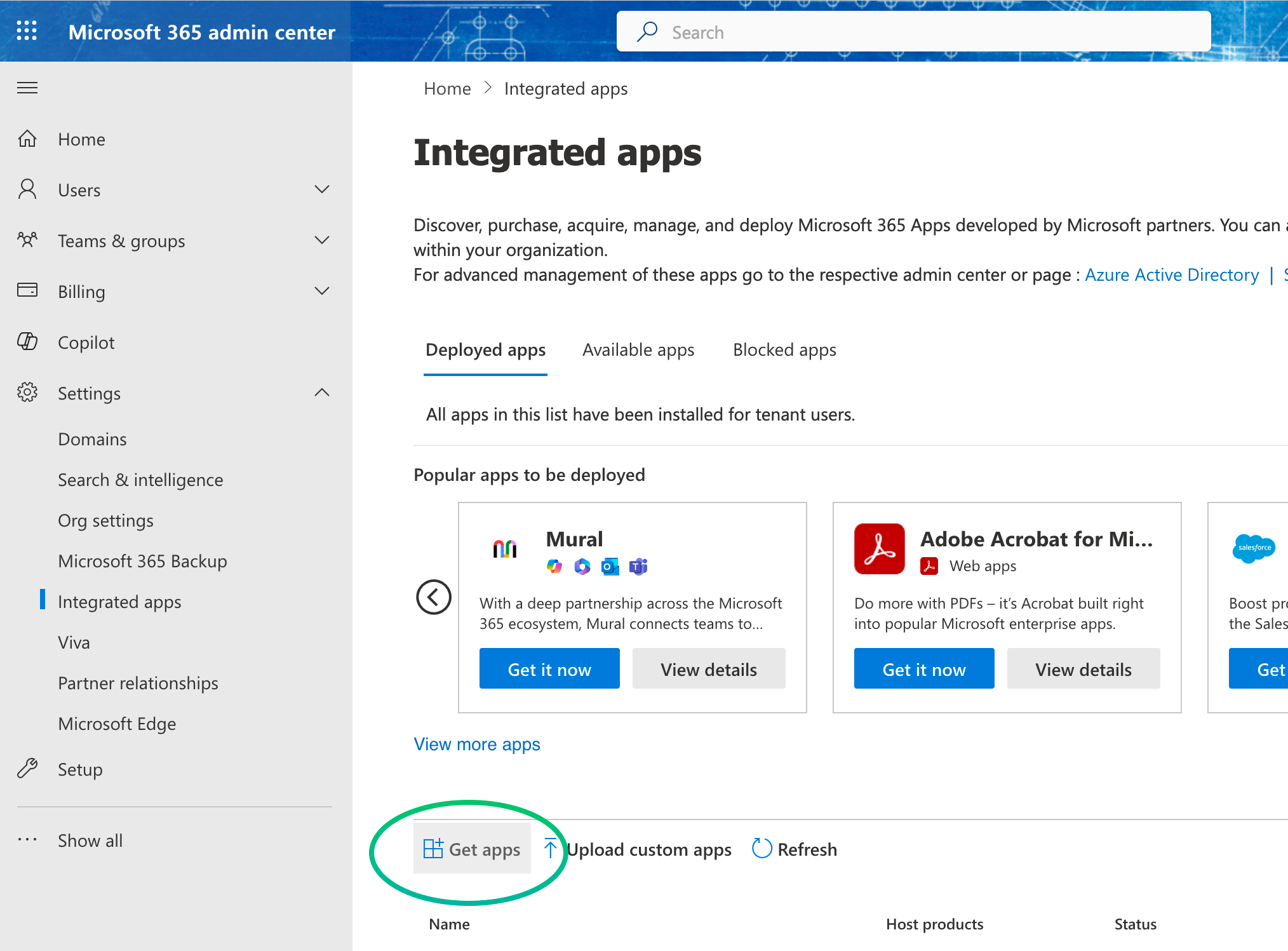
Direct link: https://admin.microsoft.com/#/Settings/IntegratedApps
Click on "Get Apps"
Search for Sigilium and choose the Application with Outlook's icon
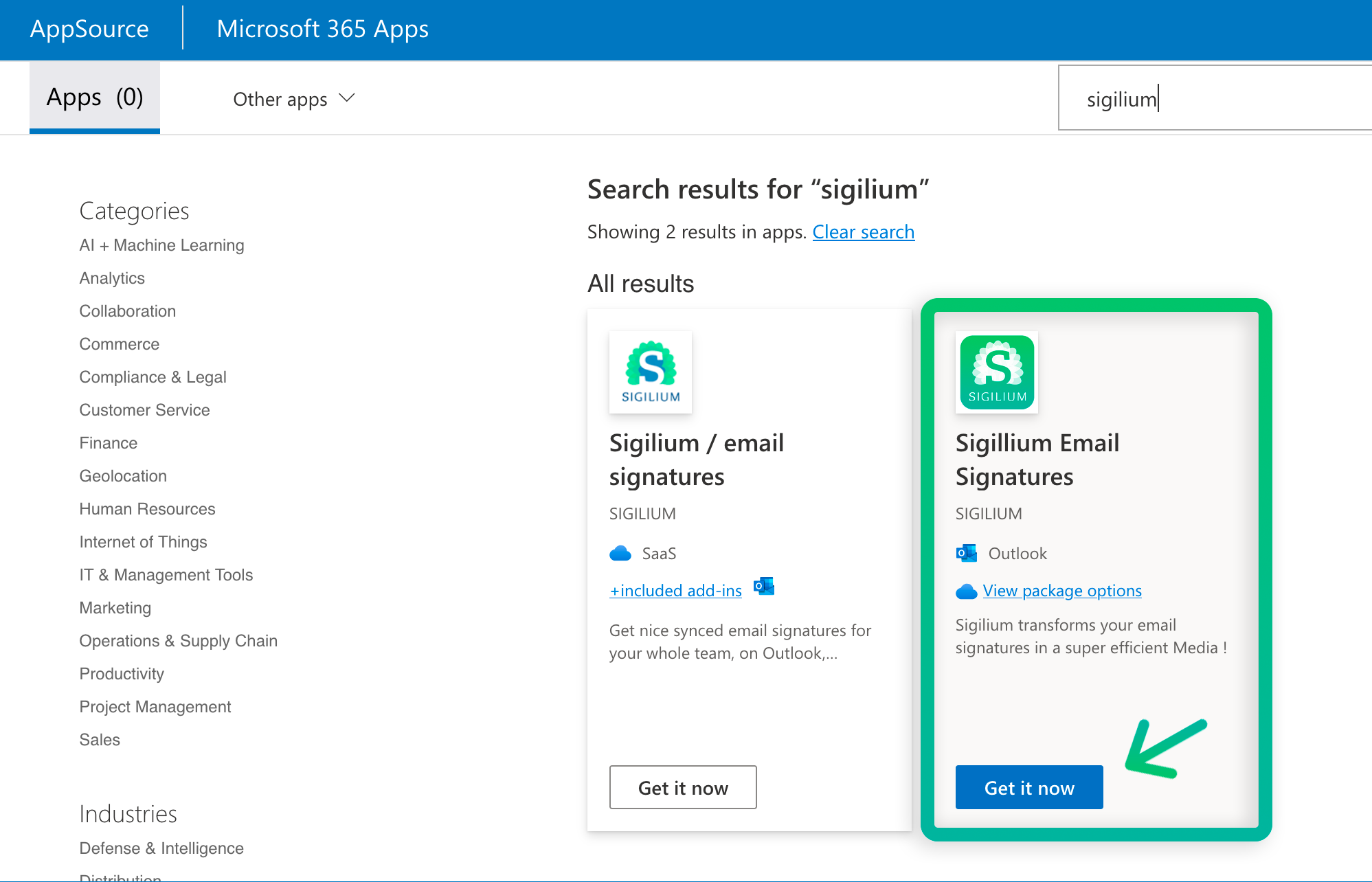
Click on "Get now"
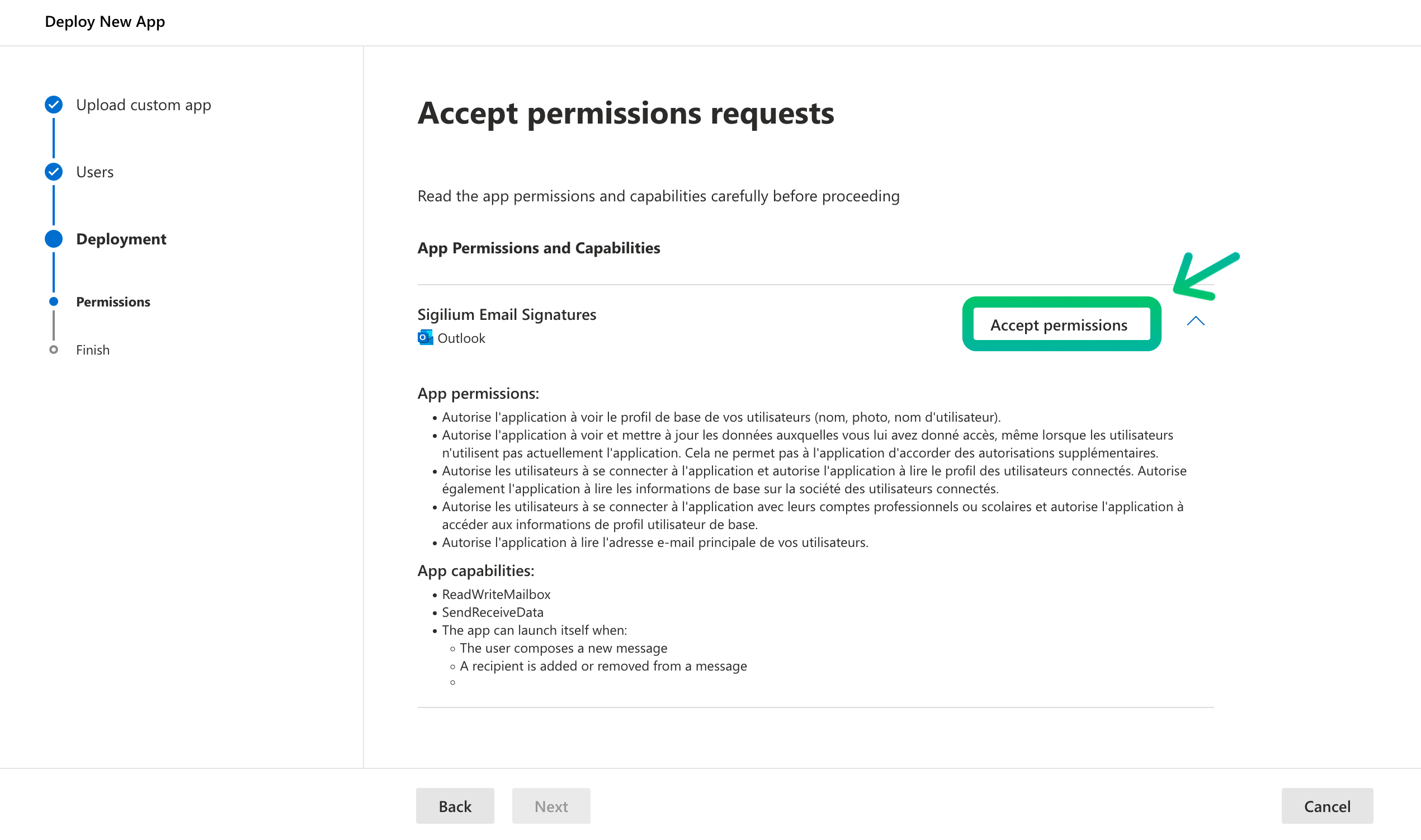
Click on "Accept Permissions"
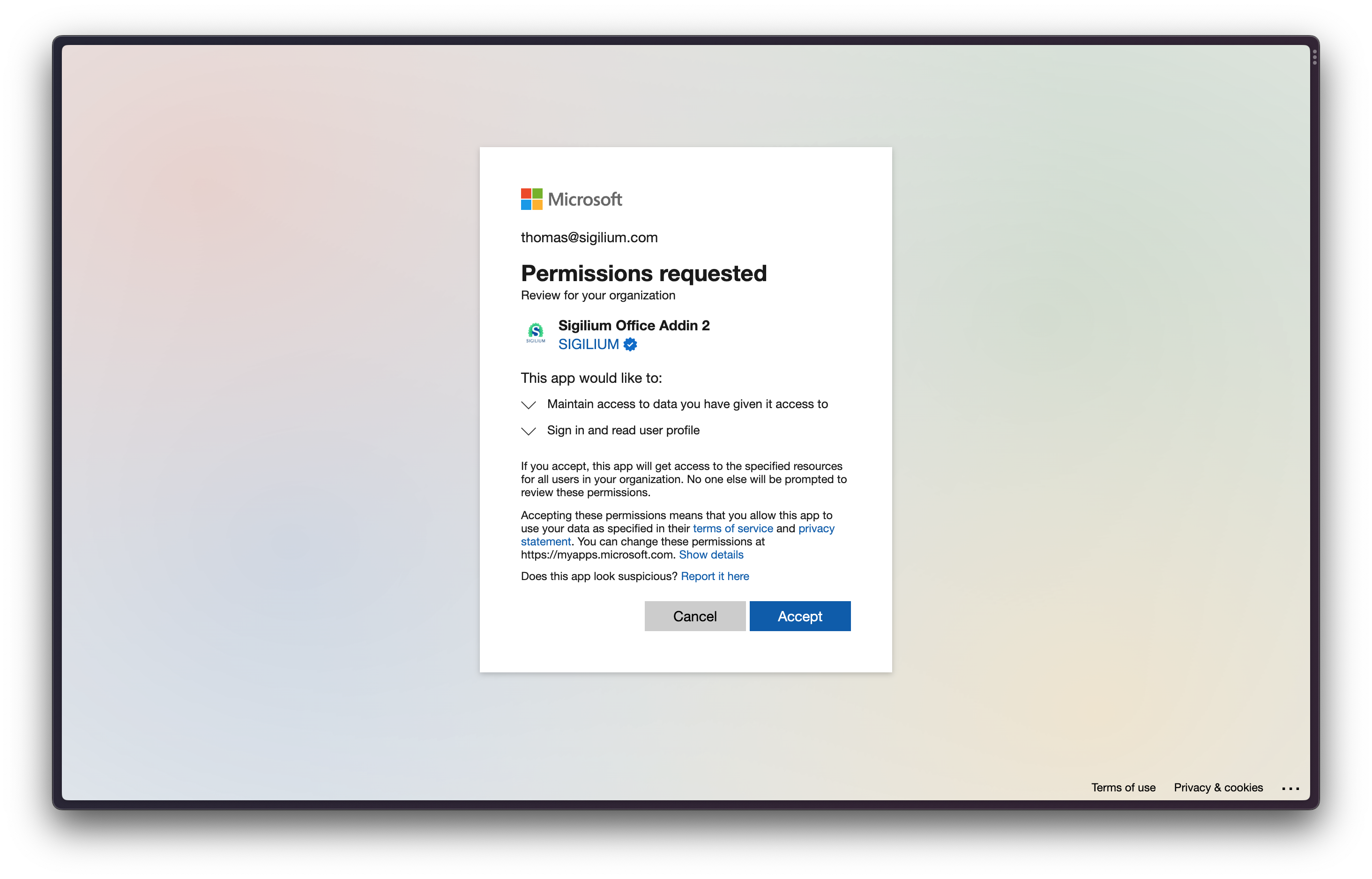
When asked for Permissions Click on "Accept"
Select the scope of users. Or the group of users concerned with the Addin deployment.
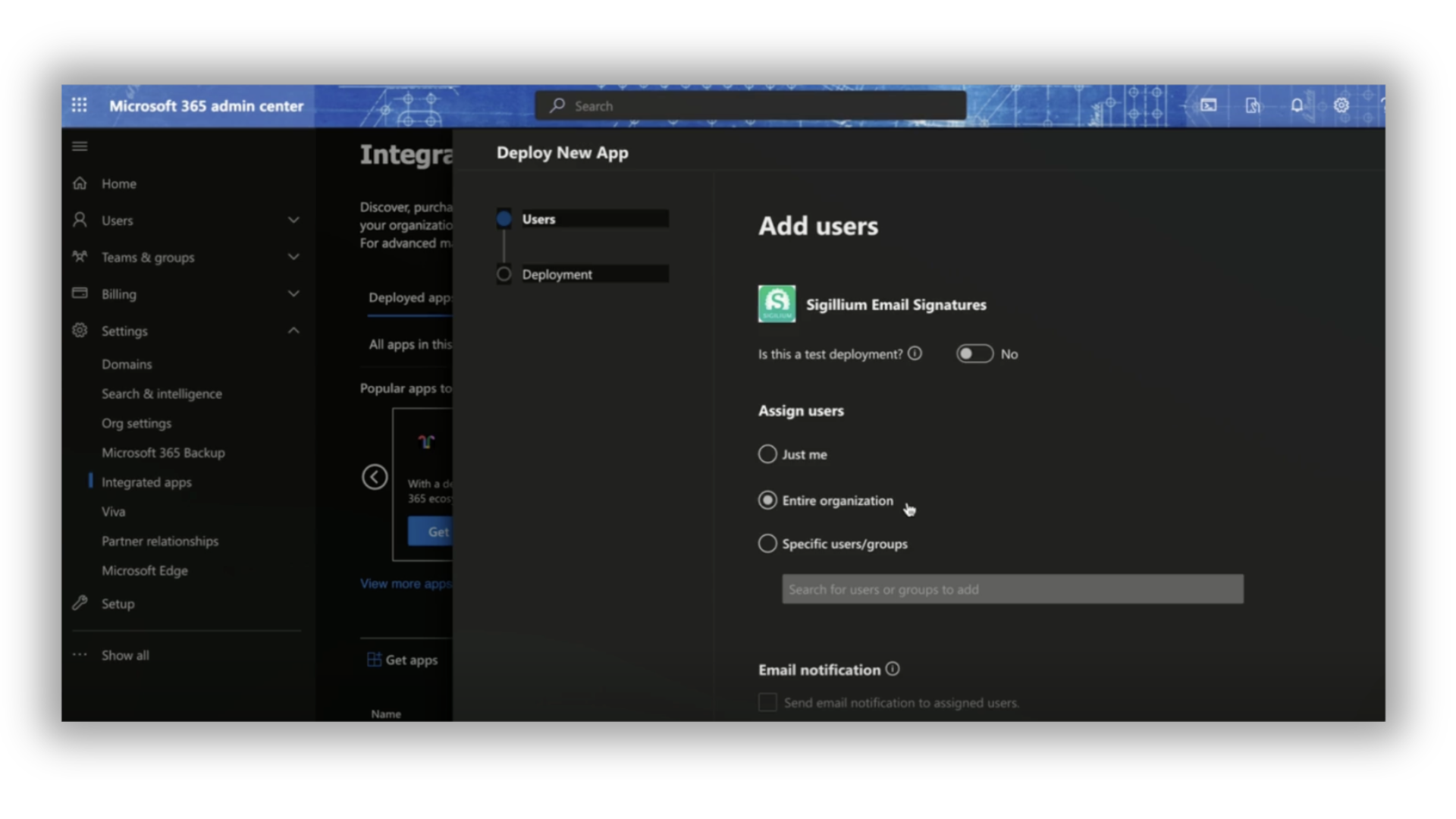
7. Click on Next and Accept the permissions on behalf of the users.
8. Click on Finish deployment and you're set.
✅ Congrats, Sigilium is now synced with Outlook / M.365 !
You can now activate the deployment of email signatures from the Settings menu of your Sigilium's account. And send an automatic installation message to users from the Users page.
Users > Select the list of users > Send installation instructions
when composing a new email, the new (and shinny) email signature appears
users can edit the signature details directly
each update on Sigilium side (banners, design or details update) is directly sync and deployed
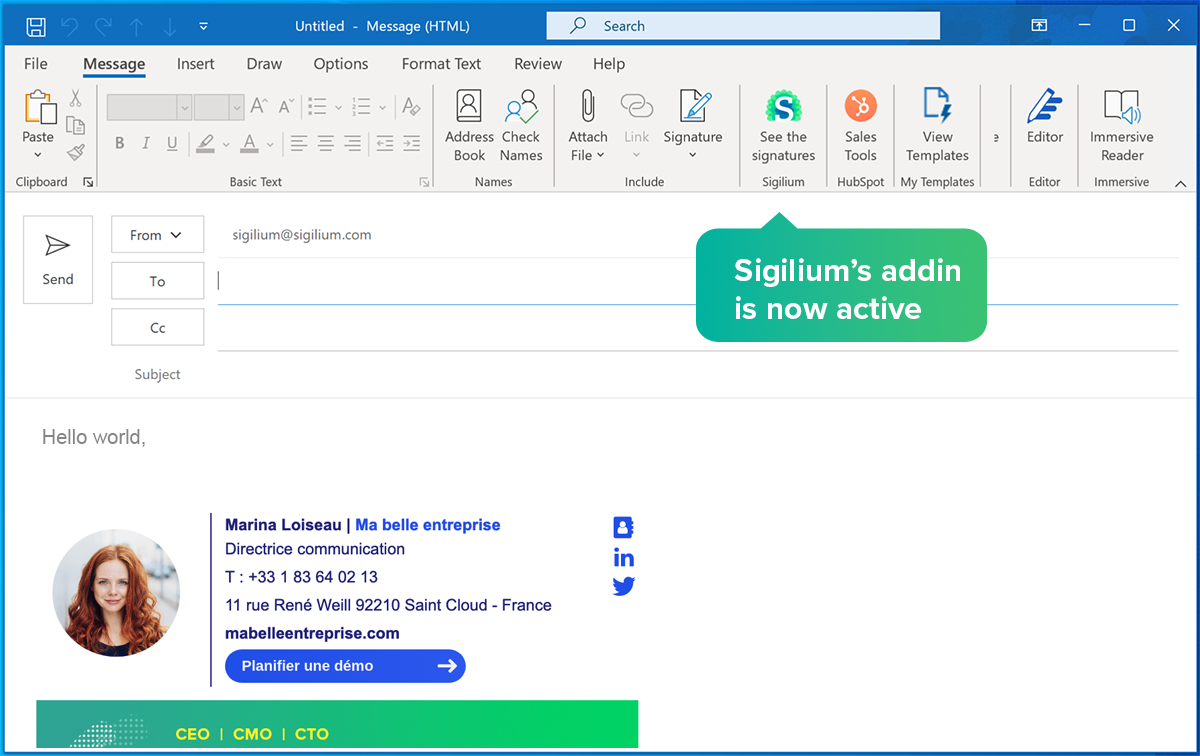
If you have one or multiple signatures sync, they are available directly.

Any questions ?
You can describe your problem orally in a few seconds leaving a message on the
+33 1 83 64 02 13
You would rather write it down? We are happy to help in response to your email at