
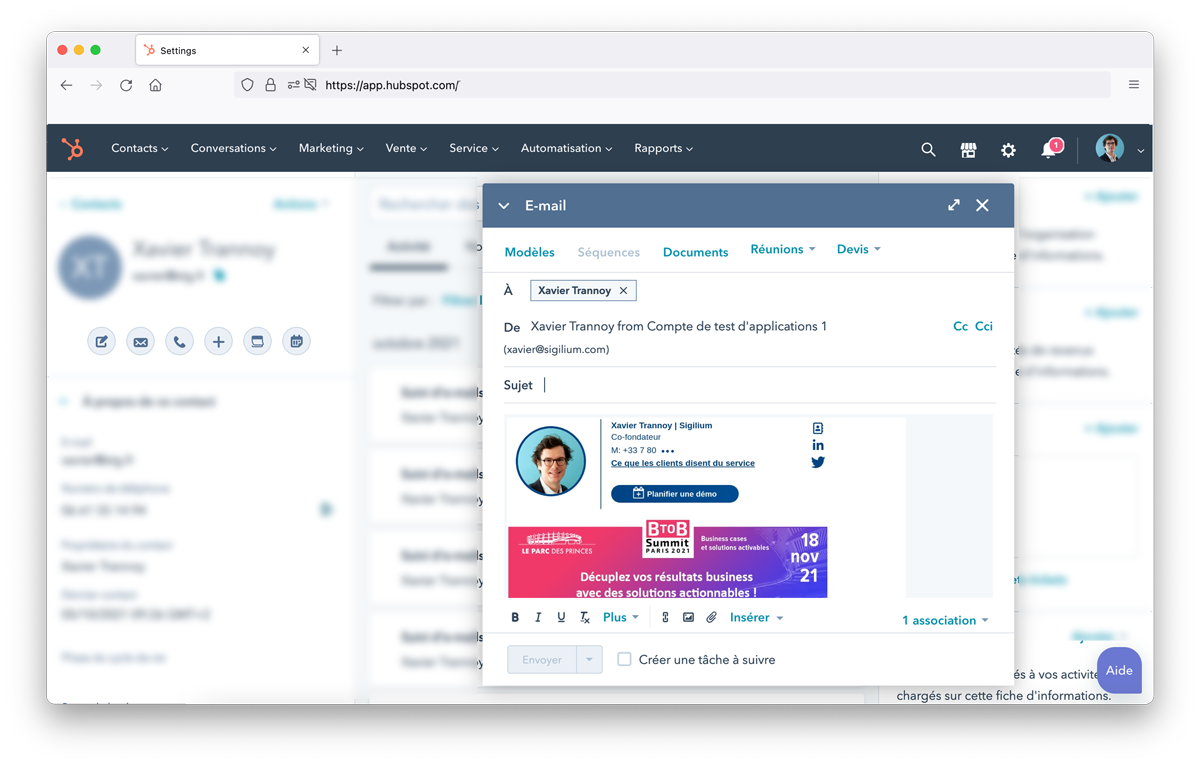
In both cases, you can have a synchronized email signature thanks to Sigilium.
Here is how to do it :
1. Configuring a synchronized email signature in HubSpot for shared email addresses.
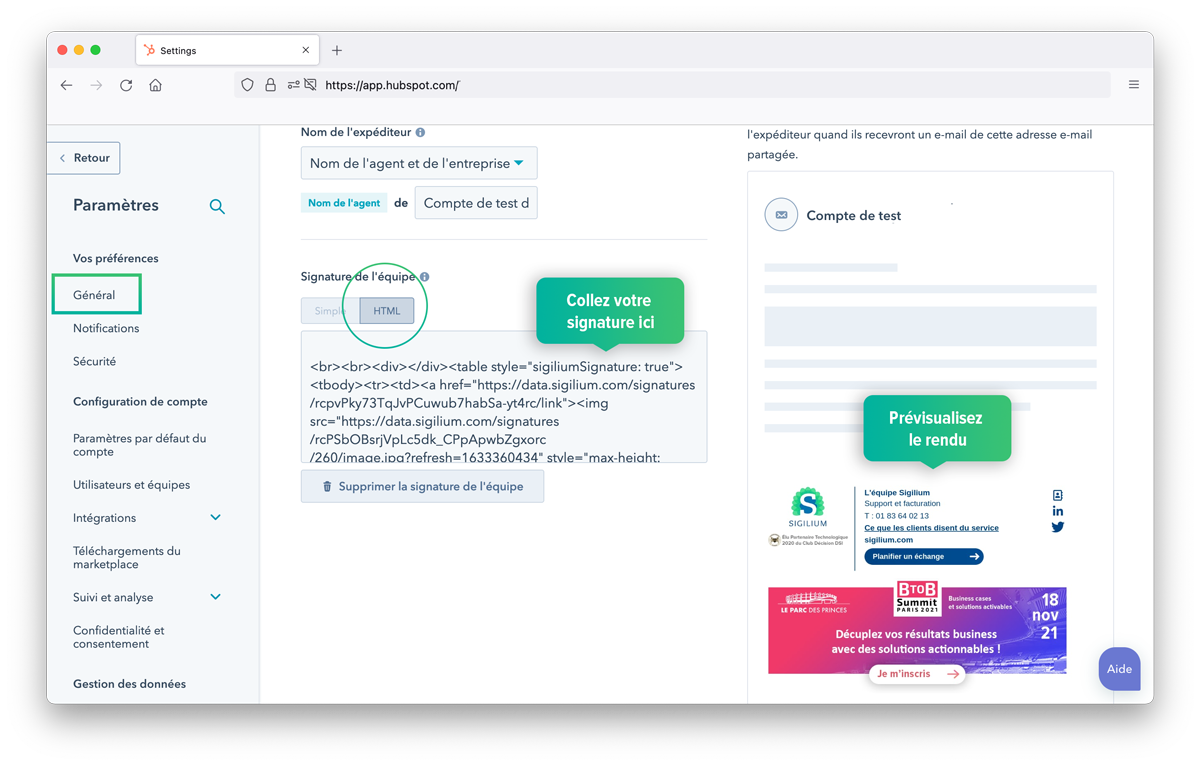
For shared email addresses (e.g., contact@ or support@...), configuration is done during the initial synchronization of the email address with Hubspot. However, you can access it at any time:
Preferences > General > Email > Inbox settings > Edit
Click on add an email signature
Make sure HTML mode is selected.
Copy the email signature (PNG version recommended for auto-update) into the box provided.
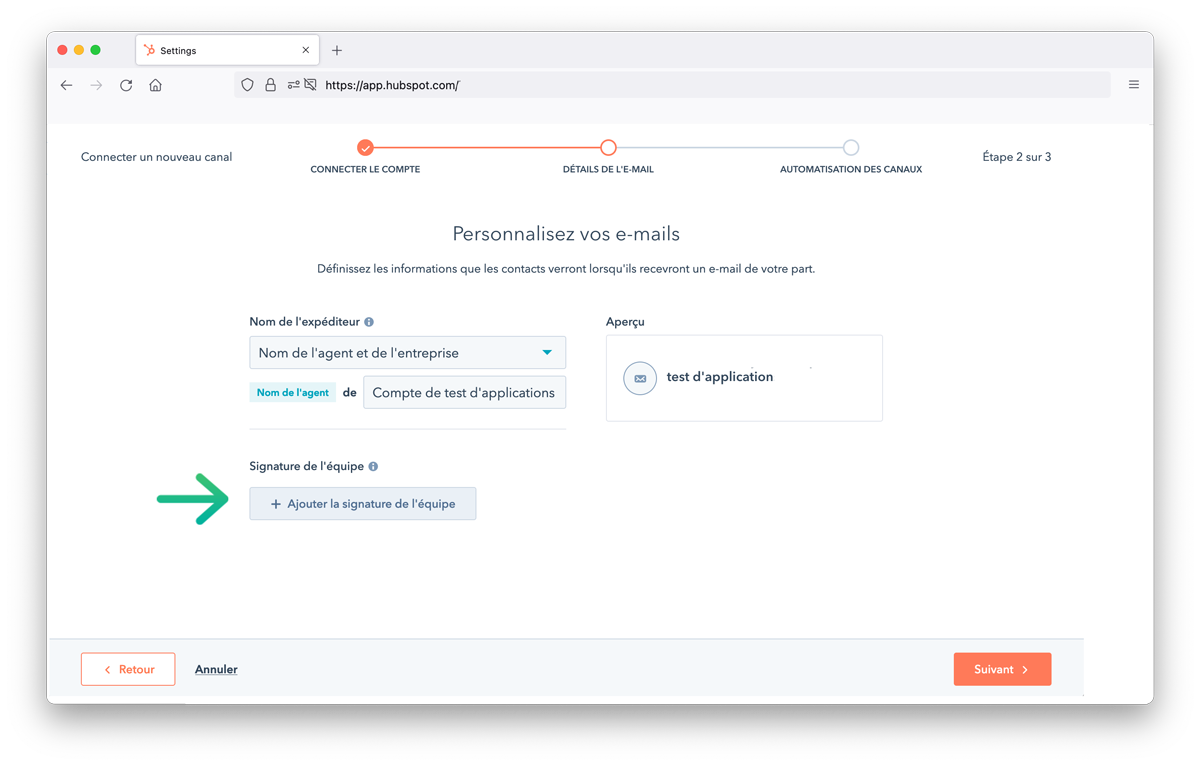
If you have not yet configured your email address, the signature configuration is offered directly during the initial configuration (see screenshot).
2. Configuring a synchronized email signature in HubSpot for personalized email addresses.
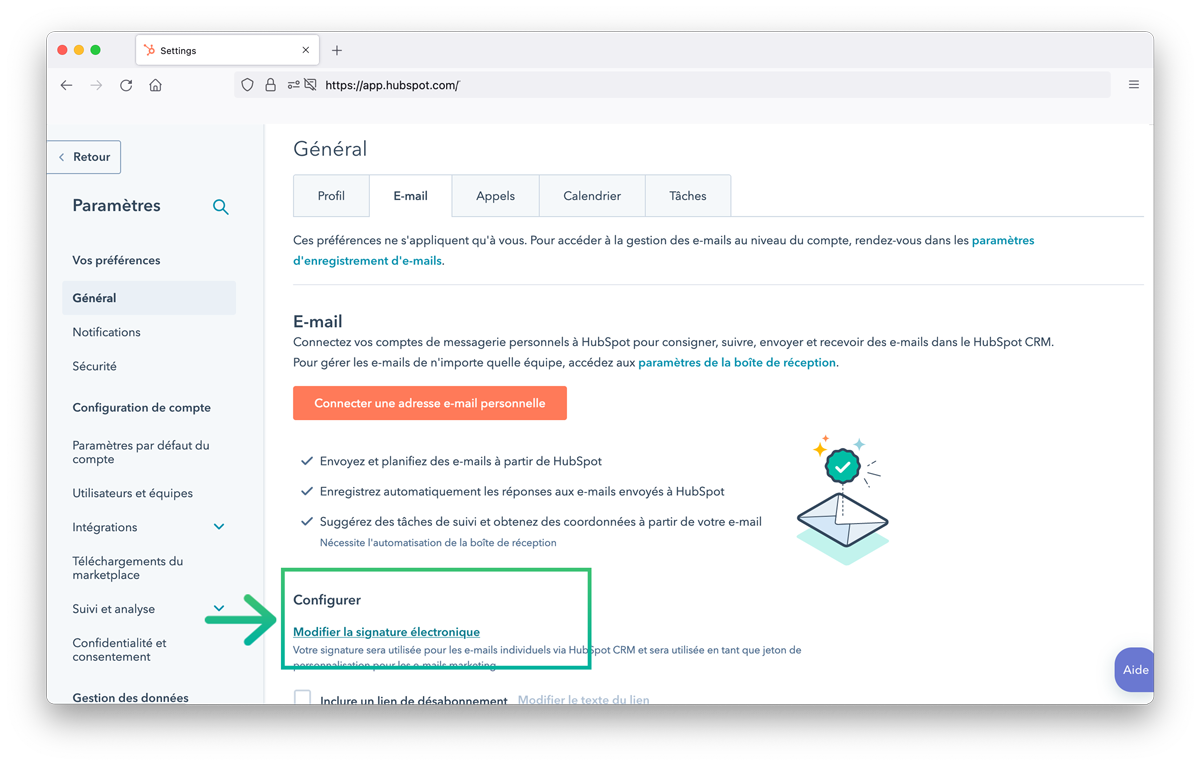
Adding a synchronized email signature for personal exchanges, with an assigned contact, can be done in the user's account settings.
Preferences > General > Email > Edit email signature
Click on Add an email signature
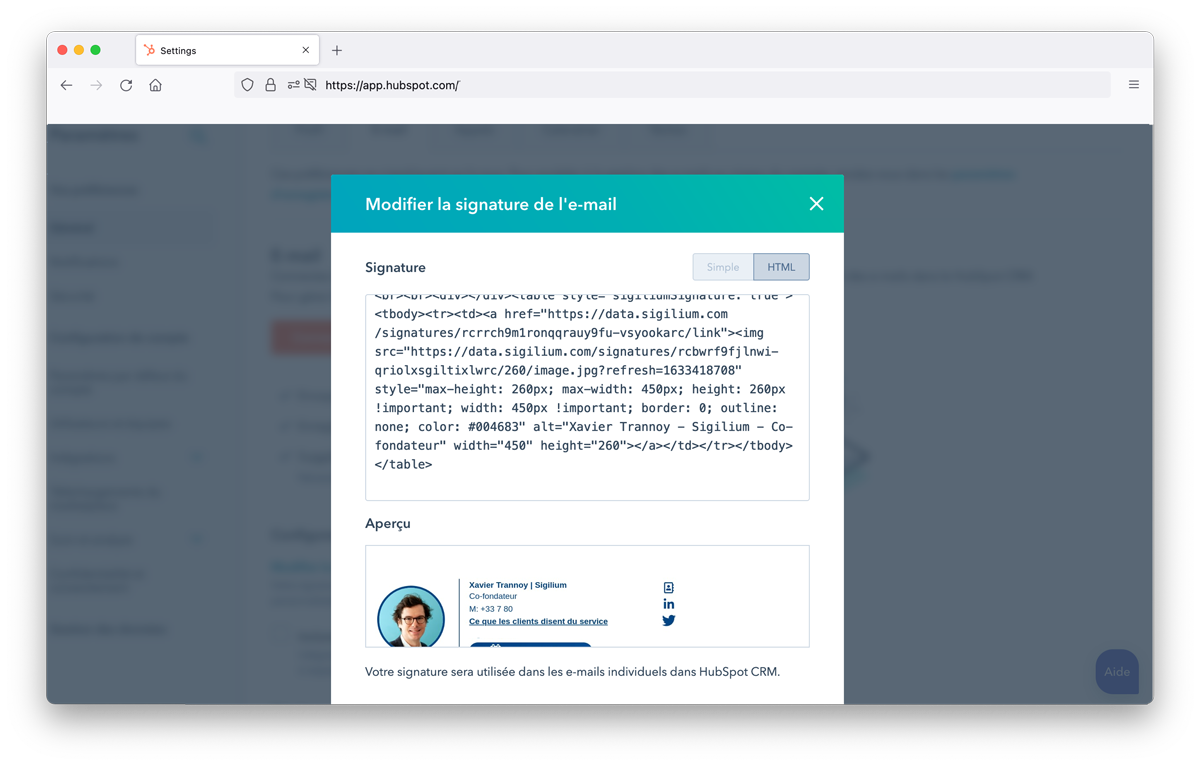
Check that HTML mode is selected.
Copy the email signature (PNG version recommended for auto-updates) into the box provided.
Any questions ?
You can describe your problem orally in a few seconds leaving a message on the
+33 1 83 64 02 13
You would rather write it down? We are happy to help in response to your email at