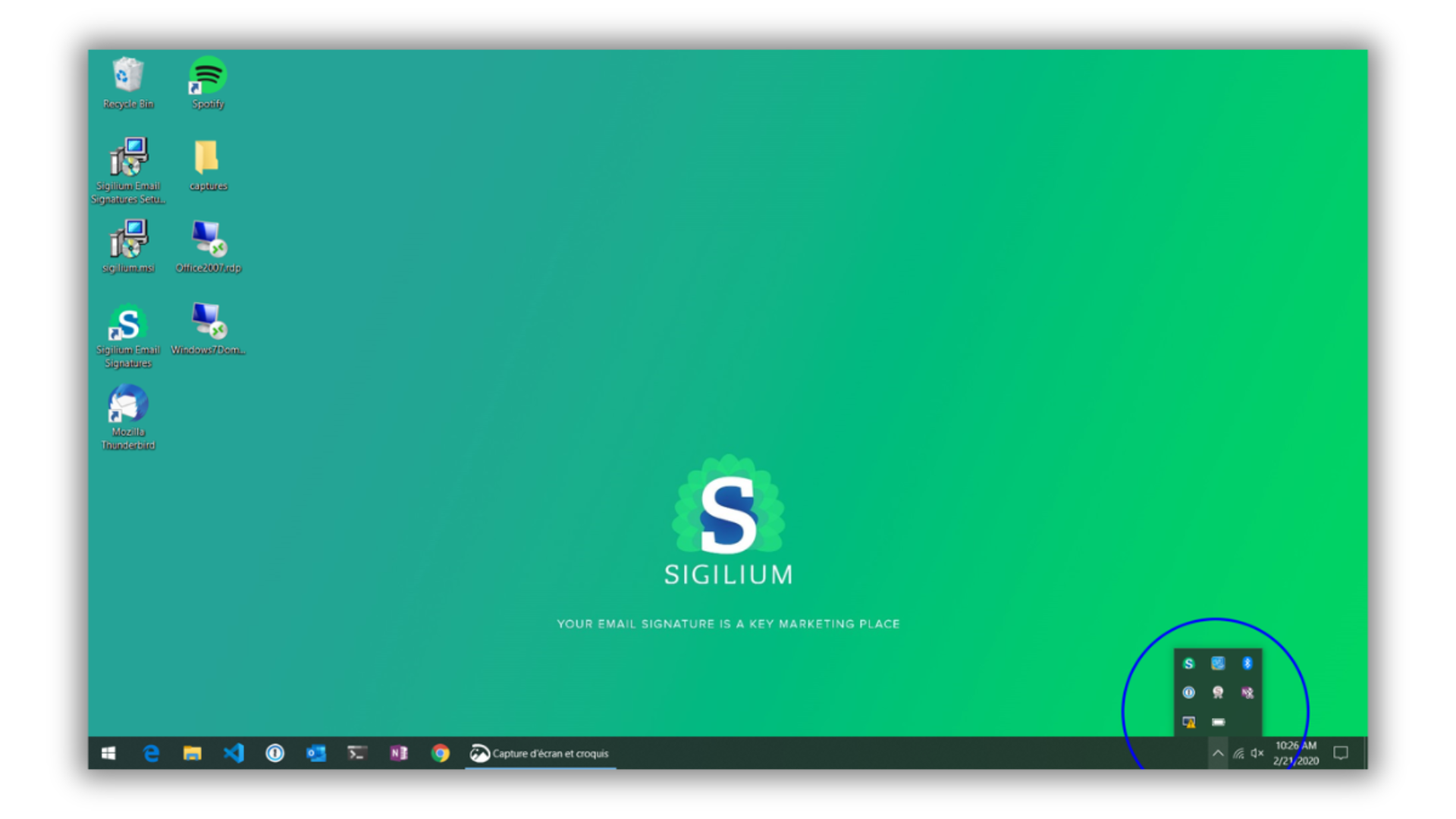
On PC, find it on your menu bar
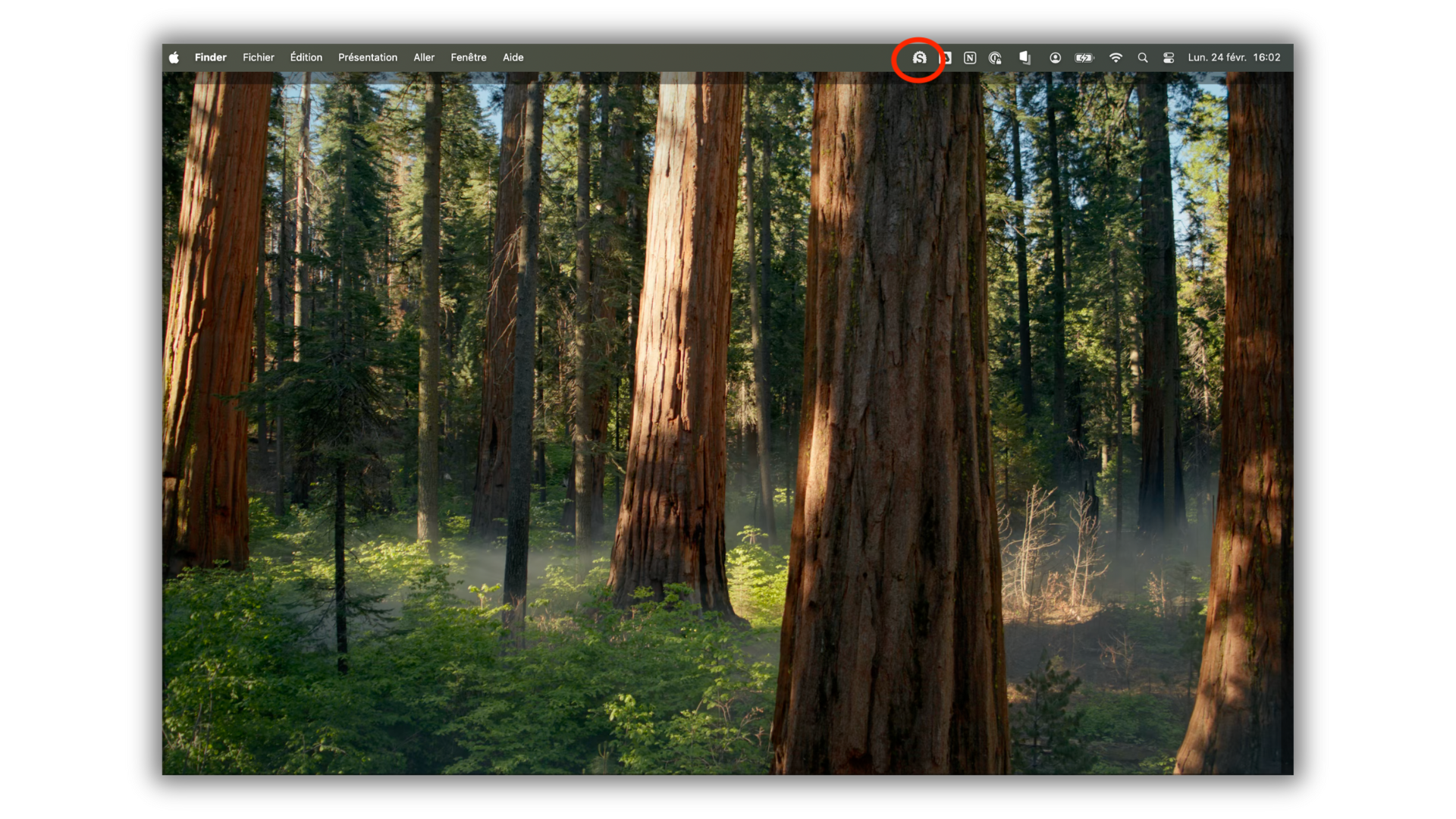
on Mac, there is an icon in your menu bar at the top
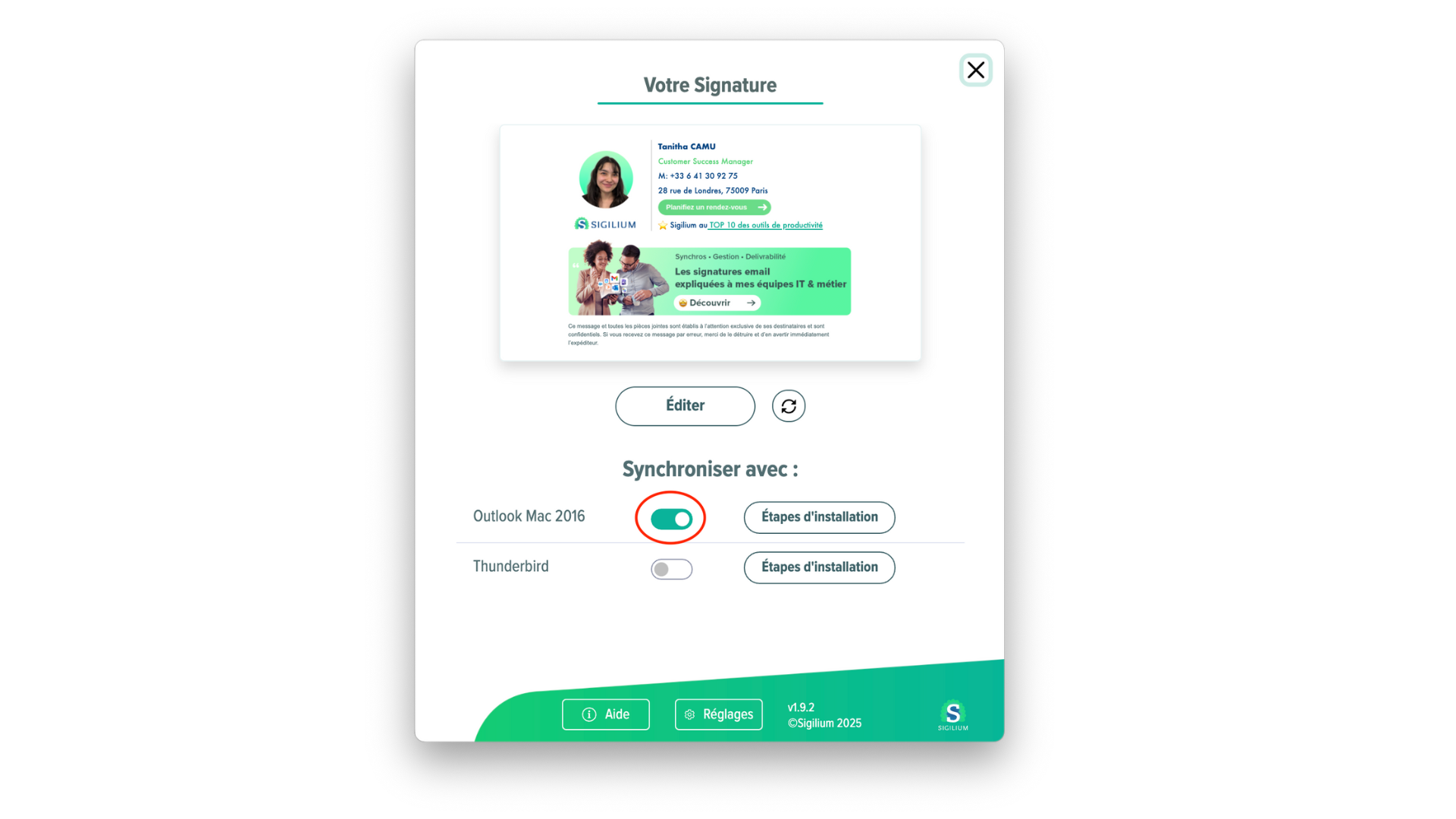
Click twice on the activation button (cf screen-shot)
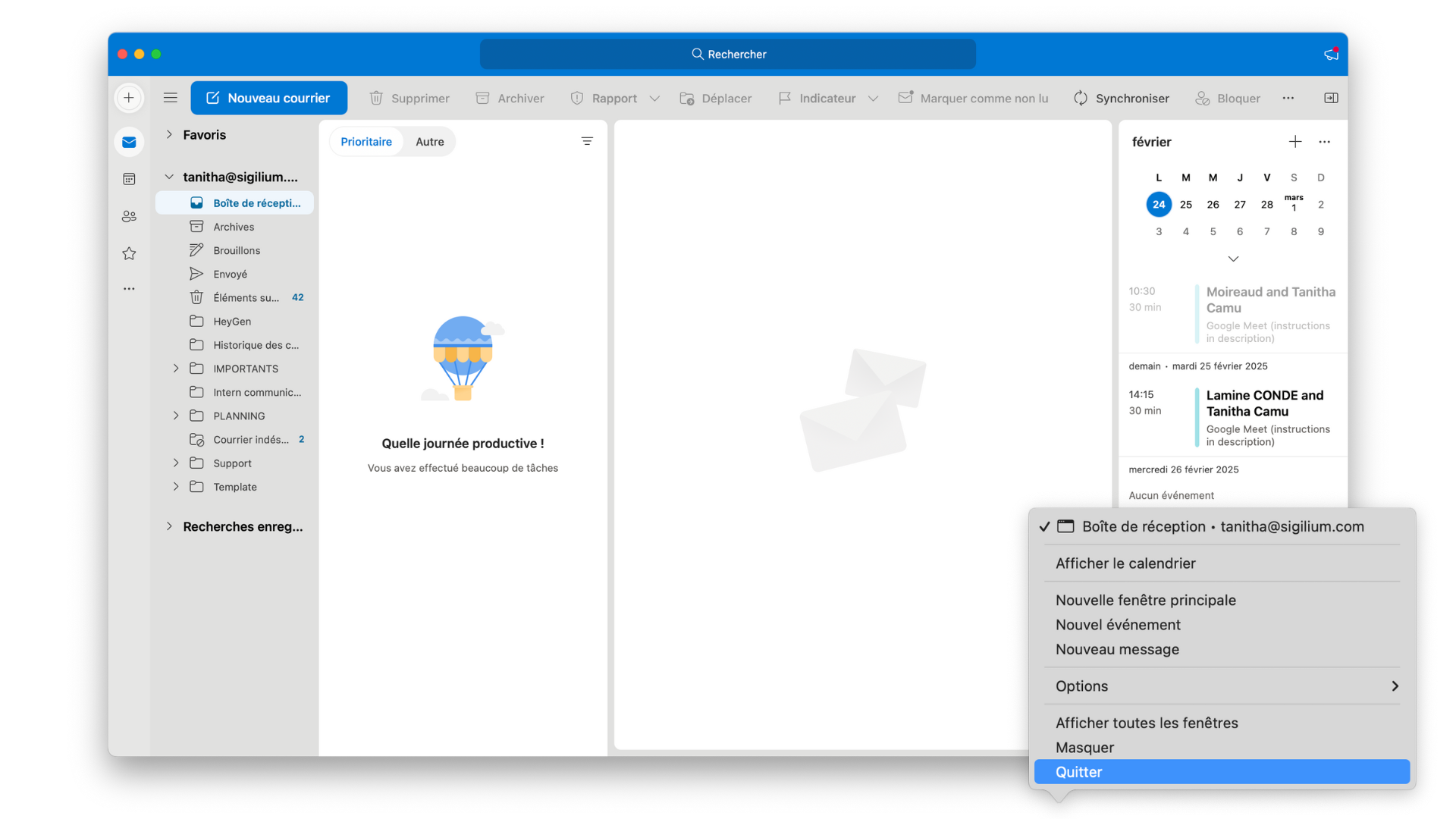
Then quit and reboot Outlook
your new signature appears on the signatures list
select the up to date signature by default, for your New messages, Transfers/Replies
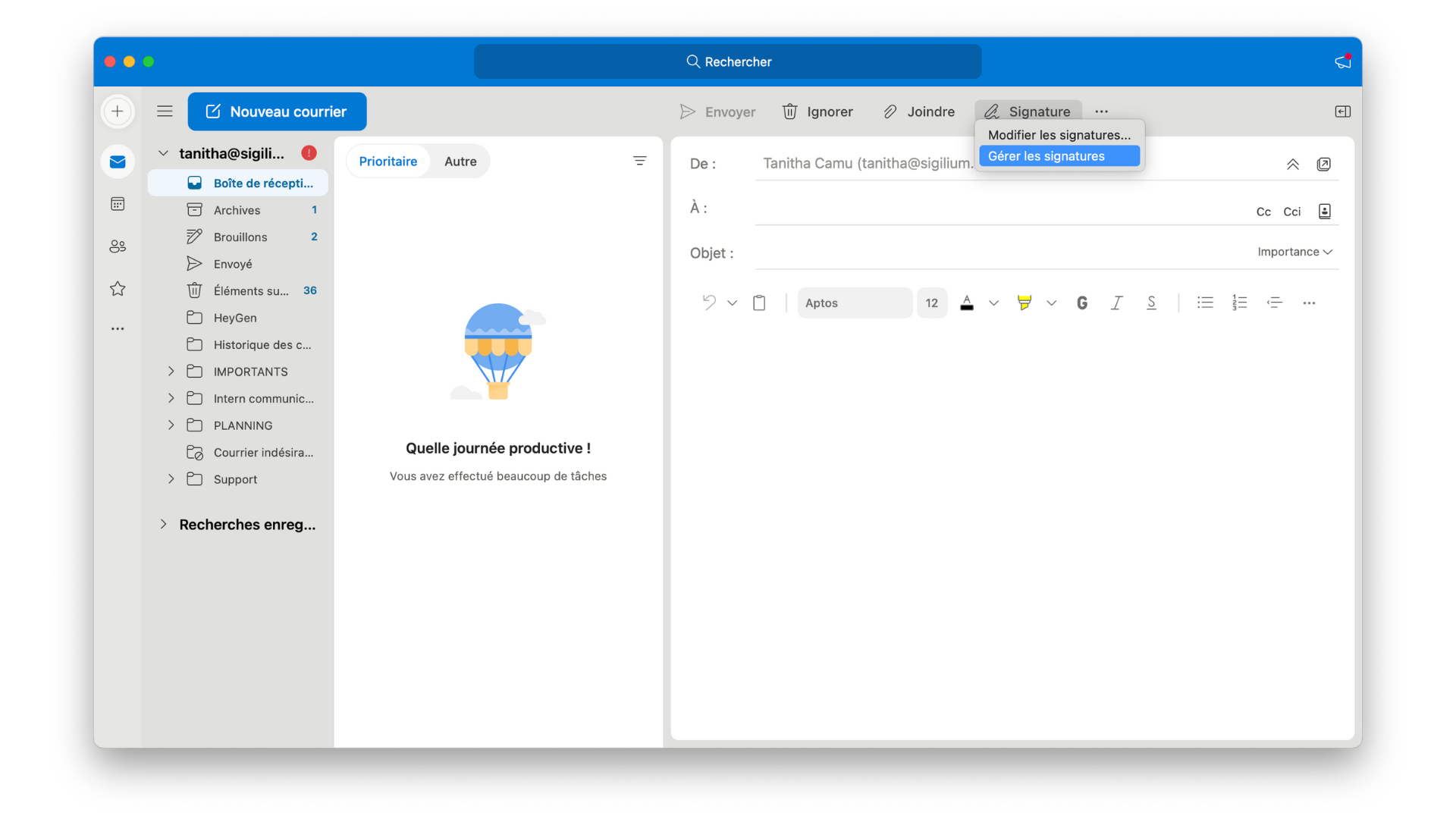
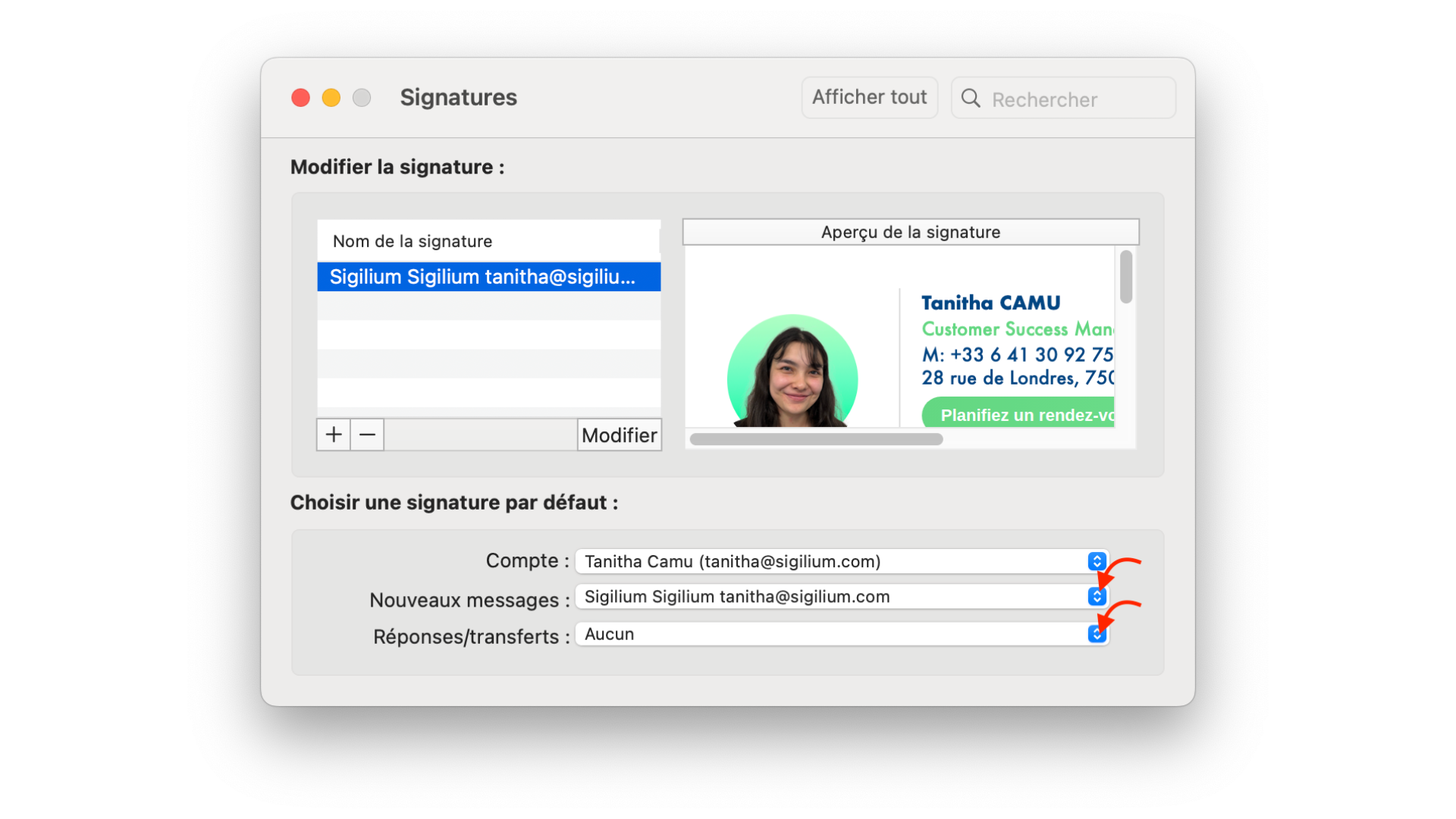
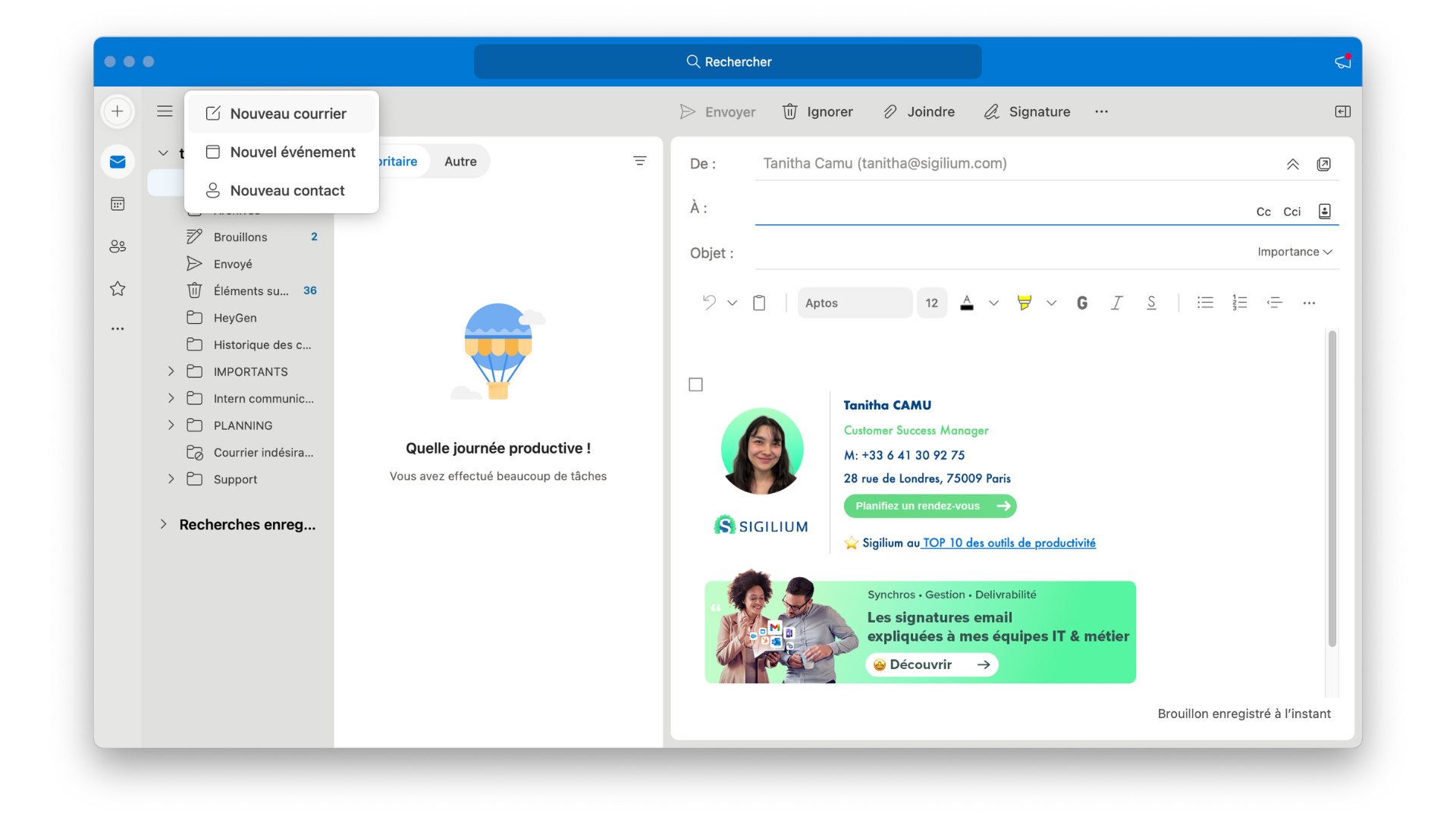
If your signature isn't displayed still, report to the section 4 -
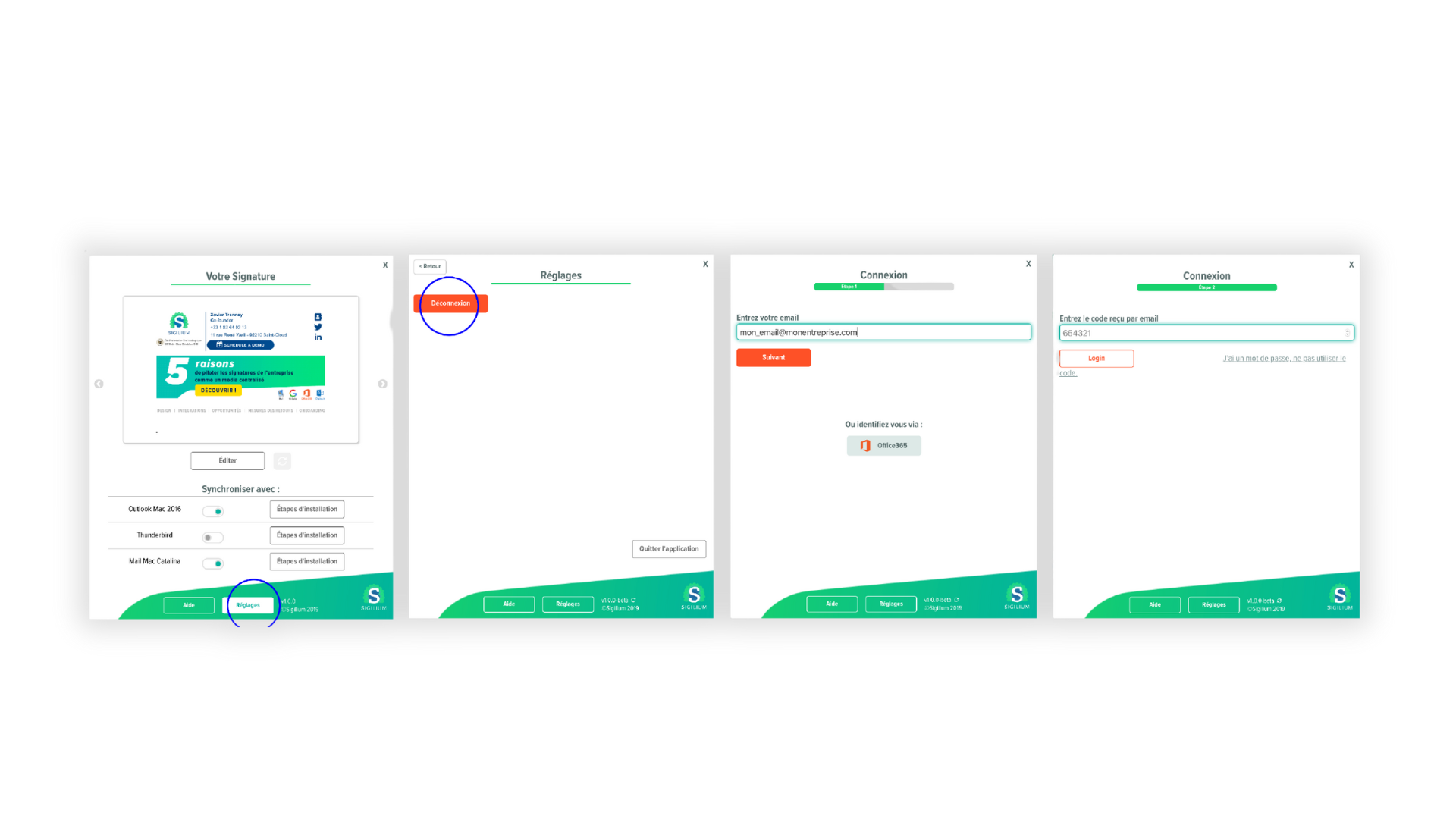
In the Sigilium App, click at the bottom on Settings > Disconnect
Enter your email then enter the 6 digits authentification code received by email
Quit and Reboot Outlook and open a new mail
In the Signature Section, your new signature appears on the list
Select this signature by default for your New Messages and Transfers/Replies
Any questions ?
You can describe your problem orally in a few seconds leaving a message on the
+33 1 83 64 02 13
You would rather write it down? We are happy to help in response to your email at